> ## Documentation Index
> Fetch the complete documentation index at: https://docs.activeviam.com/llms.txt
> Use this file to discover all available pages before exploring further.
# Unlocking all features
Some Atoti features are not available in the community edition.
You need to get a license and set it up to unlock the following features:
* [Security](./securing_a_session)
* [DirectQuery](./using_directquery)
* [Distribution](./scaling_with_distribution)
* [App extension](./extending_the_app)
* [`Internationalization`](../api/atoti.config.i18n_config#atoti.I18nConfig)
* [`Built-in HTTPS`](../api/atoti.config.security.https_config#atoti.HttpsConfig)
## Requesting an evaluation license
If you are not yet an ActiveViam customer and want to evaluate the full version of Atoti, you can request an evaluation license.
[Register here](https://atoti.activeviam.com/evaluation-license-request/) and you will get back an email containing a license key.
To set up this license key, store it in an [environment variable](https://en.wikipedia.org/wiki/Environment_variable) named `ATOTI_LICENSE`.
For instance: `ATOTI_LICENSE="A8/nqkXXOMy9uf1EdQ472F…"`
## Using your ActiveViam customer license
If you are already an ActiveViam customer, you can use the license file that has been provided to you (named `AtotiLicense.lic` for instance).
Copy this file in a directory of the computer where you will be running Atoti and store its path in an [environment variable](https://en.wikipedia.org/wiki/Environment_variable) named `ATOTI_LICENSE`.
For instance: `ATOTI_LICENSE="C:\Users\…\AtotiLicense.lic"`
## Declaring the ATOTI\_LICENSE environment variable
The best way to declare the `ATOTI_LICENSE` environment variable is at the OS level since that makes it available to all the programs.
If you cannot do this, there are some alternatives:
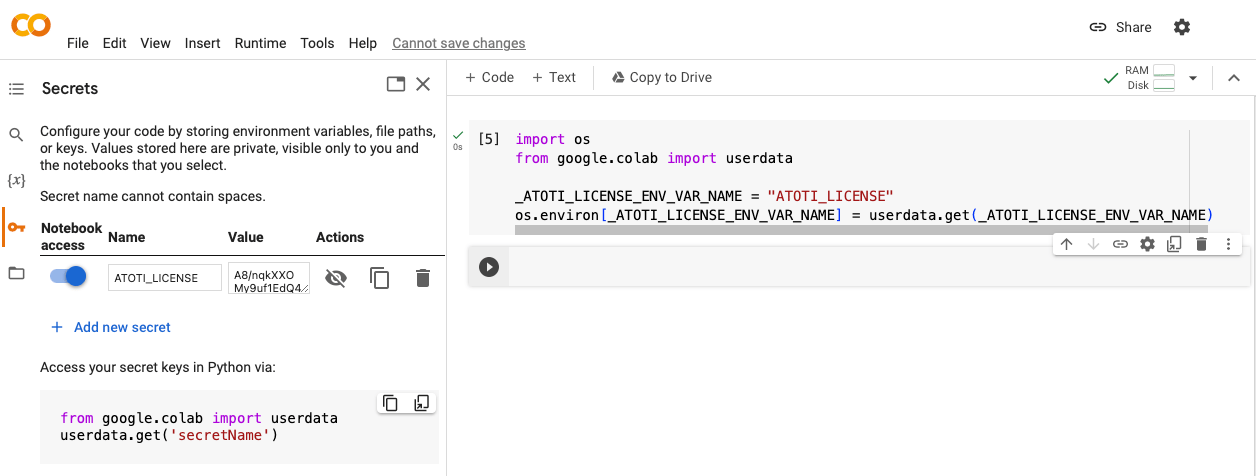
* In Google Colab or similar services, declare the variable through secrets:
 * Use [dotenv](https://pypi.org/project/python-dotenv) to declare the variable in a `.env` file
* As a last resort, inline the variable in the Python script:
```python theme={"languages":{"custom":["/engine/python-sdk/0.9/languages/pycon.tmLanguage.json"]}}
import os
os.environ["ATOTI_LICENSE"] = "A8/nqkXXOMy9uf1EdQ472F…"
import atoti as tt
session = tt.Session.start()
...
```
## Converting a license file to a license key
If you have a license file but prefer the portability of a license key, you can do the conversion with this script:
```python theme={"languages":{"custom":["/engine/python-sdk/0.9/languages/pycon.tmLanguage.json"]}}
import os
from base64 import b64encode
from pathlib import Path
license_file_path = Path("C:\Users\…\AtotiLicense.lic")
assert license_file_path.exists(), f"{license_file_path} does not exist"
license_key = b64encode(license_file_path.read_bytes()).decode()
print(license_key)
```
## Testing the license setup
You can test that the license key/file is valid and has been set up correctly by running the following script:
```pycon theme={"languages":{"custom":["/engine/python-sdk/0.9/languages/pycon.tmLanguage.json"]}}
>>> import os
>>> import atoti as tt
>>> assert "ATOTI_LICENSE" in os.environ, (
... "Atoti license key not found, try restarting the Python process"
... )
>>> session = tt.Session.start()
```
* Use [dotenv](https://pypi.org/project/python-dotenv) to declare the variable in a `.env` file
* As a last resort, inline the variable in the Python script:
```python theme={"languages":{"custom":["/engine/python-sdk/0.9/languages/pycon.tmLanguage.json"]}}
import os
os.environ["ATOTI_LICENSE"] = "A8/nqkXXOMy9uf1EdQ472F…"
import atoti as tt
session = tt.Session.start()
...
```
## Converting a license file to a license key
If you have a license file but prefer the portability of a license key, you can do the conversion with this script:
```python theme={"languages":{"custom":["/engine/python-sdk/0.9/languages/pycon.tmLanguage.json"]}}
import os
from base64 import b64encode
from pathlib import Path
license_file_path = Path("C:\Users\…\AtotiLicense.lic")
assert license_file_path.exists(), f"{license_file_path} does not exist"
license_key = b64encode(license_file_path.read_bytes()).decode()
print(license_key)
```
## Testing the license setup
You can test that the license key/file is valid and has been set up correctly by running the following script:
```pycon theme={"languages":{"custom":["/engine/python-sdk/0.9/languages/pycon.tmLanguage.json"]}}
>>> import os
>>> import atoti as tt
>>> assert "ATOTI_LICENSE" in os.environ, (
... "Atoti license key not found, try restarting the Python process"
... )
>>> session = tt.Session.start()
```