> ## Documentation Index
> Fetch the complete documentation index at: https://docs.activeviam.com/llms.txt
> Use this file to discover all available pages before exploring further.
# How to use Tableau Adapter
This feature is experimental, and requires this option to be enabled
`-Dactiveviam.feature.experimental.atoti_sql_server.enabled=true`.
## How to activate the Atoti Tableau Adapter
To activate the Atoti Tableau Adapter you need to follow these steps:
### 1. Add the SQL Bridge artifact to your project
Include the following dependency in your `pom.xml` file:
```xml theme={"languages":{"custom":["/engine/python-sdk/0.9/languages/pycon.tmLanguage.json"]}}
com.activeviam.activepivot
activepivot-server-sql-bridge
${project.version}
```
### 2. Choose an appropriate listening port
By default, the server listens for SQL queries on port **5432**. This port number can be modified by
setting the `atoti.server.sql-bridge.port` property of your Atoti application.
## How to connect Tableau to Atoti
This guide explains how to connect Tableau (Desktop or Cloud) to an Atoti server using the PostgreSQL JDBC driver.
Only User/Password authentication is supported.
### What you need before starting
To connect Tableau to Atoti, ensure the following prerequisites are met:
* **PostgreSQL JDBC driver**: Required for Tableau Desktop. The **42.7.7** version of the
driver is the only one guaranteed to work with Atoti. This version may be upgraded in any bugfix
release. However, if you have tested a more recent version and it does not work, please open a support ticket.
* **Atoti server configuration**: The Tableau adapter needs to be activated on the [server](#how-to-activate-the-atoti-tableau-adapter)
### Connection steps
Follow these steps to connect Tableau Desktop to an Atoti server:
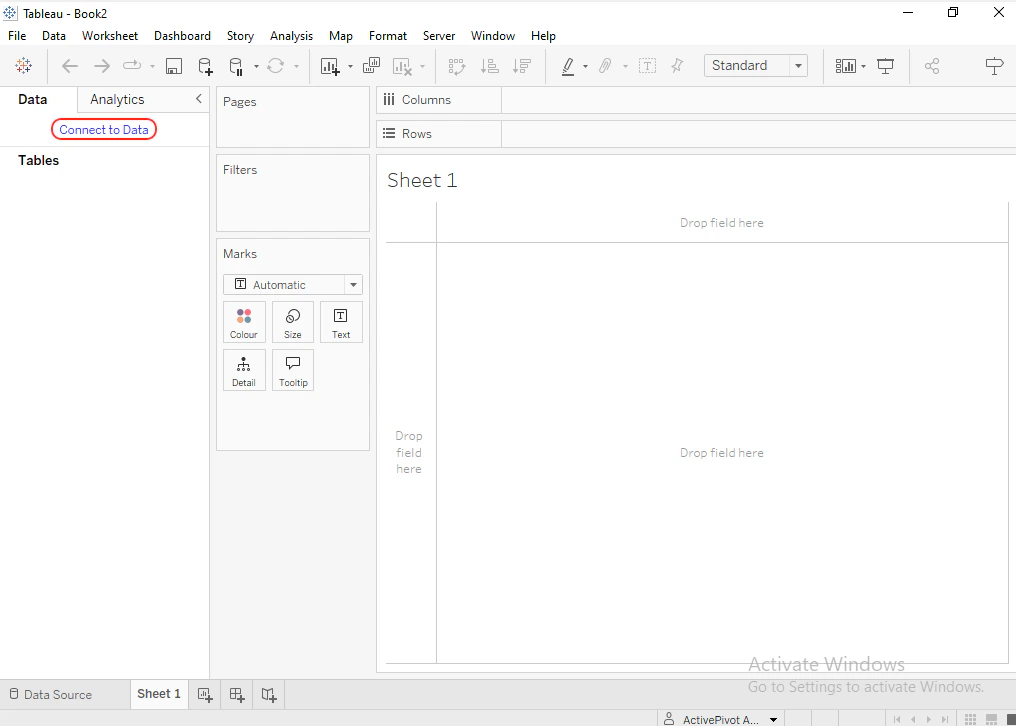
1. **Open Tableau Desktop** and create a new file.
2. Click **Connect to Data** in the upper-left corner.
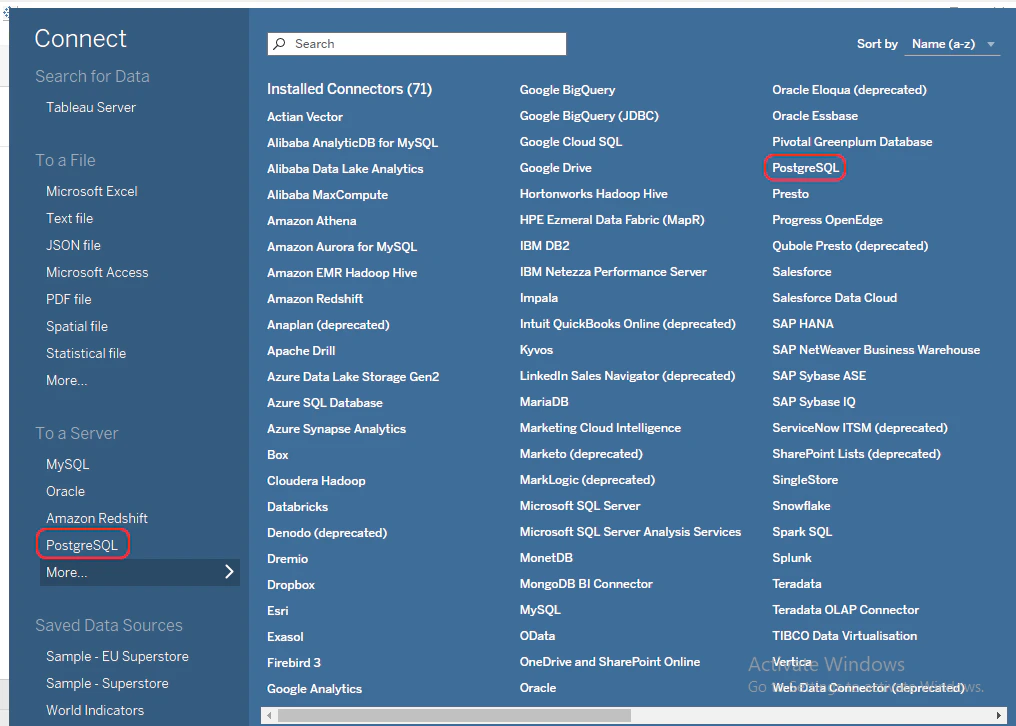
 3. From the list of connectors, select **PostgreSQL**.
 4. Fill in the required connection details:
* **Address**: IP address of the Atoti server.
* **Port**: Port used by the PostgreSQL wire protocol (default is `5432`). If changed, refer to
the `atoti.server.sql-bridge.port` property of your Atoti application.
* **Database**: Always set to `atoti`.
* **Authentication**: Choose your preferred authentication method.
4. Fill in the required connection details:
* **Address**: IP address of the Atoti server.
* **Port**: Port used by the PostgreSQL wire protocol (default is `5432`). If changed, refer to
the `atoti.server.sql-bridge.port` property of your Atoti application.
* **Database**: Always set to `atoti`.
* **Authentication**: Choose your preferred authentication method.
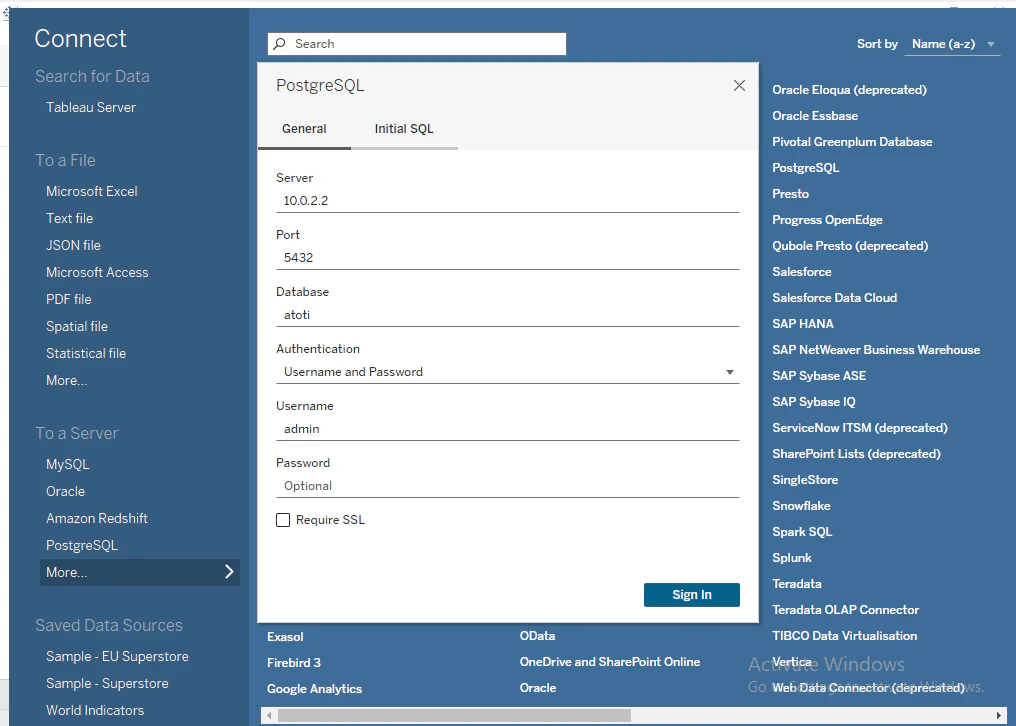 5. Click **Connect** to establish the connection.
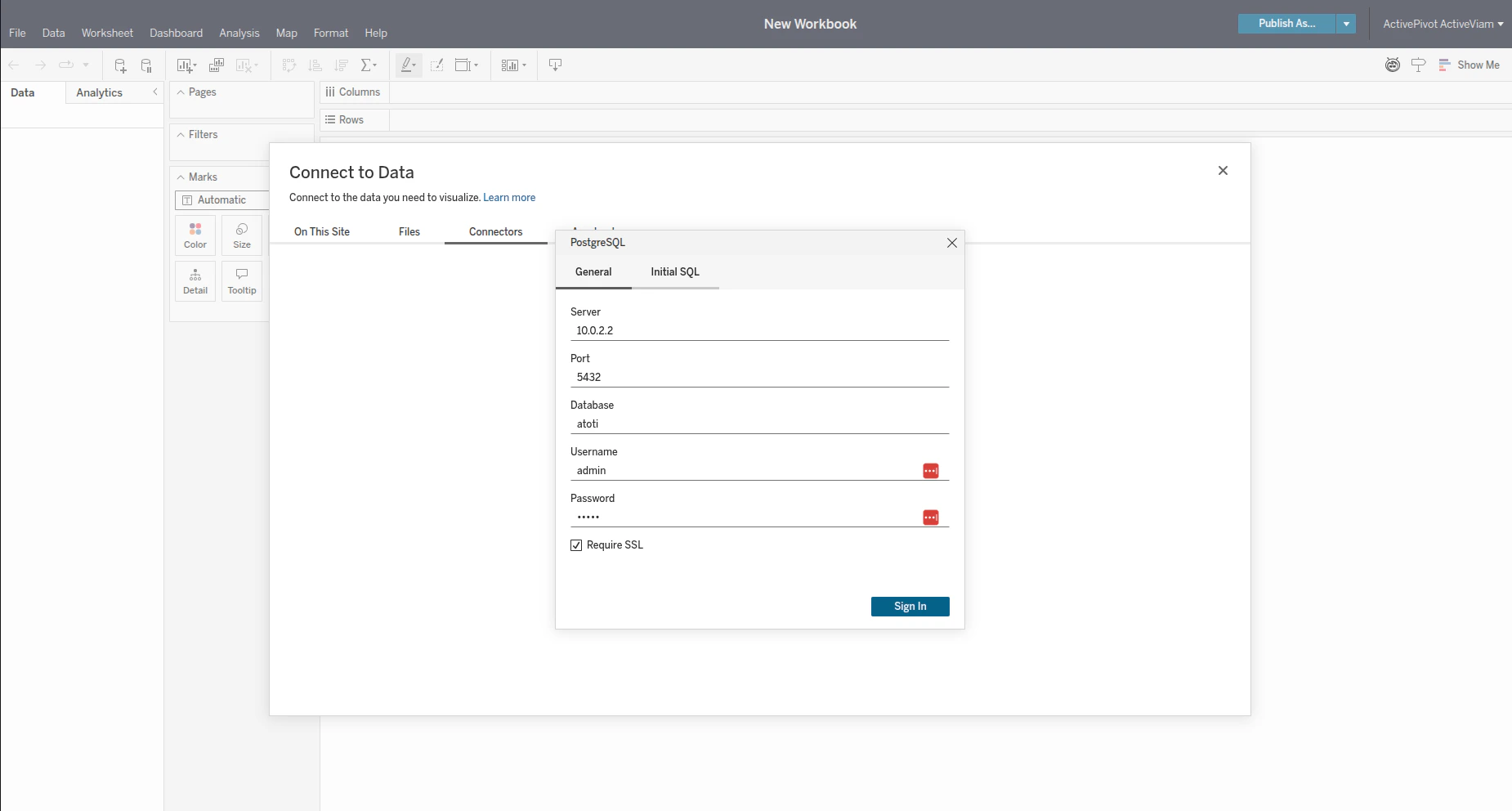
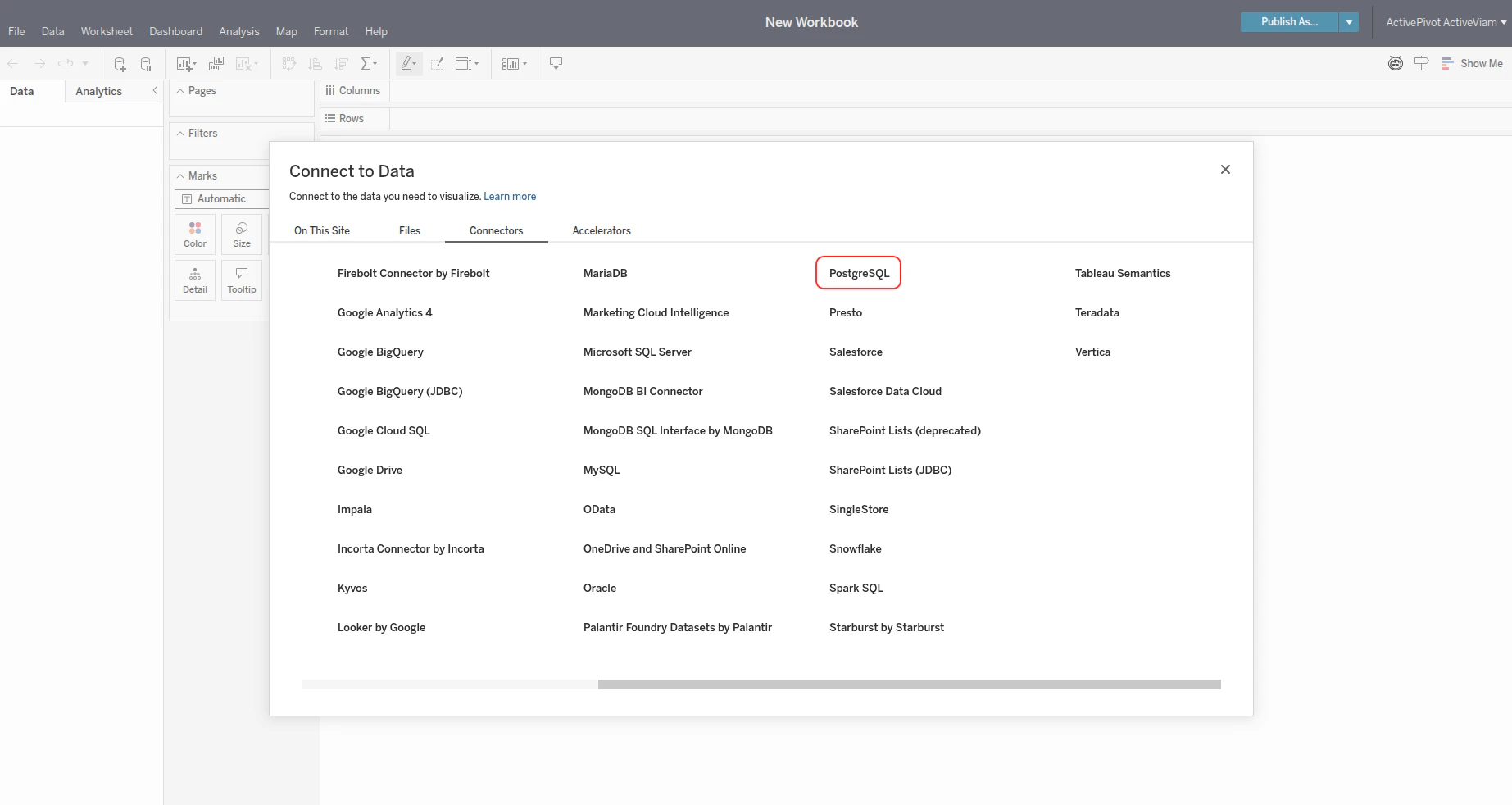
To connect Tableau Cloud to an Atoti server:
1. Open a new workbook in Tableau Cloud.
2. Click **Connect to Data**, then select **Connectors**.
3. Choose the **PostgreSQL** connector.
5. Click **Connect** to establish the connection.
To connect Tableau Cloud to an Atoti server:
1. Open a new workbook in Tableau Cloud.
2. Click **Connect to Data**, then select **Connectors**.
3. Choose the **PostgreSQL** connector.
 4. Provide the same connection details as for Tableau Desktop:
* **Address**
* **Port**
* **Database**
* **Authentication**: Only **username and password** authentication is supported in Tableau Cloud.
4. Provide the same connection details as for Tableau Desktop:
* **Address**
* **Port**
* **Database**
* **Authentication**: Only **username and password** authentication is supported in Tableau Cloud.