> ## Documentation Index
> Fetch the complete documentation index at: https://docs.activeviam.com/llms.txt
> Use this file to discover all available pages before exploring further.
# Home page
> What the Atoti UI home page provides for managing dashboards in list and grid views, including creating new dashboards, opening, moving, sharing, and deleting dashboards from the context menu, organizing them in folders, and searching via the navigation bar.
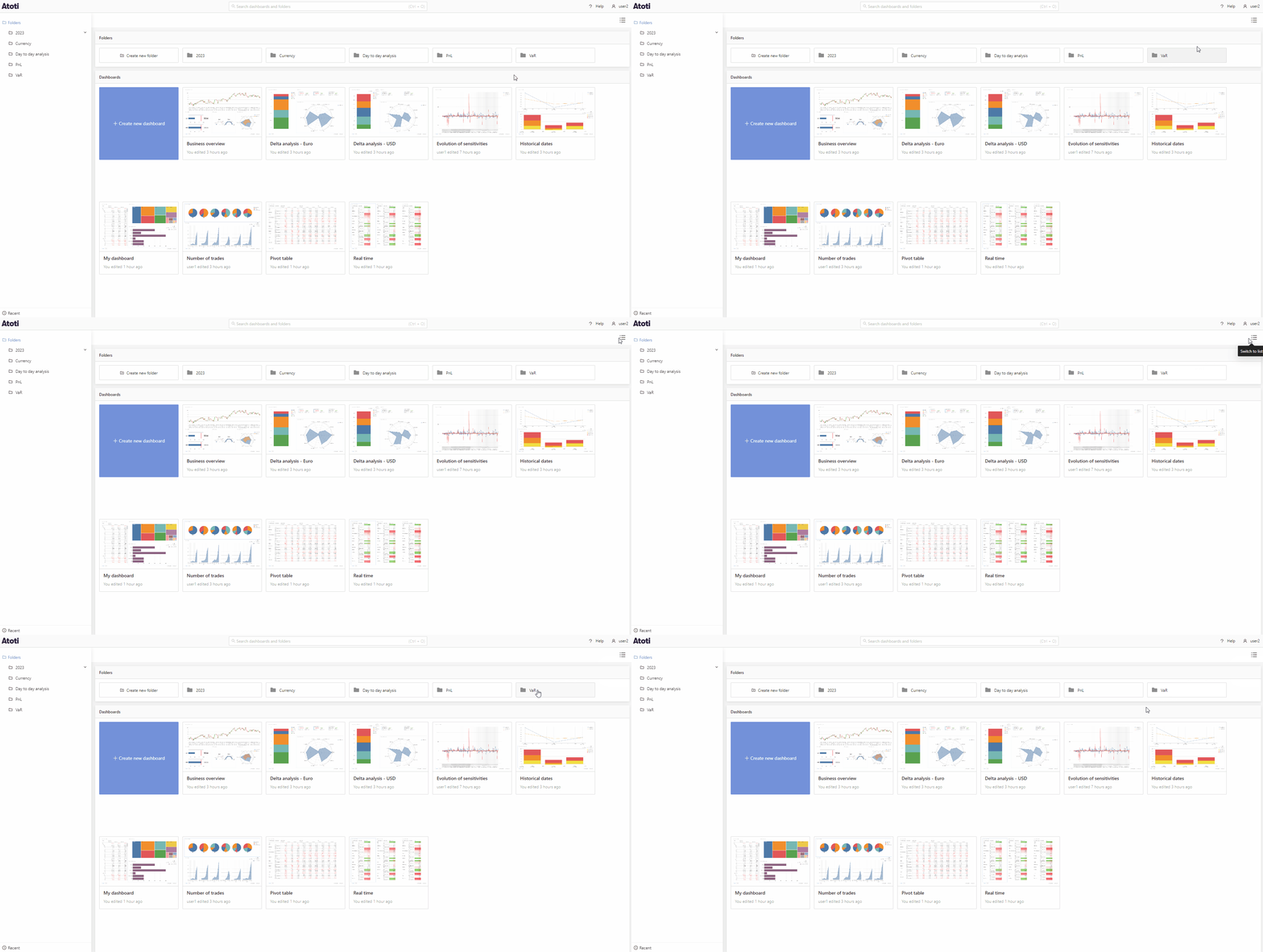
The Atoti UI home page is a place to manage all your [dashboards](../create-a-dashboard/dashboards). It is available in list or grid view, you can switch between these options by clicking the button in the top right corner.
 ## Quick tour
In grid view, create a new dashboard by clicking the blue **Create new dashboard** tile. To open an existing dashboard, double-click on the dashboard tile. Right-click anywhere on the tile or left-click the three dots found in the top right corner when hovering over the tile to open the context menu. From here you can share, delete or move your dashboard to a different folder.
## Quick tour
In grid view, create a new dashboard by clicking the blue **Create new dashboard** tile. To open an existing dashboard, double-click on the dashboard tile. Right-click anywhere on the tile or left-click the three dots found in the top right corner when hovering over the tile to open the context menu. From here you can share, delete or move your dashboard to a different folder.
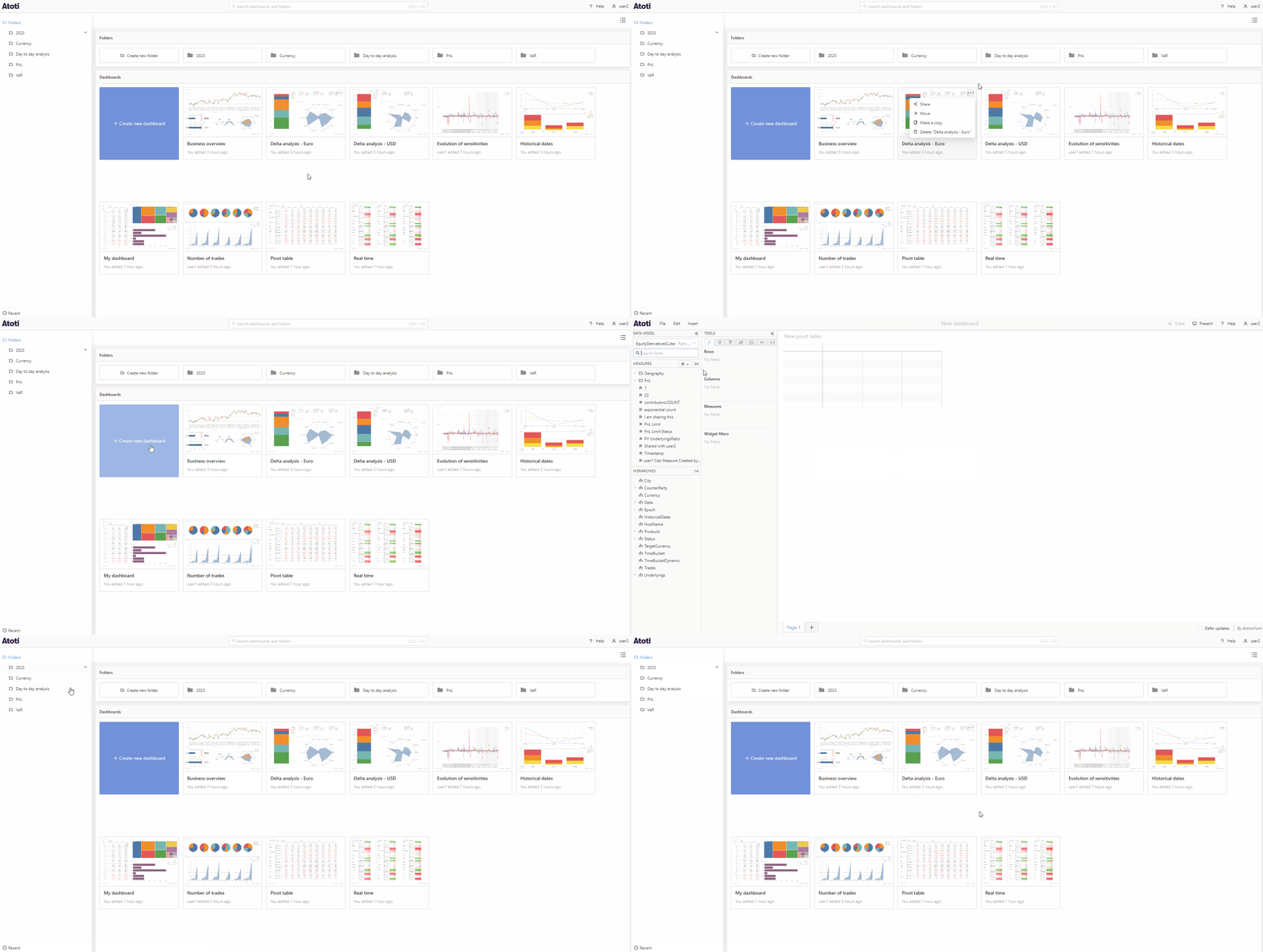 In list view, you can also create, access, move, share and delete dashboards similarly as in grid view, as explained above. In this view, you can also see who was the last user to edit a particular dashboard, as well as the date it was last edited. These folders and dashboards can be sorted based on their name, edit date, or the last user to edit by clicking the sort icon in the column header.
 ### Search
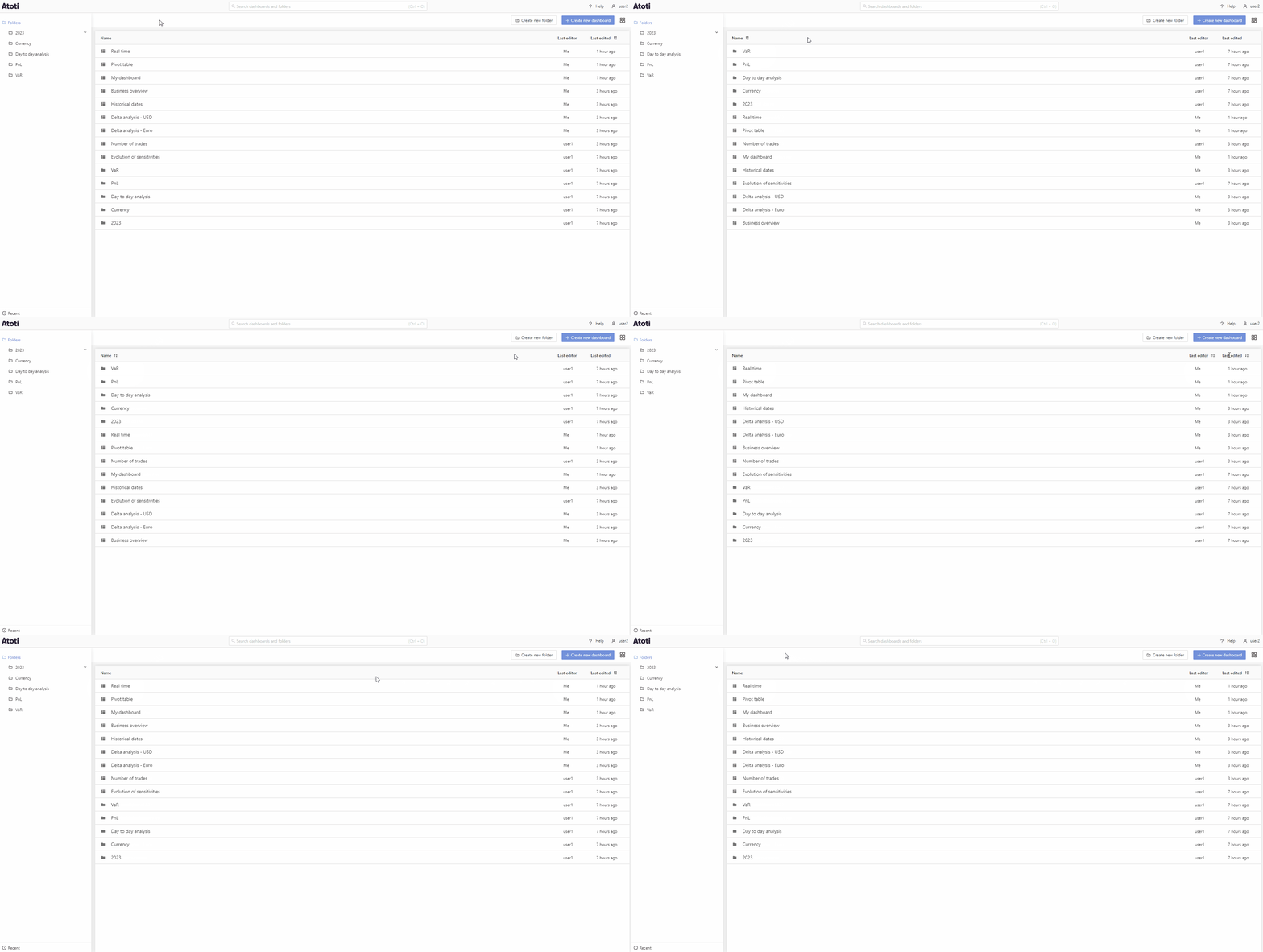
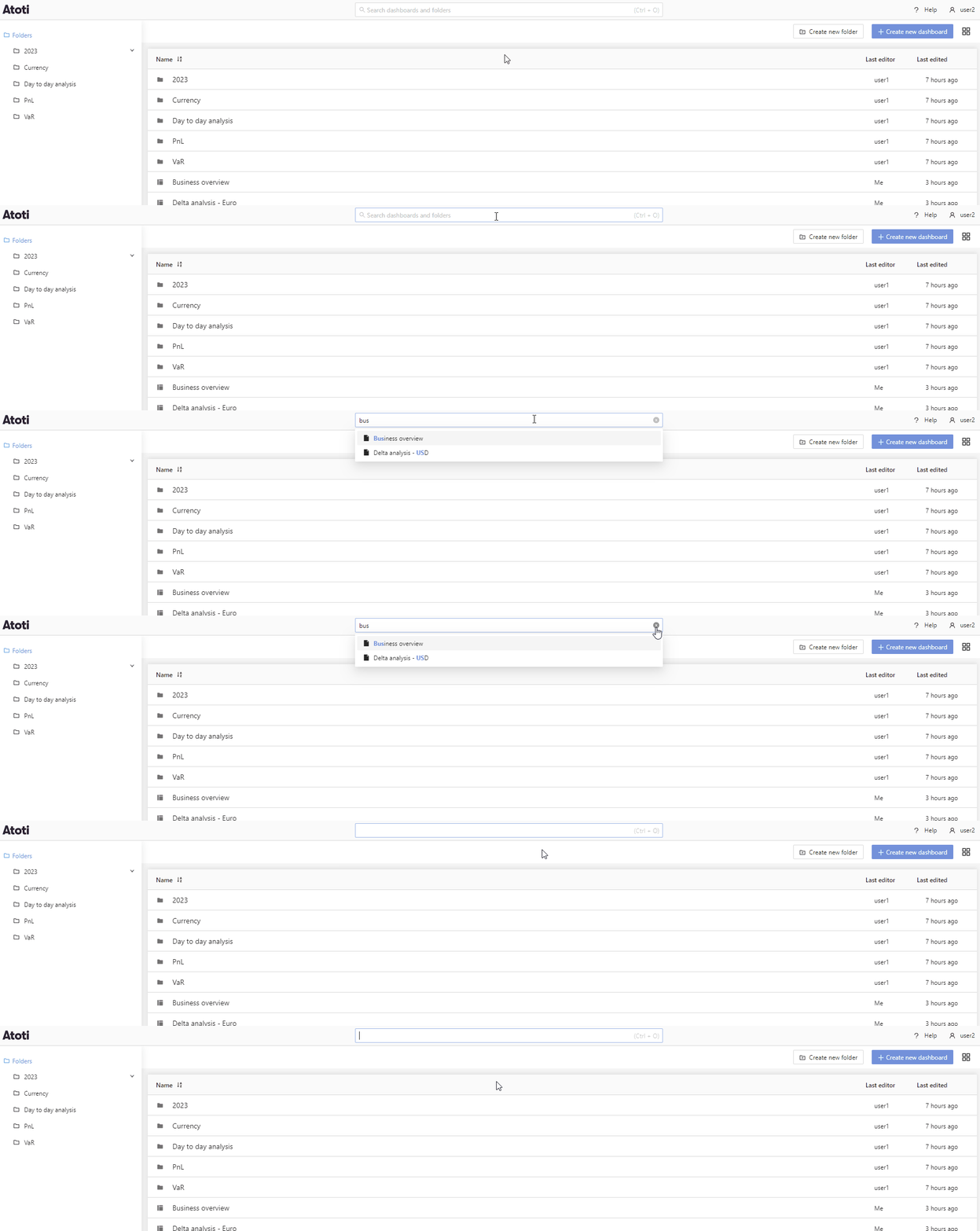
You can find the search bar in the navigation bar at the top of the application. Type in here to quickly find a dashboard or folder.
### Search
You can find the search bar in the navigation bar at the top of the application. Type in here to quickly find a dashboard or folder.
 ### Folders
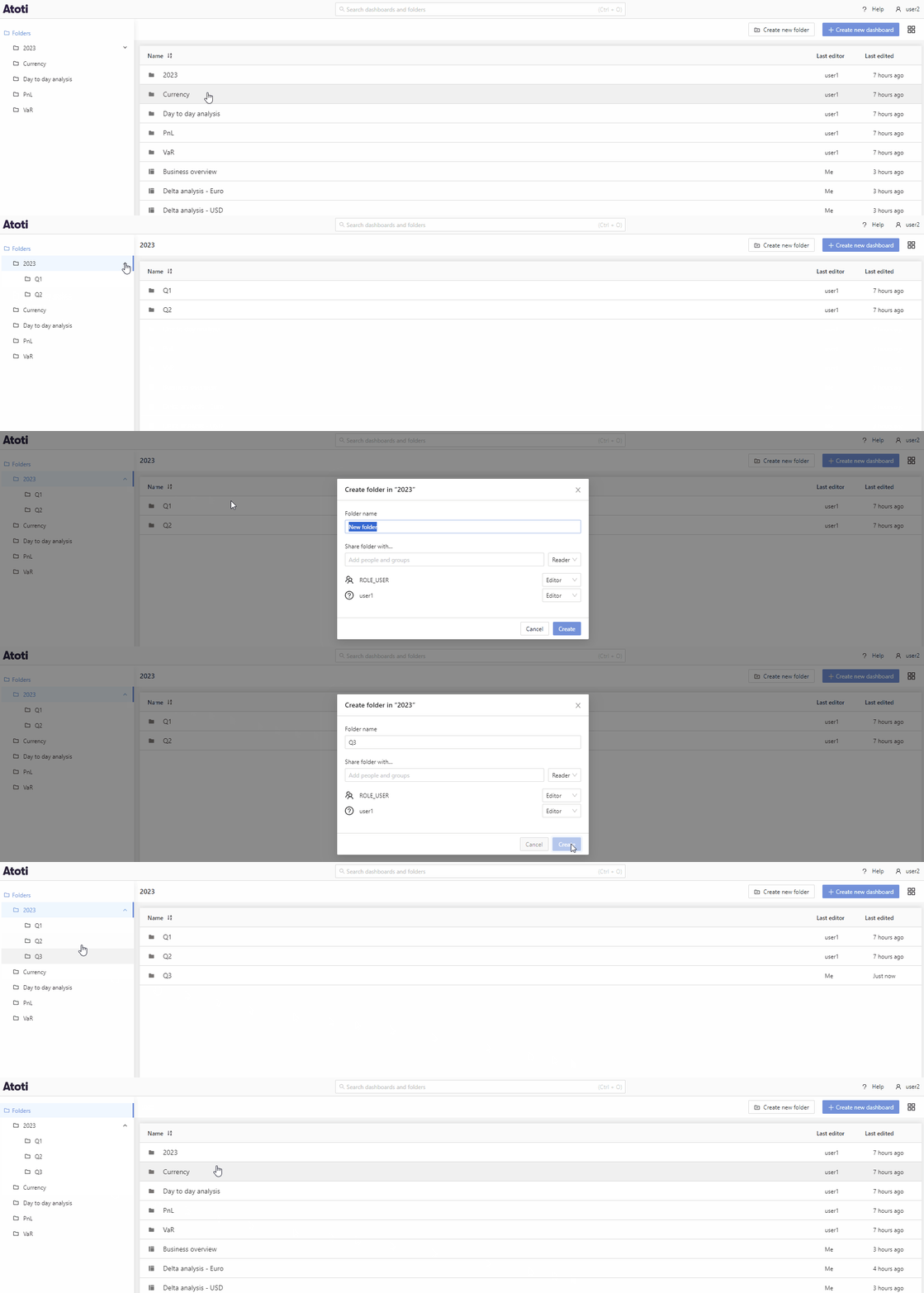
The Folders panel is located on the left side of the home page. To view a folder's subfolders, click the arrow icon next to the folder name to expand it.
To create a new folder, either:
* Click the **Create new folder** button, or
* Right-click an existing folder and select **Create folder in…** from the context menu.
Right-click a folder to choose additional actions, including Rename, Share, Move, or Delete.
### Folders
The Folders panel is located on the left side of the home page. To view a folder's subfolders, click the arrow icon next to the folder name to expand it.
To create a new folder, either:
* Click the **Create new folder** button, or
* Right-click an existing folder and select **Create folder in…** from the context menu.
Right-click a folder to choose additional actions, including Rename, Share, Move, or Delete.
 ### Shared with me
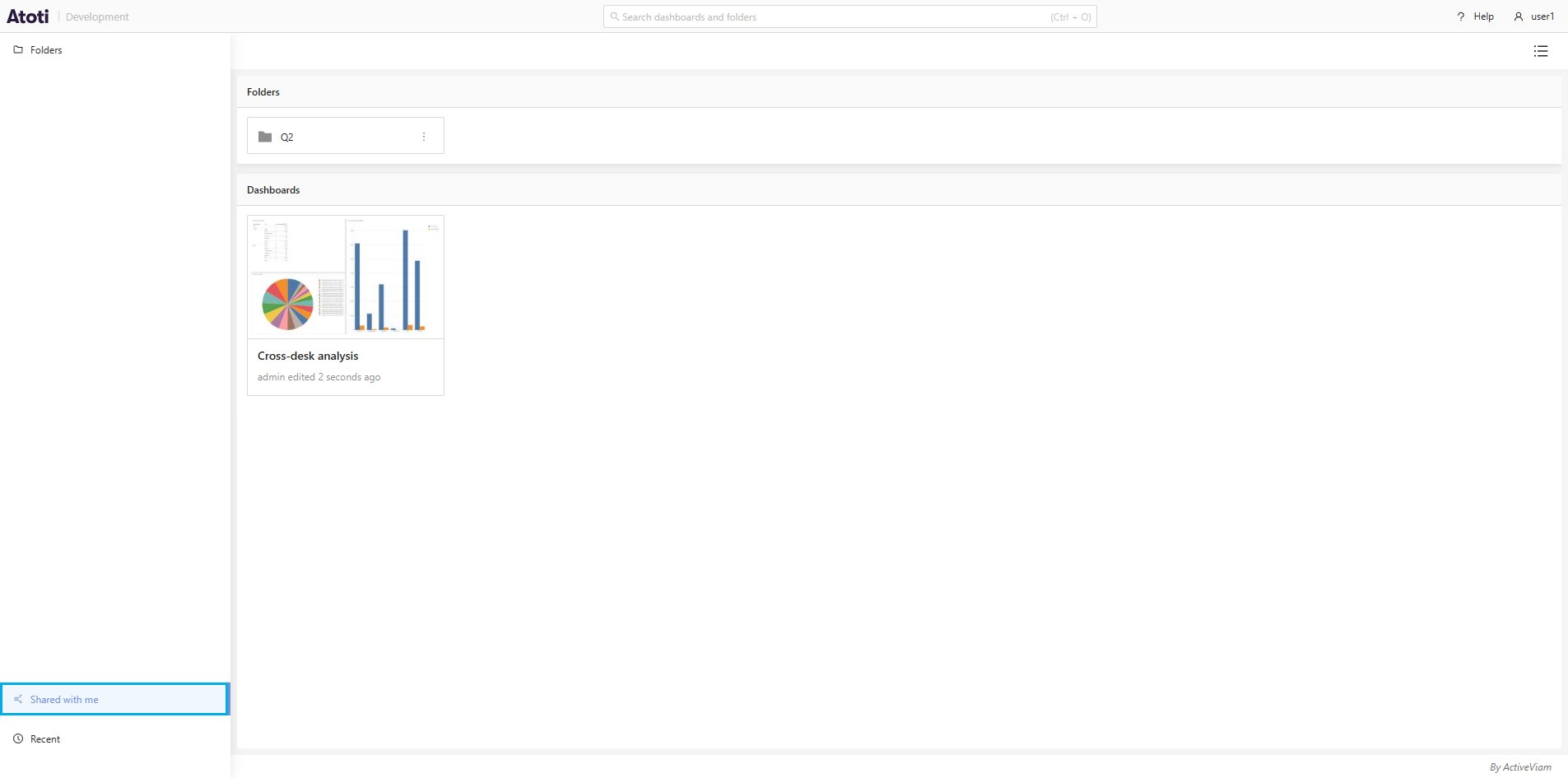
The **Shared with me** button is located under the **Folders**, at the bottom left of the application. Click this button to browse dashboards and folders that other users have shared with you.
{
// screenshot
// scenario: shared-with-me
// outline: role=button;name=Shared with me
}
### Shared with me
The **Shared with me** button is located under the **Folders**, at the bottom left of the application. Click this button to browse dashboards and folders that other users have shared with you.
{
// screenshot
// scenario: shared-with-me
// outline: role=button;name=Shared with me
}
 ### Recent
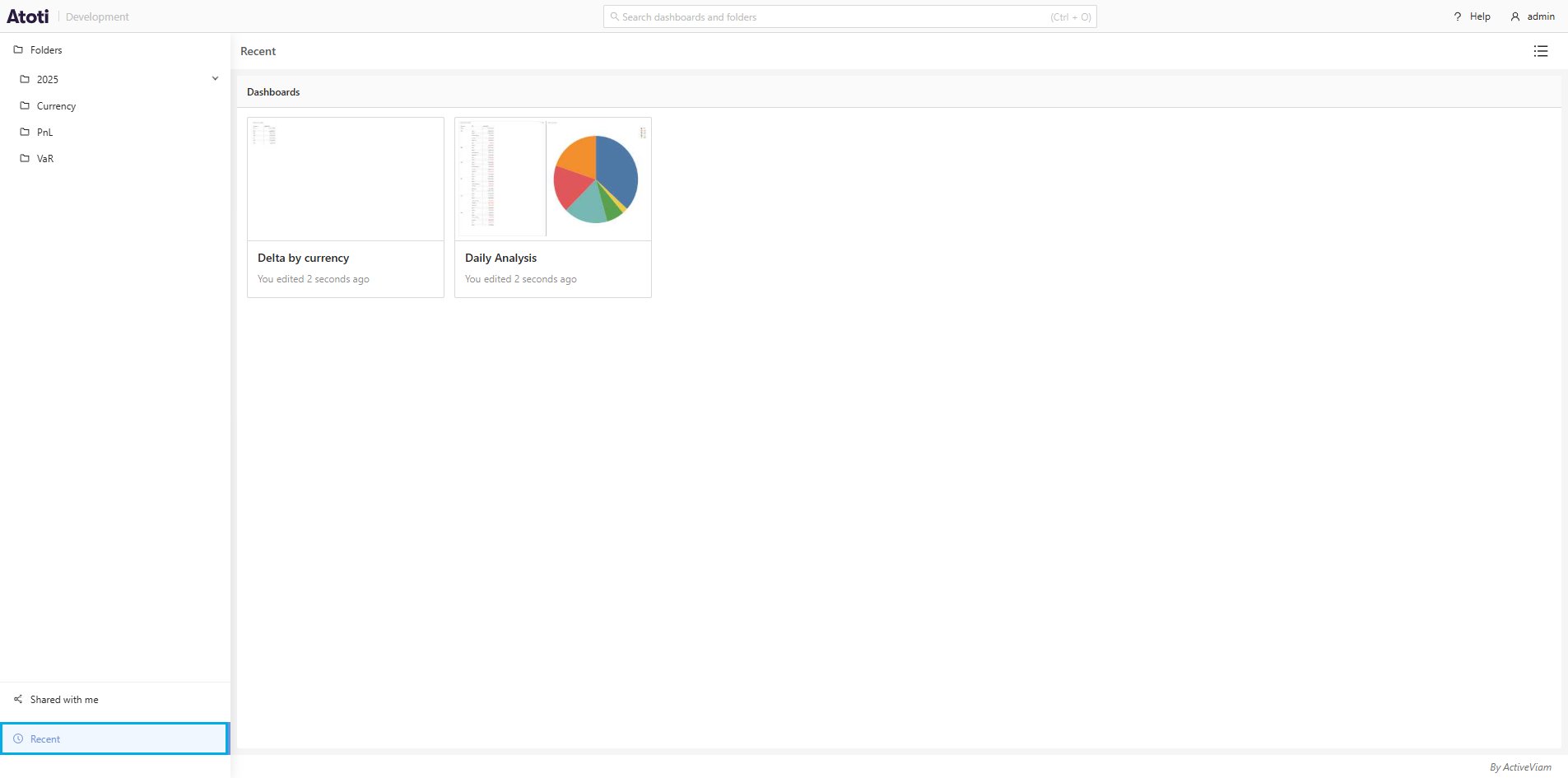
The **Recent** button is located under the **Shared with me** button. Click this button to see the dashboards you have opened most recently.
{
// screenshot
// scenario: recent
// outline: role=button;name=Recent
}
### Recent
The **Recent** button is located under the **Shared with me** button. Click this button to see the dashboards you have opened most recently.
{
// screenshot
// scenario: recent
// outline: role=button;name=Recent
}