> ## Documentation Index
> Fetch the complete documentation index at: https://docs.activeviam.com/llms.txt
> Use this file to discover all available pages before exploring further.
# Export to CSV or PDF
> How to export widget data to CSV and export dashboards to PDF in Atoti UI using the context menu Export to CSV option and the File menu Export to PDF option, with settings for page selection and CSV cell separator configuration.
**Export to CSV** and **Export to PDF** are plugins. If you cannot find them
in your application, contact your system administrator.
## Export to CSV
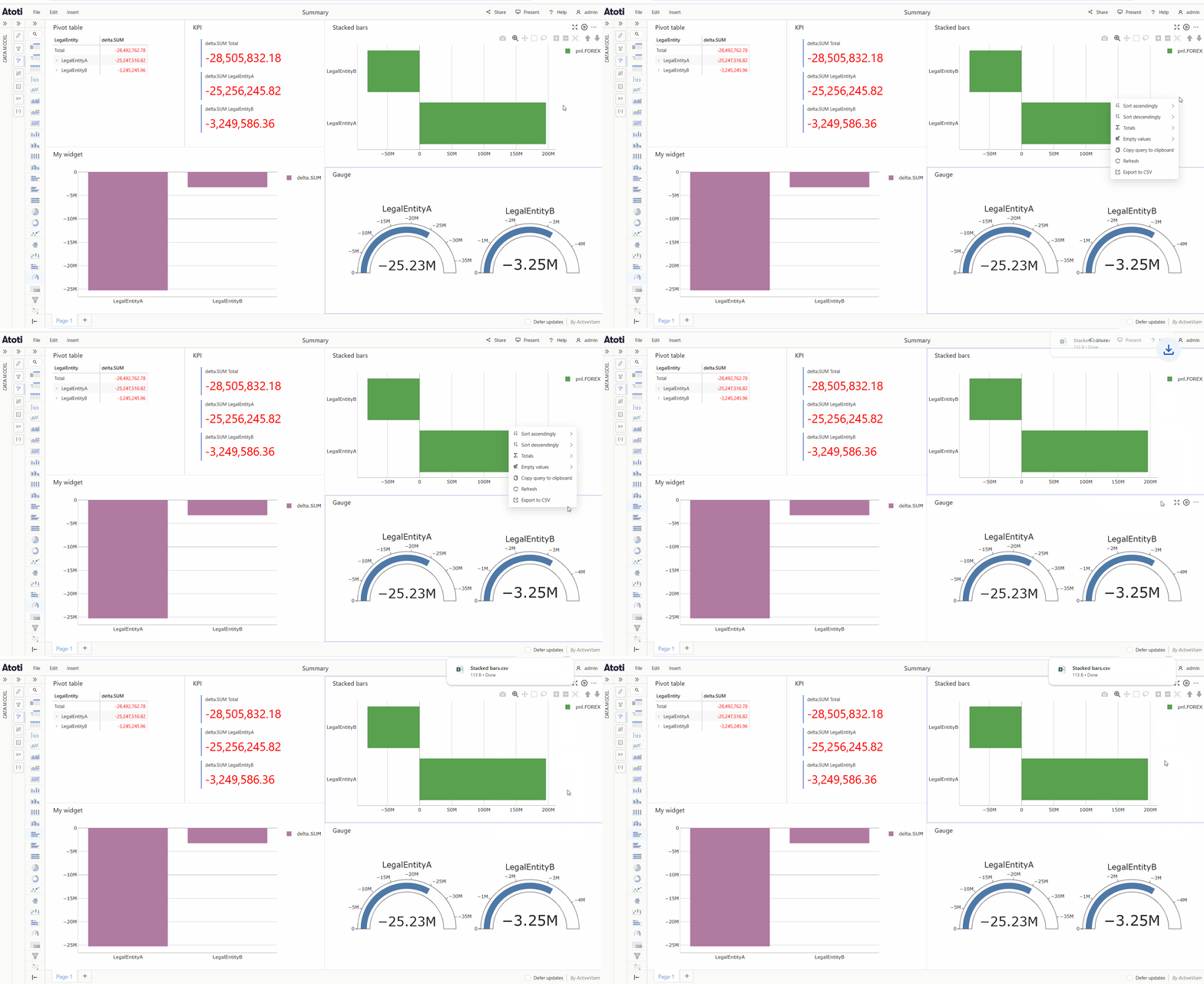
To download the data from a [widget](../create-a-dashboard/widgets/about-widgets) as a CSV:
* Right click on a data visualization widget to open the context menu.
* Select **Export to CSV**.
 The separator used between cells when converting to CSV can be configured via
[settings](../../developer-guide/customize-atoti-ui/user-settings).
## Export to PDF
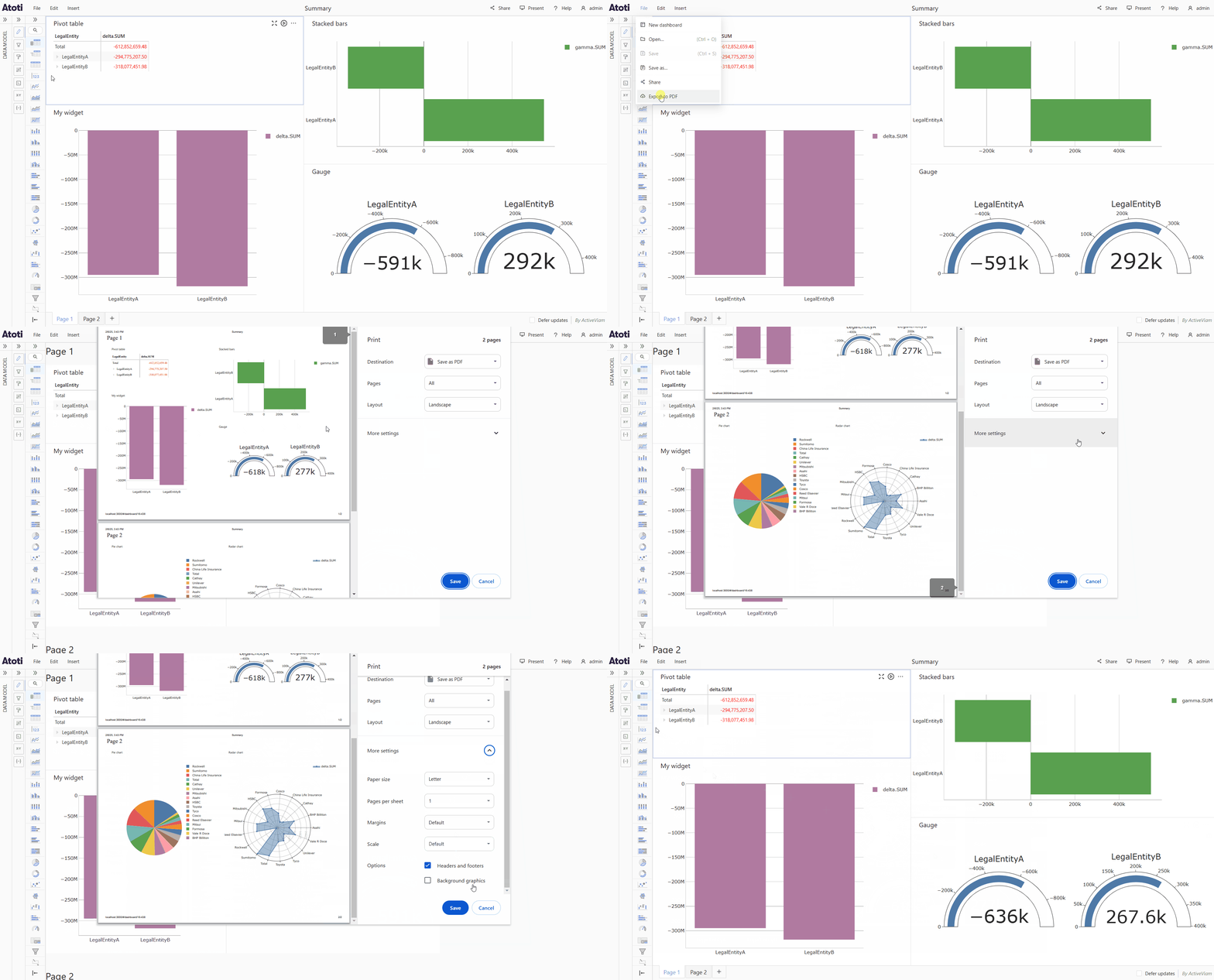
To download a [dashboard](../create-a-dashboard/dashboards) as a PDF:
* Open the **File** menu.
* Select **Export to PDF**.
* A popup will open, you can customize the settings here if you wish, for example choose which pages to include if your dashboard has more than one page.
* Click **Save**, this will open the file explorer.
* Choose where you want to save the PDF file, then click **Save** again.
The separator used between cells when converting to CSV can be configured via
[settings](../../developer-guide/customize-atoti-ui/user-settings).
## Export to PDF
To download a [dashboard](../create-a-dashboard/dashboards) as a PDF:
* Open the **File** menu.
* Select **Export to PDF**.
* A popup will open, you can customize the settings here if you wish, for example choose which pages to include if your dashboard has more than one page.
* Click **Save**, this will open the file explorer.
* Choose where you want to save the PDF file, then click **Save** again.