> ## Documentation Index
> Fetch the complete documentation index at: https://docs.activeviam.com/llms.txt
> Use this file to discover all available pages before exploring further.
# Save a widget
> How to save, reuse, rename, delete, update, and synchronize saved widgets in Atoti UI via the Saved widgets menu, covering the Save widget as workflow, how saved widgets behave as copies, and how to propagate updates to other instances using Synchronize saved widget.
Widgets can be saved, and reused as many times as you like, either in the same dashboard, or a different one. They can also be [shared](../share-content#share-a-widget) with others in your organization, who can then add them to their own dashboards.
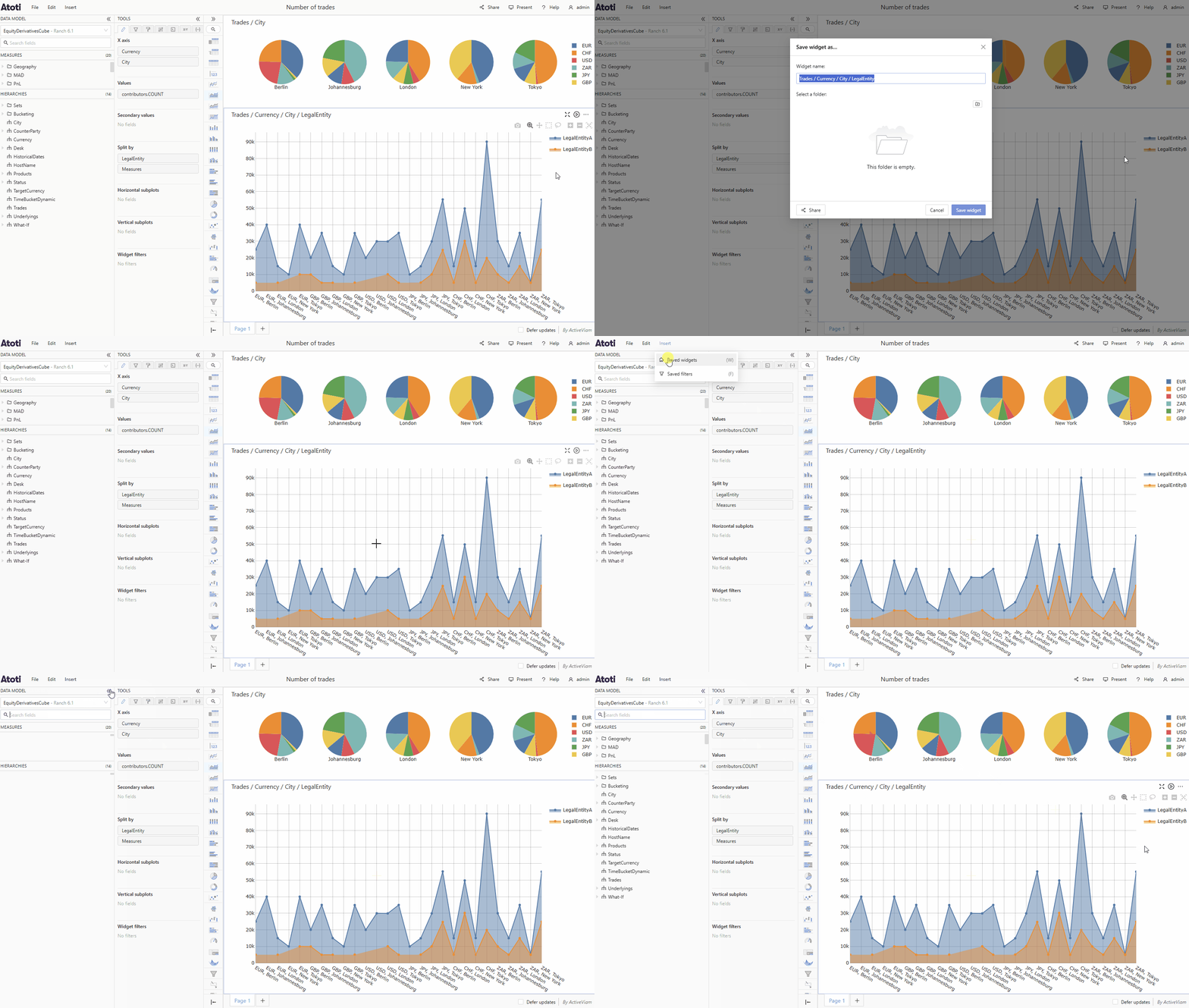
To save a widget:
* Click the **"…"** that appears when you hover in the top right corner of the widget.
* Select **Save widget as...**, this will open a popup.
* Enter a name for your widget.
* If you wish to save your widget in a folder, you can either select an existing folder from the list or click the folder icon to create a new folder.
* Click **Save widget** to save your widget and close the popup.
 ## Manage saved widgets
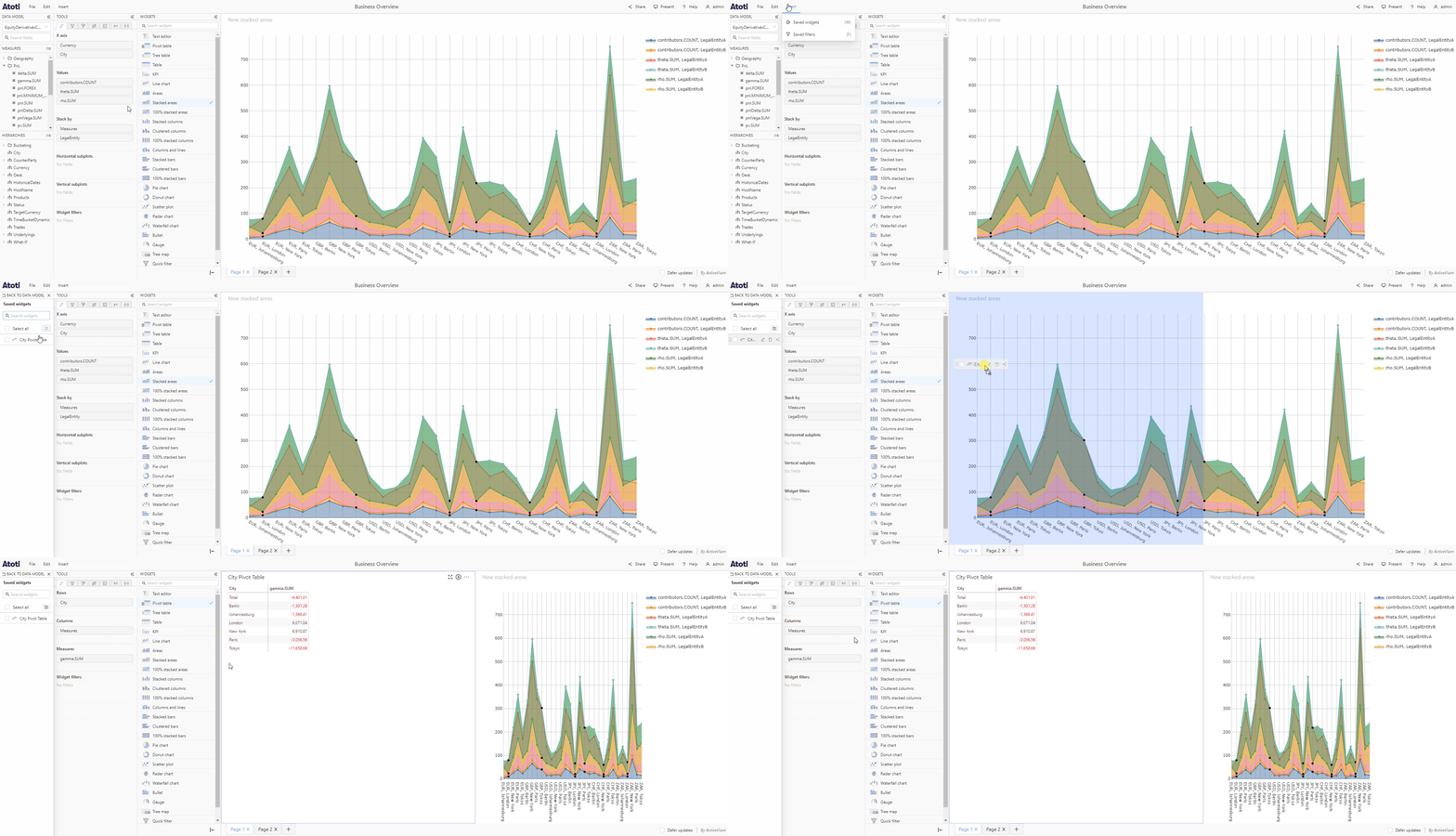
To open the **Saved widgets** menu, click the **Insert** menu in the top navigation bar then choose **Saved widgets**. Alternatively you can use the [keyboard shortcut](../../navigate-atoti-ui/keyboard-shortcuts#manage-content) W. The **Saved widgets** panel will appear on the left of the application in the place of the [data model](../../navigate-atoti-ui/data-model).
### Add a saved widget to a dashboard
* You can add a saved widget to a dashboard by dragging and dropping it from the **Saved widgets** menu, in exactly the same way as you [add a new widget](./add-or-modify-widgets#add-a-new-widget).
* Alternatively, you can click the saved widget tile to add it to your dashboard automatically. You can always [move](./add-or-modify-widgets#move-a-widget) it to a different position afterwards.
## Manage saved widgets
To open the **Saved widgets** menu, click the **Insert** menu in the top navigation bar then choose **Saved widgets**. Alternatively you can use the [keyboard shortcut](../../navigate-atoti-ui/keyboard-shortcuts#manage-content) W. The **Saved widgets** panel will appear on the left of the application in the place of the [data model](../../navigate-atoti-ui/data-model).
### Add a saved widget to a dashboard
* You can add a saved widget to a dashboard by dragging and dropping it from the **Saved widgets** menu, in exactly the same way as you [add a new widget](./add-or-modify-widgets#add-a-new-widget).
* Alternatively, you can click the saved widget tile to add it to your dashboard automatically. You can always [move](./add-or-modify-widgets#move-a-widget) it to a different position afterwards.
 When you use a **Saved widget**, you are essentially *copying* it into the
dashboard. Because it is just a copy, any changes made to that widget do not
affect the original saved widget unless you save them, see [**Update a saved
widget**](#update-a-saved-widget).
### Rename a saved widget
* In the **Saved widgets** menu, hover over a saved widget tile, you will see some icons appear on the right of the tile.
* Click the **edit** icon.
* The widget name will become a text input, type the new name and press enter.
* If you need to cancel renaming, press Escape.
### Delete a saved widget
* In the **Saved widgets** menu, hover over a saved widget tile, you will see some icons appear on the right of the tile.
* Click the **delete** icon.
* If you are sure you want to delete, click the **Delete** button in the popconfirm which appears.
### Update a Saved widget
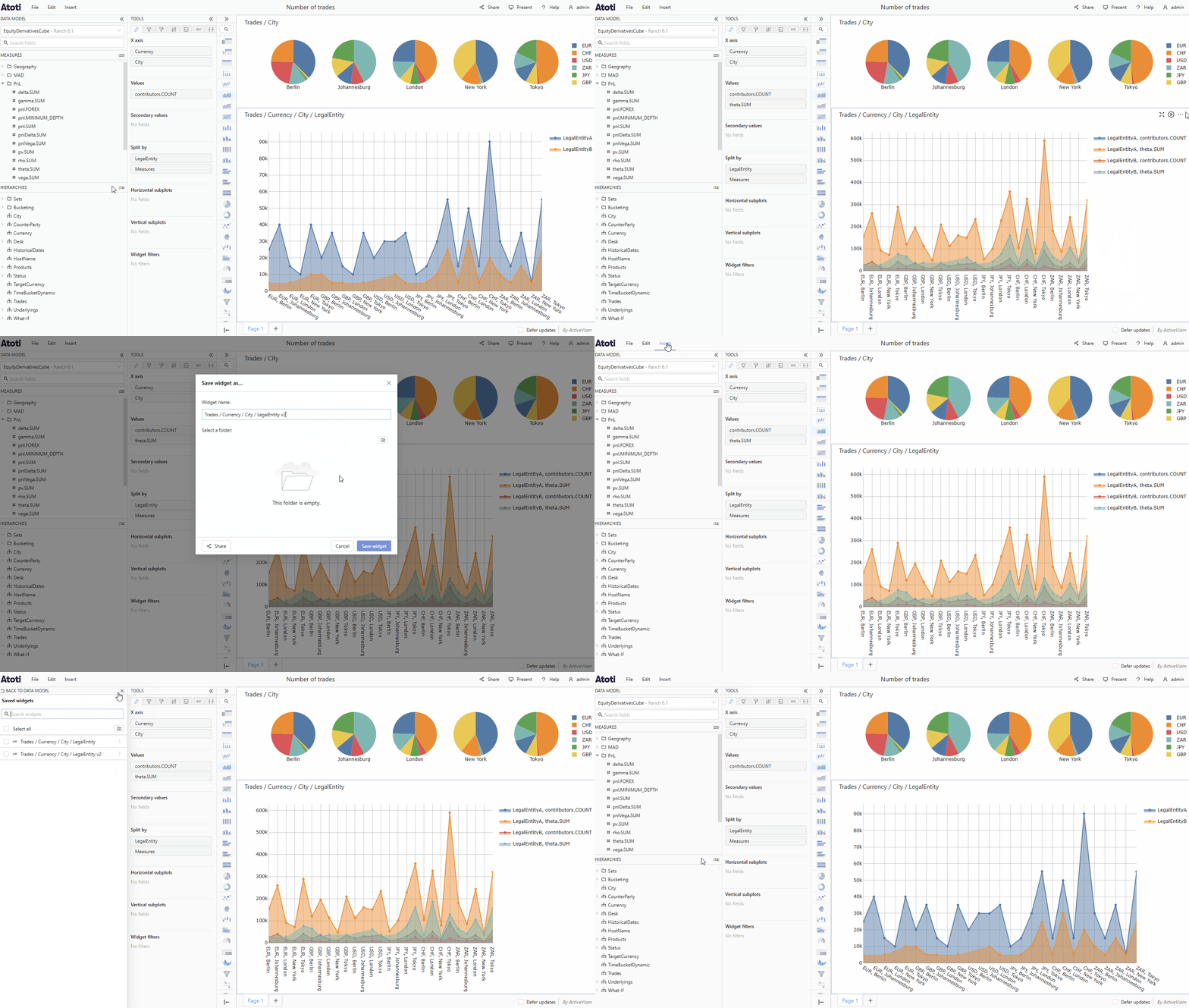
If you want to keep changes you have made to a saved widget used on your dashboard, for example if you add a new [measure](../../navigate-atoti-ui/data-model#measure), and you want to update the saved version:
* Click the **"…"** that appears when you hover in the top right corner of the widget.
* Select **Save widget**.
This will update the saved widget, so that when it is added to a dashboard in the future, it will have these changes. Other instances of this widget that are already used in a dashboard will not be automatically updated, you have the choice to [**synchronize**](#synchronize-a-saved-widget) them or not.
If you want to keep changes you have made to a saved widget and you **do not** want to update the saved version:
* Follow the steps above to save a widget, using the **Save widget as...** menu item, giving it a different title.
* This will create a new saved widget, without changing the original widget.
* The original saved widget will still be available from the **Saved widgets** menu, along with the new one. You can choose to [delete](#delete-a-saved-widget) the original if it is no longer relevant, or keep both.
When you use a **Saved widget**, you are essentially *copying* it into the
dashboard. Because it is just a copy, any changes made to that widget do not
affect the original saved widget unless you save them, see [**Update a saved
widget**](#update-a-saved-widget).
### Rename a saved widget
* In the **Saved widgets** menu, hover over a saved widget tile, you will see some icons appear on the right of the tile.
* Click the **edit** icon.
* The widget name will become a text input, type the new name and press enter.
* If you need to cancel renaming, press Escape.
### Delete a saved widget
* In the **Saved widgets** menu, hover over a saved widget tile, you will see some icons appear on the right of the tile.
* Click the **delete** icon.
* If you are sure you want to delete, click the **Delete** button in the popconfirm which appears.
### Update a Saved widget
If you want to keep changes you have made to a saved widget used on your dashboard, for example if you add a new [measure](../../navigate-atoti-ui/data-model#measure), and you want to update the saved version:
* Click the **"…"** that appears when you hover in the top right corner of the widget.
* Select **Save widget**.
This will update the saved widget, so that when it is added to a dashboard in the future, it will have these changes. Other instances of this widget that are already used in a dashboard will not be automatically updated, you have the choice to [**synchronize**](#synchronize-a-saved-widget) them or not.
If you want to keep changes you have made to a saved widget and you **do not** want to update the saved version:
* Follow the steps above to save a widget, using the **Save widget as...** menu item, giving it a different title.
* This will create a new saved widget, without changing the original widget.
* The original saved widget will still be available from the **Saved widgets** menu, along with the new one. You can choose to [delete](#delete-a-saved-widget) the original if it is no longer relevant, or keep both.
 ### Synchronize a saved widget
If a saved widget is updated and the changes are saved, any other instances of that widget (either in the same dashboard or a different one) will remain unchanged. If you wish to apply the update to another instance of a saved widget, you will have to **synchronize** it.
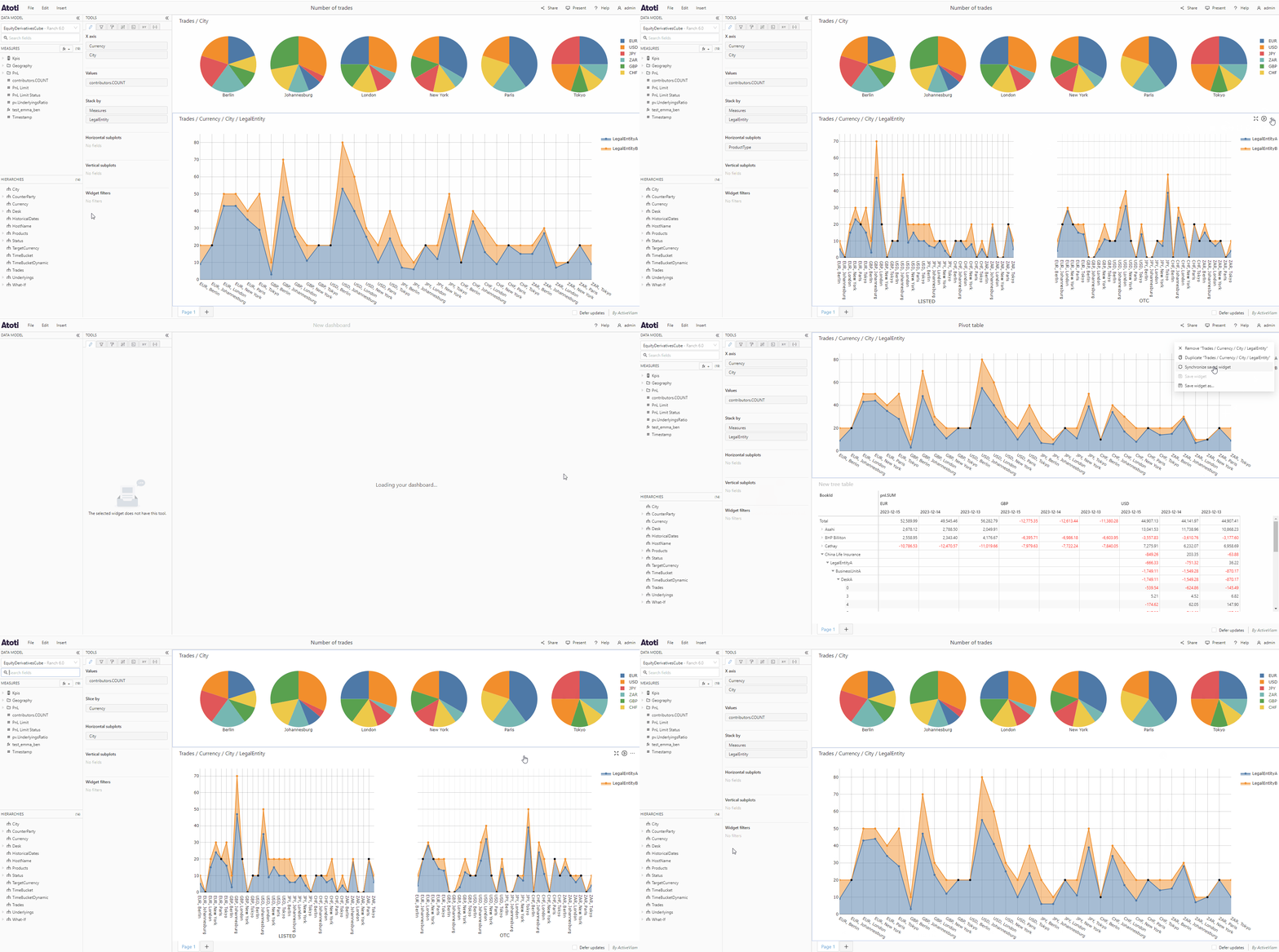
To synchronize a saved widget :
* Click the **"…"** that appears when you hover in the top right corner of the widget.
* Select **Synchronize saved widget**.
* The widget will be synchronized, meaning the updates applied to the original saved widget will also be applied to this widget.
### Synchronize a saved widget
If a saved widget is updated and the changes are saved, any other instances of that widget (either in the same dashboard or a different one) will remain unchanged. If you wish to apply the update to another instance of a saved widget, you will have to **synchronize** it.
To synchronize a saved widget :
* Click the **"…"** that appears when you hover in the top right corner of the widget.
* Select **Synchronize saved widget**.
* The widget will be synchronized, meaning the updates applied to the original saved widget will also be applied to this widget.
 **Synchronize saved widget** only synchronizes the selected widget, not all
instances of that saved widget. For example, if you have used the same widget
in "Dashboard A" and "Dashboard B", if you synchronize it in "Dashboard A", it
will not be synchronized in "Dashboard B" (unless you choose to also do this).
**Synchronize saved widget** only synchronizes the selected widget, not all
instances of that saved widget. For example, if you have used the same widget
in "Dashboard A" and "Dashboard B", if you synchronize it in "Dashboard A", it
will not be synchronized in "Dashboard B" (unless you choose to also do this).