> ## Documentation Index
> Fetch the complete documentation index at: https://docs.activeviam.com/llms.txt
> Use this file to discover all available pages before exploring further.
# Edit an MDX query
> How to use the Atoti UI Query tab to directly edit MDX for a selected widget, including autocomplete for measures, dimensions, hierarchies, and cube names, submitting or resetting changes, undoing edits, and resolving syntax and dimension errors.
Advanced users can update a query using the **Query** tab. If you want to do this, you will need some knowledge of [MDX](https://learn.microsoft.com/en-us/analysis-services/multidimensional-models/mdx/mdx-query-fundamentals-analysis-services?view=asallproducts-allversions).
The **Query** tab is an additional tool which may or may not be included in
your application. If you cannot find it in your application, contact your
system administrator.
## Open the query tab
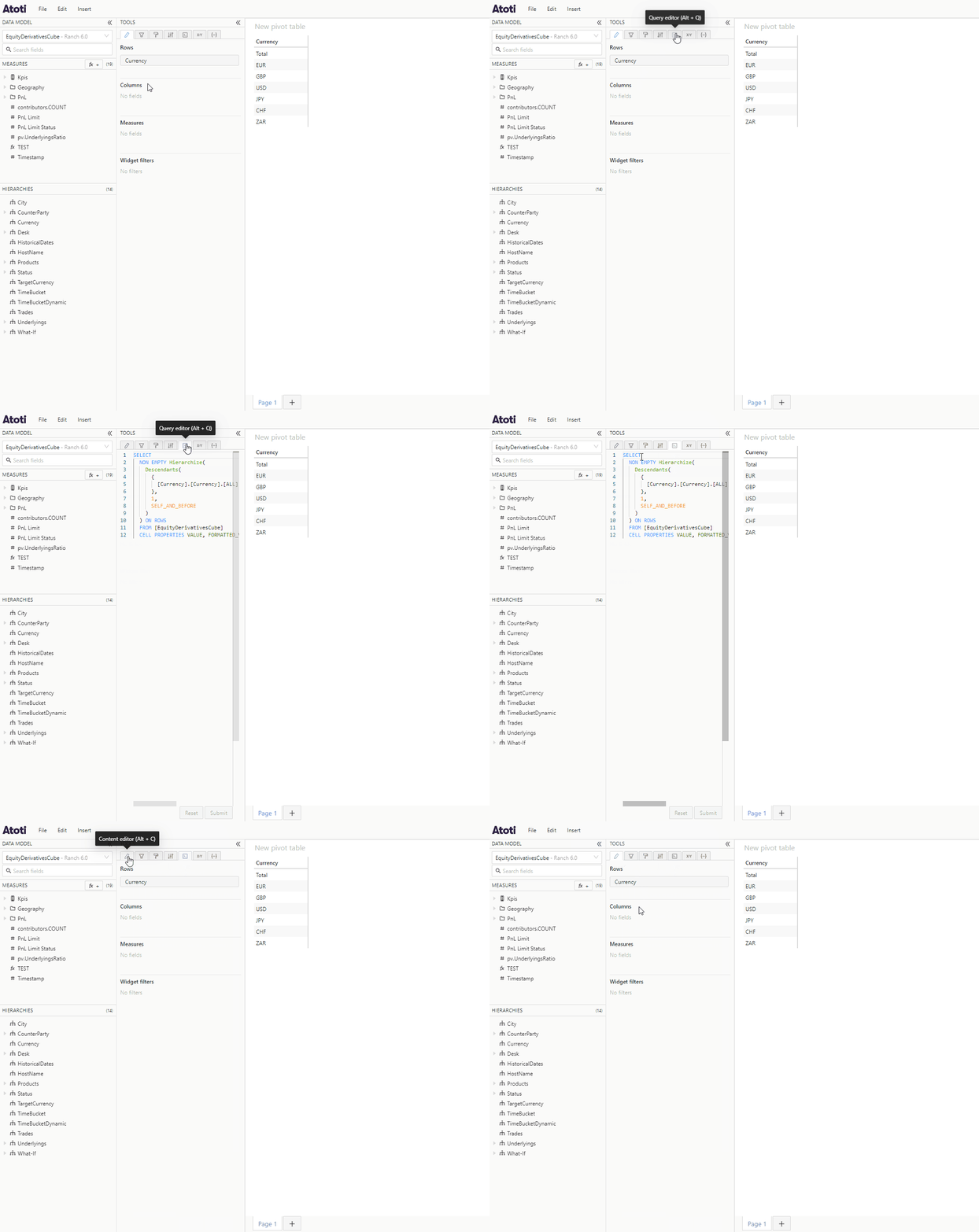
The **Query** tab is accessed from the **Tools panel**, next to the [data model](../../navigate-atoti-ui/data-model) on the left of the application. Click on its icon to open it.
 ## Edit a query
In the **Query** tab, you can see the query for the currently selected widget and update it. It has built in auto completion, which recognizes MDX keywords and names of [measures](../../navigate-atoti-ui/data-model#measure), [dimensions](../../navigate-atoti-ui/data-model#dimension) and [hierarchies](../../navigate-atoti-ui/data-model#hierarchy) present in the selected [cube](../../navigate-atoti-ui/data-model#cube).
To edit a query:
* Click on the part of the query you want to edit to make the cursor appear.
* Use the keyboard to make your changes, just like any text editor.
* When typing, words or phrases that can be autocompleted will appear in a popup to the bottom right of your cursor, use the arrow keys to cycle through the options and the enter or tab key to apply the autocompletion.
* When you are happy with the query, click **Submit**.
* Your widget will be refreshed to reflect the updated query.
## Edit a query
In the **Query** tab, you can see the query for the currently selected widget and update it. It has built in auto completion, which recognizes MDX keywords and names of [measures](../../navigate-atoti-ui/data-model#measure), [dimensions](../../navigate-atoti-ui/data-model#dimension) and [hierarchies](../../navigate-atoti-ui/data-model#hierarchy) present in the selected [cube](../../navigate-atoti-ui/data-model#cube).
To edit a query:
* Click on the part of the query you want to edit to make the cursor appear.
* Use the keyboard to make your changes, just like any text editor.
* When typing, words or phrases that can be autocompleted will appear in a popup to the bottom right of your cursor, use the arrow keys to cycle through the options and the enter or tab key to apply the autocompletion.
* When you are happy with the query, click **Submit**.
* Your widget will be refreshed to reflect the updated query.
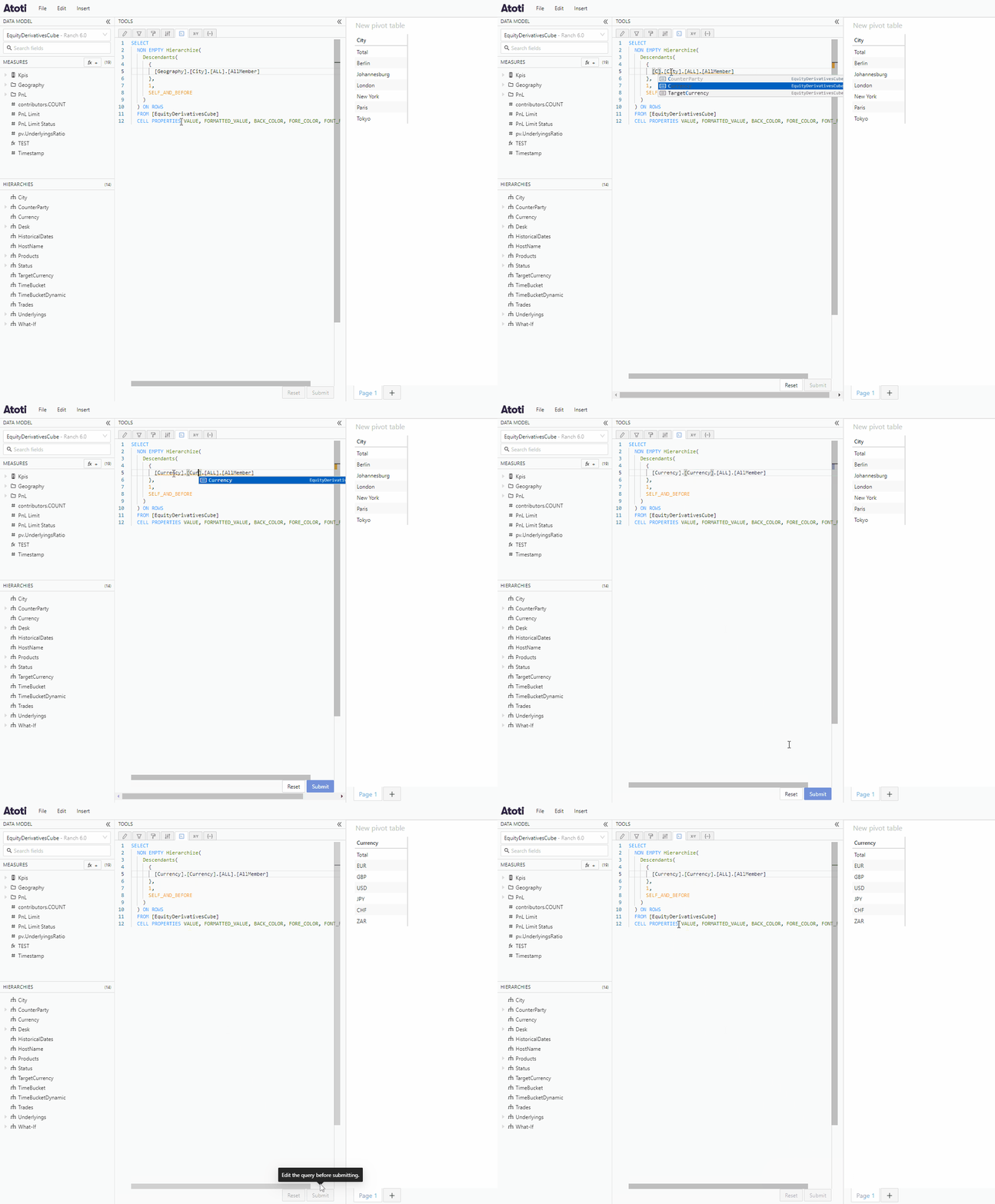 You will not see any changes you make in the **Query** tab reflected in your widget until you click submit.
If you make changes, but decide you don't want to submit them, you can click the **Reset** button to reset the query back to the previous version. Collapsing the tools panel, or changing to a different tool will also clear any changes that have not been submitted.
You can control whether measure, dimension and hierarchy names are case
sensitive in the **Query** tab using the
[**mdx.casesensitive**](../../analyze-data/context-values#mdxcasesensitive)
context value.
### Undo/redo changes when editing a query
* You can undo changes to a query using the keyboard shortcut Ctrl+Z or by selecting **Undo** from the **Edit** menu.
* You can reverse the undo action using the keyboard shortcut Ctrl+Y or by selecting **Redo** from the **Edit** menu.
Submitting the query or opening a different tab will clear the available history of actions.
### Troubleshooting errors when editing a query
If you make changes to the MDX and there are any mistakes, or if the MDX used is not supported by Atoti UI, you will not be able to submit the query.
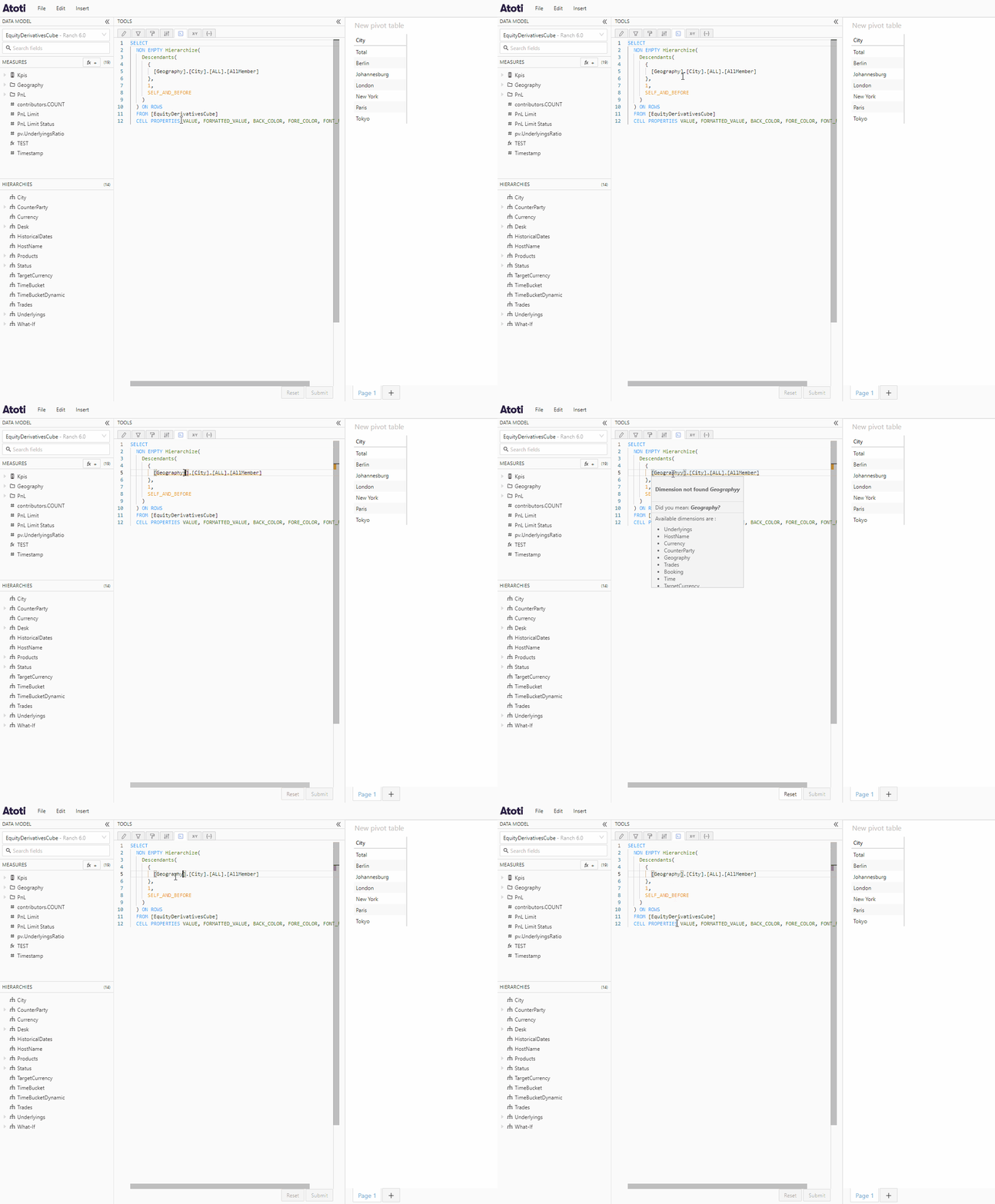
If you try to use a dimension, hierarchy or measure name that is not present in the selected cube in your query, this will cause an error. The error will have a yellow underline in the MDX editor. If you hover over the yellow underline, a popup will be shown with details about the error. For example, if you make a typo in the dimension name, you will see a message saying "Dimension not found" and a list of the available dimensions.
You will not see any changes you make in the **Query** tab reflected in your widget until you click submit.
If you make changes, but decide you don't want to submit them, you can click the **Reset** button to reset the query back to the previous version. Collapsing the tools panel, or changing to a different tool will also clear any changes that have not been submitted.
You can control whether measure, dimension and hierarchy names are case
sensitive in the **Query** tab using the
[**mdx.casesensitive**](../../analyze-data/context-values#mdxcasesensitive)
context value.
### Undo/redo changes when editing a query
* You can undo changes to a query using the keyboard shortcut Ctrl+Z or by selecting **Undo** from the **Edit** menu.
* You can reverse the undo action using the keyboard shortcut Ctrl+Y or by selecting **Redo** from the **Edit** menu.
Submitting the query or opening a different tab will clear the available history of actions.
### Troubleshooting errors when editing a query
If you make changes to the MDX and there are any mistakes, or if the MDX used is not supported by Atoti UI, you will not be able to submit the query.
If you try to use a dimension, hierarchy or measure name that is not present in the selected cube in your query, this will cause an error. The error will have a yellow underline in the MDX editor. If you hover over the yellow underline, a popup will be shown with details about the error. For example, if you make a typo in the dimension name, you will see a message saying "Dimension not found" and a list of the available dimensions.
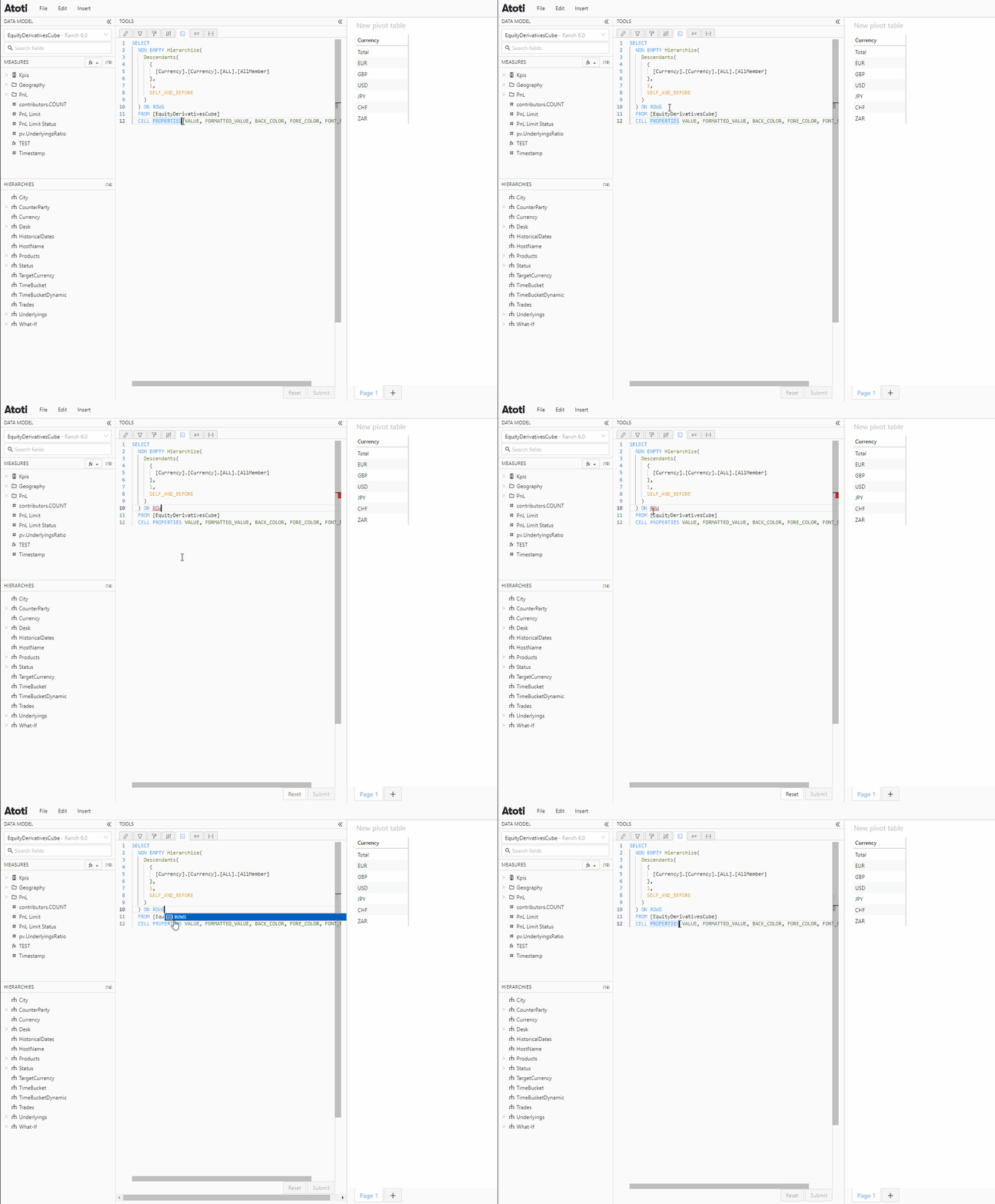
 If there is a different type of error, such as a mistake in one of the MDX keywords or missing punctuation, this will be underlined in red. If you hover over the red underline, a popup will be shown with details about the error. For example, if you make a typo and write "ROW" instead of "ROWS", the popup will say "Did you mean: *ROWS*?" and will also list other available options.
 ## Keyboard shortcuts
The **Query** tab supports many common text editing keyboard shortcuts, such as Ctrl+C and Ctrl+V to copy and paste, or Ctrl+A to "Select all".
## Keyboard shortcuts
The **Query** tab supports many common text editing keyboard shortcuts, such as Ctrl+C and Ctrl+V to copy and paste, or Ctrl+A to "Select all".