> ## Documentation Index
> Fetch the complete documentation index at: https://docs.activeviam.com/llms.txt
> Use this file to discover all available pages before exploring further.
# Spreadsheets
> How to create a spreadsheet page in an Atoti UI dashboard, anchor v2 table widgets in it, and write arithmetic formulas that reference cells of v2 table widgets, including cells on other pages of the dashboard.
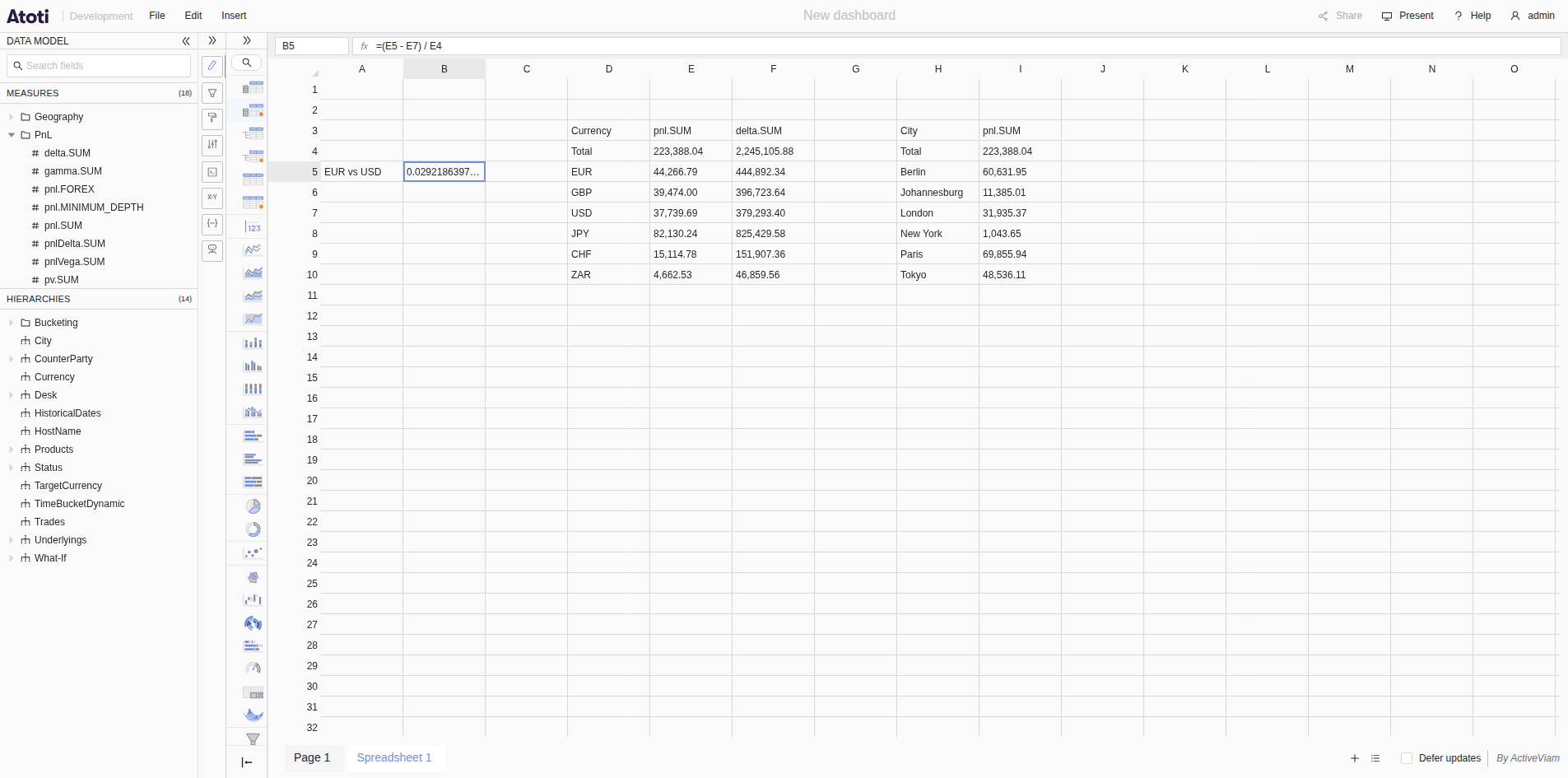
A spreadsheet is a dashboard page laid out as a large editable grid with a formula bar.
You can type values in its cells and write formulas, as in a spreadsheet application.
Formulas can reference the cells of [v2 table widgets](#spreadsheets-and-v2-table-widgets), on the same page or on any other page of the dashboard.
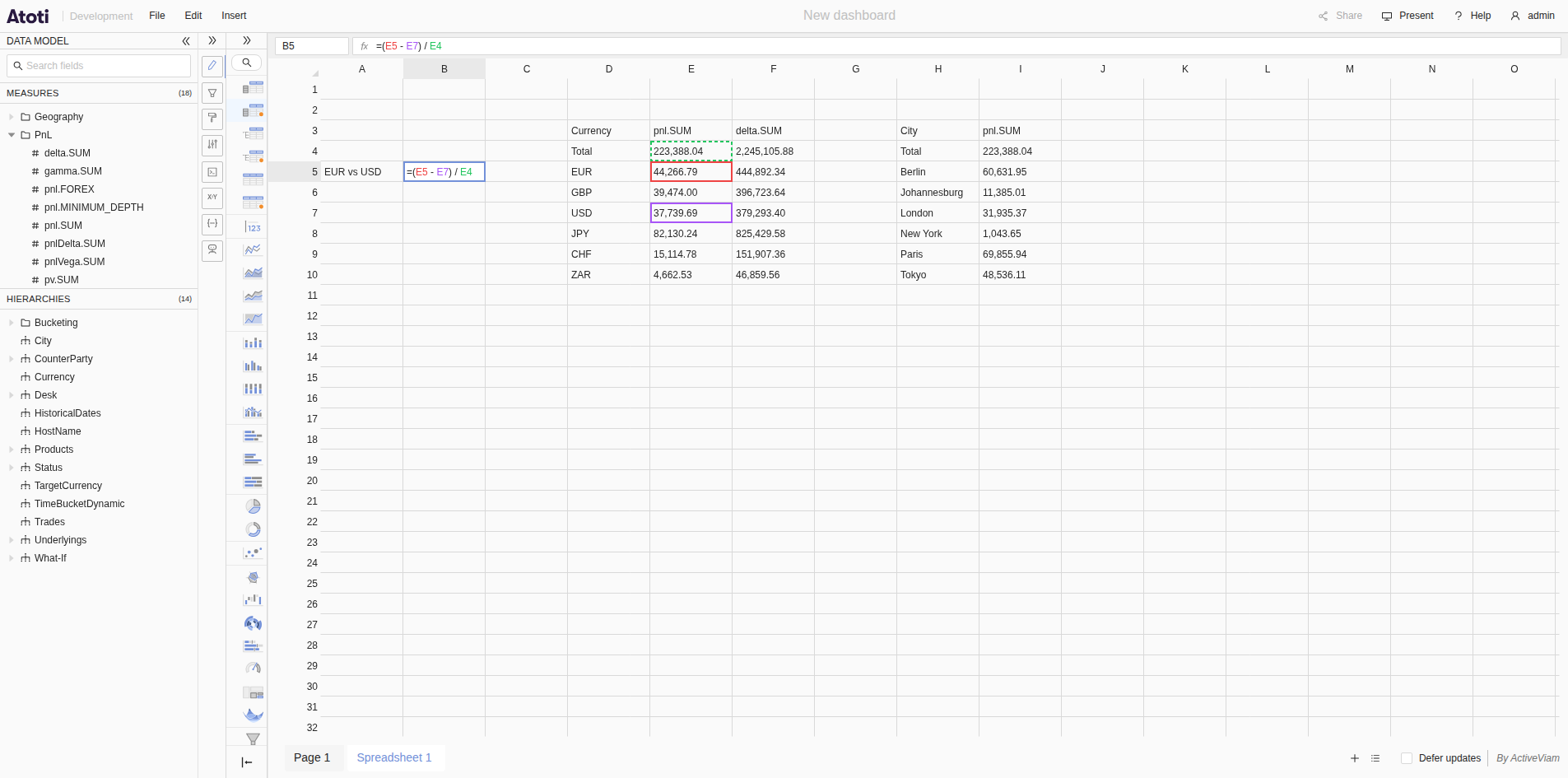 Use the spreadsheet to run quick calculations on top of the widgets of your dashboard, without leaving Atoti UI.
For example, compute the change of a measure between two dates, or the ratio between two figures shown in different tables.
The measures still come from the cube.
Formulas only combine the values that widgets display.
The spreadsheet is an extension. It is not part of core Atoti UI. To get
access to it, contact your account manager. Your IT can then [install
it](../../developer-guide/install-and-start/install-the-spreadsheet-extension).
The spreadsheet is a minimum viable product (MVP). It is already useful, but
it has [known limitations](#current-limitations). They will be lifted in
upcoming releases.
## Spreadsheets and v2 table widgets
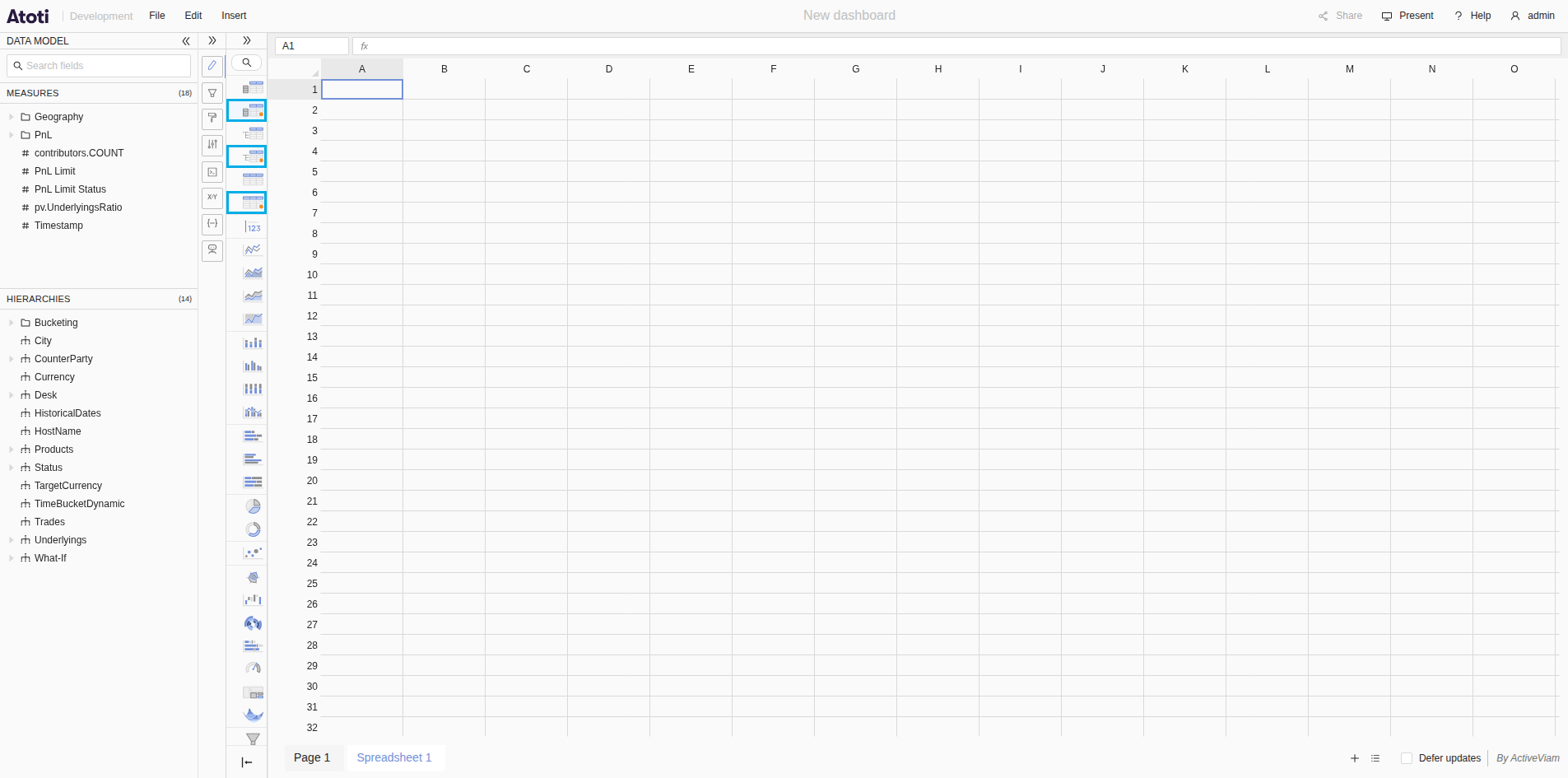
The spreadsheet extension adds three table widgets: **Pivot table v2**, **Table v2** and **Tree table v2**.
Each one appears in the widgets panel next to its standard counterpart.
An orange dot marks their icons.
Use the spreadsheet to run quick calculations on top of the widgets of your dashboard, without leaving Atoti UI.
For example, compute the change of a measure between two dates, or the ratio between two figures shown in different tables.
The measures still come from the cube.
Formulas only combine the values that widgets display.
The spreadsheet is an extension. It is not part of core Atoti UI. To get
access to it, contact your account manager. Your IT can then [install
it](../../developer-guide/install-and-start/install-the-spreadsheet-extension).
The spreadsheet is a minimum viable product (MVP). It is already useful, but
it has [known limitations](#current-limitations). They will be lifted in
upcoming releases.
## Spreadsheets and v2 table widgets
The spreadsheet extension adds three table widgets: **Pivot table v2**, **Table v2** and **Tree table v2**.
Each one appears in the widgets panel next to its standard counterpart.
An orange dot marks their icons.
 Formulas can only reference cells of v2 table widgets.
They cannot reference cells of standard table widgets, charts or other widgets.
v2 table widgets are a work in progress.
They do not cover as many features as their standard counterparts yet.
### What v2 table widgets support
* Displaying the result of any [MDX query](widgets/edit-an-mdx-query).
* [Drilling down](../analyze-data/drill-down) members.
* Selecting cells.
* The context menu, including the menu items added by extensions.
### What v2 table widgets do not support yet
* Resizing columns.
* Formatting, including [number](widgets/adapt-widget-display/edit-the-style-of-a-widget#format-values) and [conditional](widgets/adapt-widget-display/edit-the-style-of-a-widget#conditional-styles) formatting.
* [Reordering members](../analyze-data/sort-data#reorder-members-manually) by dragging and dropping them.
* [Renaming members in place](widgets/adapt-widget-display/rename-row-and-column-headers).
* Selection statistics.
v2 table widgets also load differently from standard ones: see [Current limitations](#current-limitations).
Use a v2 table widget when you need to reference its cells in a formula.
Keep using the standard table widgets for everything else.
Upcoming releases will close this feature gap step by step.
Ultimately, v2 table widgets will replace the standard table widgets.
The standard table widgets will remain supported.
## Create a spreadsheet
1. Open a dashboard.
2. In the **Insert** menu, click **New spreadsheet**.
Atoti UI adds a page named **Spreadsheet 1** to the dashboard, and opens it.
The number increases with each new spreadsheet.
## Add a widget to a spreadsheet
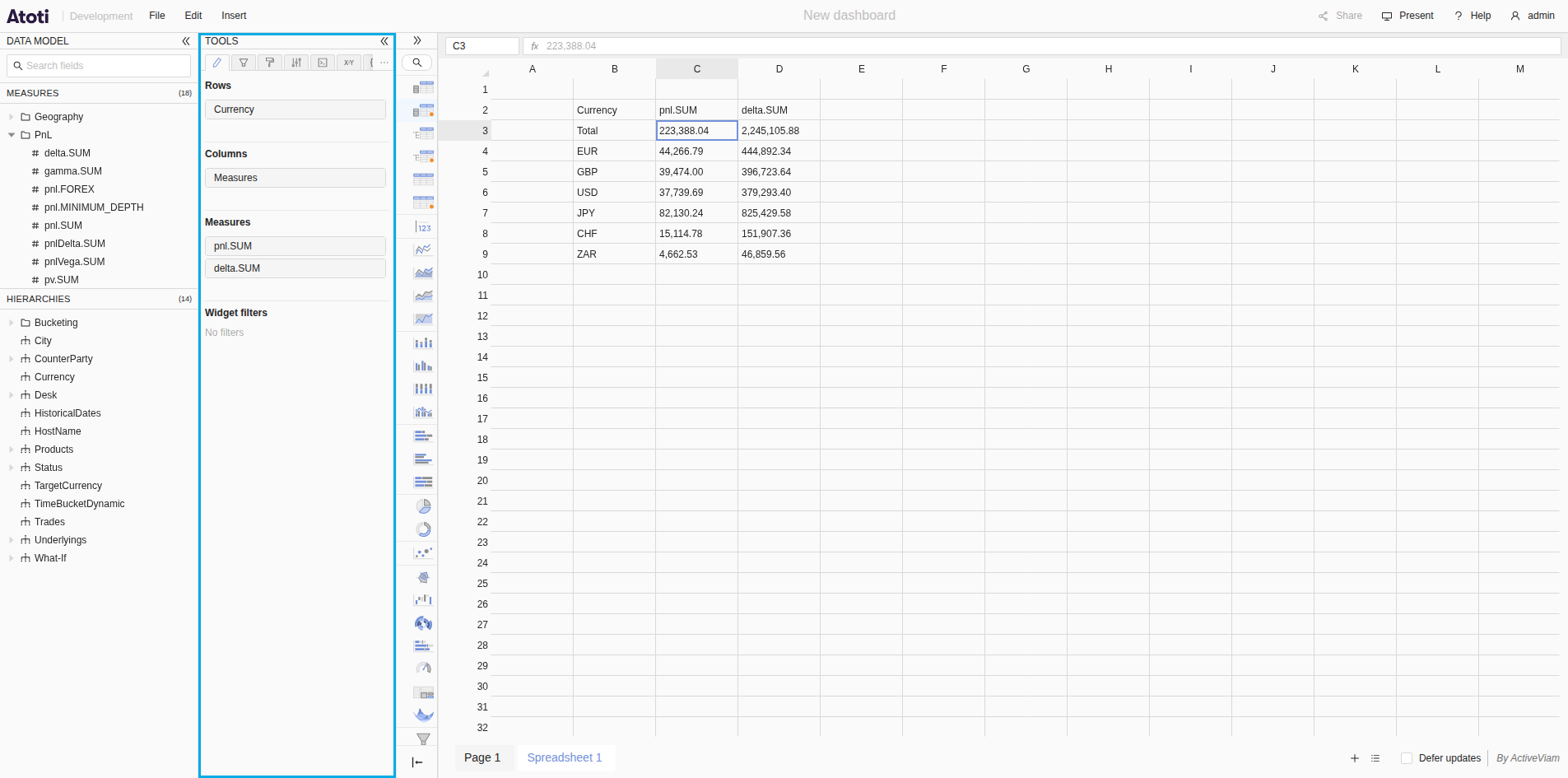
A widget in a spreadsheet is anchored at a cell: its top-left corner sits on that cell, and it covers as many cells as its data needs.
All the widgets of a spreadsheet share the same grid and the same scrollbars.
To add a widget:
1. Select an empty cell.
2. In the [data model](../navigate-atoti-ui/data-model), click a measure or a hierarchy.
Atoti UI anchors a **Pivot table v2** at the selected cell, with the field you clicked.
To add more fields, click them in the data model or drag and drop them into the wizard, [like you would for a table widget in a standard dashboard page](widgets/add-fields#add-fields-to-a-table-for-aggregated-data).
While a cell of the widget is selected, the **Tools** panel shows the fields of the widget, and you can edit them there.
Formulas can only reference cells of v2 table widgets.
They cannot reference cells of standard table widgets, charts or other widgets.
v2 table widgets are a work in progress.
They do not cover as many features as their standard counterparts yet.
### What v2 table widgets support
* Displaying the result of any [MDX query](widgets/edit-an-mdx-query).
* [Drilling down](../analyze-data/drill-down) members.
* Selecting cells.
* The context menu, including the menu items added by extensions.
### What v2 table widgets do not support yet
* Resizing columns.
* Formatting, including [number](widgets/adapt-widget-display/edit-the-style-of-a-widget#format-values) and [conditional](widgets/adapt-widget-display/edit-the-style-of-a-widget#conditional-styles) formatting.
* [Reordering members](../analyze-data/sort-data#reorder-members-manually) by dragging and dropping them.
* [Renaming members in place](widgets/adapt-widget-display/rename-row-and-column-headers).
* Selection statistics.
v2 table widgets also load differently from standard ones: see [Current limitations](#current-limitations).
Use a v2 table widget when you need to reference its cells in a formula.
Keep using the standard table widgets for everything else.
Upcoming releases will close this feature gap step by step.
Ultimately, v2 table widgets will replace the standard table widgets.
The standard table widgets will remain supported.
## Create a spreadsheet
1. Open a dashboard.
2. In the **Insert** menu, click **New spreadsheet**.
Atoti UI adds a page named **Spreadsheet 1** to the dashboard, and opens it.
The number increases with each new spreadsheet.
## Add a widget to a spreadsheet
A widget in a spreadsheet is anchored at a cell: its top-left corner sits on that cell, and it covers as many cells as its data needs.
All the widgets of a spreadsheet share the same grid and the same scrollbars.
To add a widget:
1. Select an empty cell.
2. In the [data model](../navigate-atoti-ui/data-model), click a measure or a hierarchy.
Atoti UI anchors a **Pivot table v2** at the selected cell, with the field you clicked.
To add more fields, click them in the data model or drag and drop them into the wizard, [like you would for a table widget in a standard dashboard page](widgets/add-fields#add-fields-to-a-table-for-aggregated-data).
While a cell of the widget is selected, the **Tools** panel shows the fields of the widget, and you can edit them there.
 To change the type of the widget, select one of its cells and click **Table v2** or **Tree table v2** in the widgets panel.
Other widget types cannot be anchored in a spreadsheet.
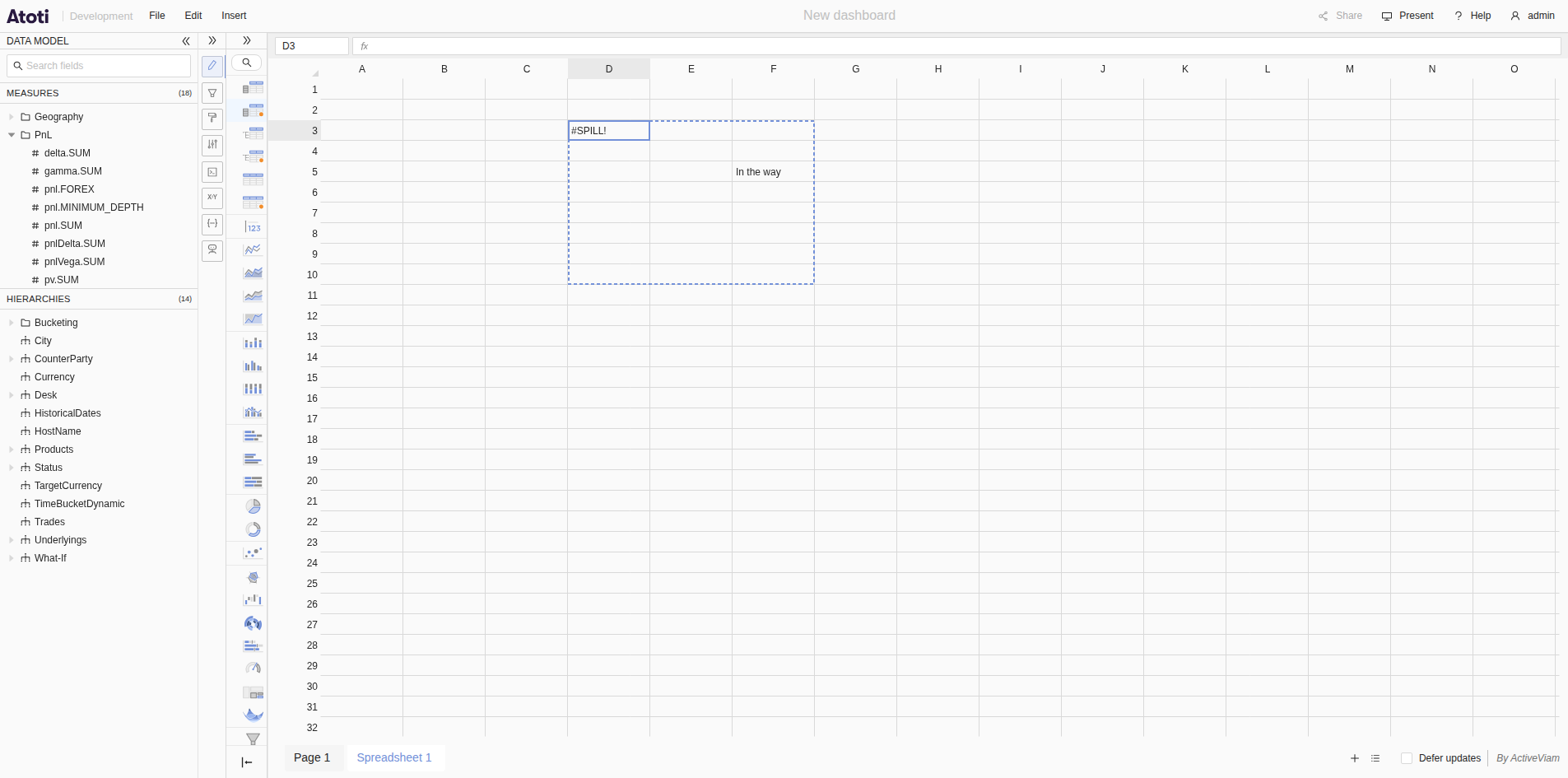
A widget needs free cells to grow into. If typed values or another widget are
in the way, the widget collapses to its anchor cell, and the cell shows
`#SPILL!`. Select that cell to see the range the widget needs, then clear or
move what blocks it.
To change the type of the widget, select one of its cells and click **Table v2** or **Tree table v2** in the widgets panel.
Other widget types cannot be anchored in a spreadsheet.
A widget needs free cells to grow into. If typed values or another widget are
in the way, the widget collapses to its anchor cell, and the cell shows
`#SPILL!`. Select that cell to see the range the widget needs, then clear or
move what blocks it.
 ## Type values in cells
Type a number or some text in any cell that no widget covers.
* To replace the content of a cell, select it and start typing.
* To edit the content of a cell, double-click it or press F2.
* To validate, press Enter or Tab, or click outside the grid.
* To cancel, press Escape.
* To clear the selected cells, press Delete.
## Write a formula
A formula starts with `=`.
It combines numbers and cell references with the operators `+`, `-`, `*` and `/`.
You can use parentheses to group operations, for example `=(I6 - H6) / G18`.
The formula bar sits above the page.
On its left, the name box shows the address of the selected cell, for example `B5`.
The formula bar shows the content of the selected cell.
For a formula cell, it shows the formula, and the cell shows its result.
To write a formula:
1. Select the cell that will hold the result.
2. Click the formula bar.
You can also type directly in the cell.
3. Type `=`.
4. Click the cell you want to reference.
Its reference appears in the formula.
5. Type an operator, such as `-`.
6. Click another cell to reference it.
7. Repeat steps 5 and 6 as needed.
Type `(` and `)` wherever you need them.
8. Press Enter.
The cell shows the result of the formula.
## Type values in cells
Type a number or some text in any cell that no widget covers.
* To replace the content of a cell, select it and start typing.
* To edit the content of a cell, double-click it or press F2.
* To validate, press Enter or Tab, or click outside the grid.
* To cancel, press Escape.
* To clear the selected cells, press Delete.
## Write a formula
A formula starts with `=`.
It combines numbers and cell references with the operators `+`, `-`, `*` and `/`.
You can use parentheses to group operations, for example `=(I6 - H6) / G18`.
The formula bar sits above the page.
On its left, the name box shows the address of the selected cell, for example `B5`.
The formula bar shows the content of the selected cell.
For a formula cell, it shows the formula, and the cell shows its result.
To write a formula:
1. Select the cell that will hold the result.
2. Click the formula bar.
You can also type directly in the cell.
3. Type `=`.
4. Click the cell you want to reference.
Its reference appears in the formula.
5. Type an operator, such as `-`.
6. Click another cell to reference it.
7. Repeat steps 5 and 6 as needed.
Type `(` and `)` wherever you need them.
8. Press Enter.
The cell shows the result of the formula.
 ### Reference cells by clicking them
While you write a formula, you can click a cell instead of typing its address.
This works wherever the formula expects a value: right after `=`, an operator, or `(`.
* Click a cell to insert its reference.
* Click another cell to replace the reference you just inserted.
* Use the arrow keys to move the reference to a neighboring cell.
* Type an operator or a parenthesis to keep the reference and continue the formula.
While you edit a formula, each referenced cell is outlined in the grid with the same color as its reference in the formula.
The cell whose reference you just inserted has a dashed outline.
You can also type references by hand, for example `=B2 * 2`.
### Reference a cell of a widget
You can reference a cell of a v2 table widget the same way as any other cell: click it while you write the formula.
* If the widget is anchored in the spreadsheet you are editing, the reference is the address of the cell in the spreadsheet, for example `D5`.
* If the widget is on another page, the reference points to the cell in the widget's own grid, for example `'p-2/0'!C7`.
### Reference a cell on another page
A formula can reference cells on any page of the same dashboard: another spreadsheet, or a regular page containing v2 table widgets.
1. Start writing the formula, and stop where you want the reference, for example after `=` or `+`.
2. Click the tab of the other page at the bottom of the dashboard.
The formula stays in edit mode, and you keep typing in the formula bar.
3. Click the cell you want to reference.
Atoti UI writes the reference to that cell.
4. Continue the formula.
To reference cells from other pages, click their page tabs.
5. Press Enter.
A reference to another page starts with an identifier between single quotes, followed by `!`, for example `'p-2'!C7`.
* For a cell of another spreadsheet, the identifier is the key of its page, for example `'p-2'!C7`.
* For a cell of a v2 table widget, the identifier combines the key of its page and the key of the widget, for example `'p-2/0'!C7`.
Page keys are internal identifiers. They differ from the page names shown in
the page tabs. Click cells to write references to other pages rather than
typing them.
### Formula results and updates
A formula recomputes when a cell it references changes.
This includes widget cells that change after a query update, or through a live update.
* An empty referenced cell counts as `0`.
* A formula can reference other formula cells.
When a formula cannot compute a result, its cell shows an error:
| Error | Cause |
| - | - |
| `#DIV/0!` | The formula divides by zero. |
| `#VALUE!` | A referenced cell does not hold a number, for example text or a member caption. |
| `#REF!` | The referenced cell does not exist, for example a cell past the edge of a widget, or on a deleted page. |
| `#CIRCULAR!` | The formula depends on itself, directly or through other formulas. |
| `#ERROR!` | The saved formula can no longer be read. |
| `#SPILL!` | A widget anchored at this cell cannot expand. See [Add a widget to a spreadsheet](#add-a-widget-to-a-spreadsheet). |
If you validate a formula with a syntax error, for example `=A1 +`, Atoti UI rejects it and the cell keeps its previous content.
## Current limitations
The spreadsheet is a minimum viable product (MVP).
It has the limitations below, which upcoming releases will lift.
Formulas support only the operators `+`, `-`, `*` and `/`, and parentheses.
They do not support yet:
* Functions, such as `SUM`, `AVERAGE`, `VLOOKUP` or `IIF`.
* Ranges, such as `A1:A10`.
* Absolute references, such as `$A$1`.
* References that follow a member.
A reference to a widget cell points to a position in the widget, not to a member.
When the layout of the widget changes, for example after a drilldown, a sort or a new member arriving through a live update, the formula reads the cell now at that position.
* Extending a formula to neighboring cells, for example by dragging it.
The spreadsheet does not support yet:
* Resizing its columns.
* Inserting or deleting rows and columns.
* Formatting cells, including the results of formulas.
For example, a result shows all its decimals.
* Copying, cutting and pasting cells.
v2 table widgets run their query as soon as you open the dashboard, even if their page is not displayed.
A standard table widget runs its query only when it appears on screen.
A dashboard with many v2 table widgets can therefore take longer to load and put more load on the server.
In an upcoming release, v2 table widgets will run their queries only when displayed, or when a formula needs one of their cells.
## Out of scope
The spreadsheet brings Excel-like flexibility to the data of the cube.
It does not aim to replace Excel.
The following will not be supported:
* Excel plugins, such as the Bloomberg Excel add-in.
* VBA macros.
* References to cells of standard table widgets.
v2 table widgets will ultimately replace them.
### Reference cells by clicking them
While you write a formula, you can click a cell instead of typing its address.
This works wherever the formula expects a value: right after `=`, an operator, or `(`.
* Click a cell to insert its reference.
* Click another cell to replace the reference you just inserted.
* Use the arrow keys to move the reference to a neighboring cell.
* Type an operator or a parenthesis to keep the reference and continue the formula.
While you edit a formula, each referenced cell is outlined in the grid with the same color as its reference in the formula.
The cell whose reference you just inserted has a dashed outline.
You can also type references by hand, for example `=B2 * 2`.
### Reference a cell of a widget
You can reference a cell of a v2 table widget the same way as any other cell: click it while you write the formula.
* If the widget is anchored in the spreadsheet you are editing, the reference is the address of the cell in the spreadsheet, for example `D5`.
* If the widget is on another page, the reference points to the cell in the widget's own grid, for example `'p-2/0'!C7`.
### Reference a cell on another page
A formula can reference cells on any page of the same dashboard: another spreadsheet, or a regular page containing v2 table widgets.
1. Start writing the formula, and stop where you want the reference, for example after `=` or `+`.
2. Click the tab of the other page at the bottom of the dashboard.
The formula stays in edit mode, and you keep typing in the formula bar.
3. Click the cell you want to reference.
Atoti UI writes the reference to that cell.
4. Continue the formula.
To reference cells from other pages, click their page tabs.
5. Press Enter.
A reference to another page starts with an identifier between single quotes, followed by `!`, for example `'p-2'!C7`.
* For a cell of another spreadsheet, the identifier is the key of its page, for example `'p-2'!C7`.
* For a cell of a v2 table widget, the identifier combines the key of its page and the key of the widget, for example `'p-2/0'!C7`.
Page keys are internal identifiers. They differ from the page names shown in
the page tabs. Click cells to write references to other pages rather than
typing them.
### Formula results and updates
A formula recomputes when a cell it references changes.
This includes widget cells that change after a query update, or through a live update.
* An empty referenced cell counts as `0`.
* A formula can reference other formula cells.
When a formula cannot compute a result, its cell shows an error:
| Error | Cause |
| - | - |
| `#DIV/0!` | The formula divides by zero. |
| `#VALUE!` | A referenced cell does not hold a number, for example text or a member caption. |
| `#REF!` | The referenced cell does not exist, for example a cell past the edge of a widget, or on a deleted page. |
| `#CIRCULAR!` | The formula depends on itself, directly or through other formulas. |
| `#ERROR!` | The saved formula can no longer be read. |
| `#SPILL!` | A widget anchored at this cell cannot expand. See [Add a widget to a spreadsheet](#add-a-widget-to-a-spreadsheet). |
If you validate a formula with a syntax error, for example `=A1 +`, Atoti UI rejects it and the cell keeps its previous content.
## Current limitations
The spreadsheet is a minimum viable product (MVP).
It has the limitations below, which upcoming releases will lift.
Formulas support only the operators `+`, `-`, `*` and `/`, and parentheses.
They do not support yet:
* Functions, such as `SUM`, `AVERAGE`, `VLOOKUP` or `IIF`.
* Ranges, such as `A1:A10`.
* Absolute references, such as `$A$1`.
* References that follow a member.
A reference to a widget cell points to a position in the widget, not to a member.
When the layout of the widget changes, for example after a drilldown, a sort or a new member arriving through a live update, the formula reads the cell now at that position.
* Extending a formula to neighboring cells, for example by dragging it.
The spreadsheet does not support yet:
* Resizing its columns.
* Inserting or deleting rows and columns.
* Formatting cells, including the results of formulas.
For example, a result shows all its decimals.
* Copying, cutting and pasting cells.
v2 table widgets run their query as soon as you open the dashboard, even if their page is not displayed.
A standard table widget runs its query only when it appears on screen.
A dashboard with many v2 table widgets can therefore take longer to load and put more load on the server.
In an upcoming release, v2 table widgets will run their queries only when displayed, or when a formula needs one of their cells.
## Out of scope
The spreadsheet brings Excel-like flexibility to the data of the cube.
It does not aim to replace Excel.
The following will not be supported:
* Excel plugins, such as the Bloomberg Excel add-in.
* VBA macros.
* References to cells of standard table widgets.
v2 table widgets will ultimately replace them.