> ## Documentation Index
> Fetch the complete documentation index at: https://docs.activeviam.com/llms.txt
> Use this file to discover all available pages before exploring further.
# Import and export dashboards
> How to export and import dashboards and folders in Atoti UI as JSON files, covering single and bulk export from the home page context menu, importing into a folder or root, and use cases such as backup, sharing, and environment migration.
## Why export and import dashboards?
Exporting and importing dashboards can be a time saver. For example:
### Export dashboards
* Back up work.
* Share dashboards with other users.
* Move dashboards between environments (from a test to a prod environment).
### Import dashboards
* Restore previously saved dashboards.
## How to export dashboards or folders
You can export individual dashboards, folders, or all dashboards at once.
### Export a single dashboard or folder
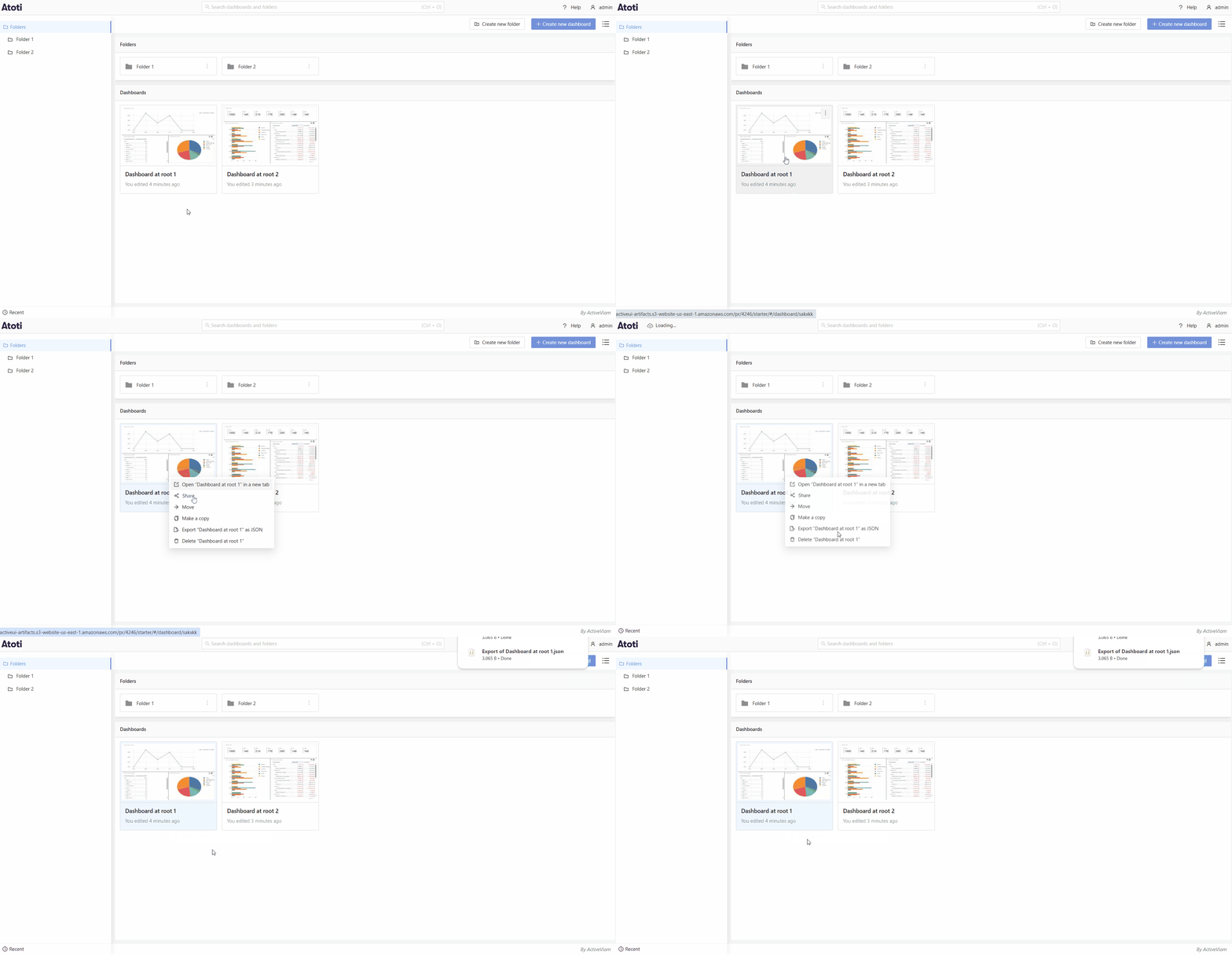
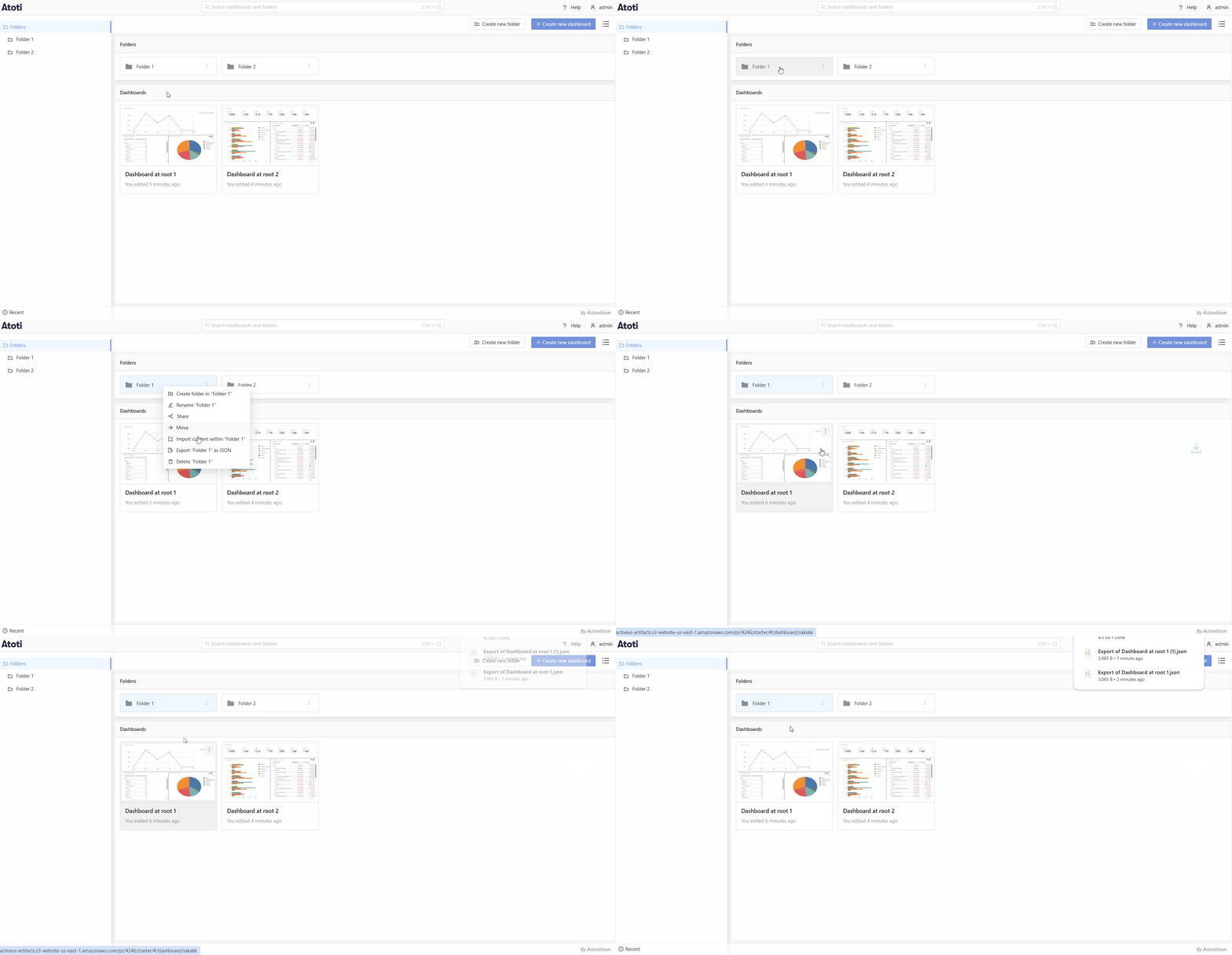
* In the left-hand sidebar, locate the folder or the parent folder of the dashboard you want to export.
* Right-click on the folder in the left-hand sidebar, or the dashboard tile in the dashboard grid.
* In the context menu, select **Export \[name of dashboard] as JSON**.
* A JSON file will be downloaded to your computer. This file contains the dashboard or folder configuration.
To export a dashboard:
 To export a folder:
 ### Export all dashboards
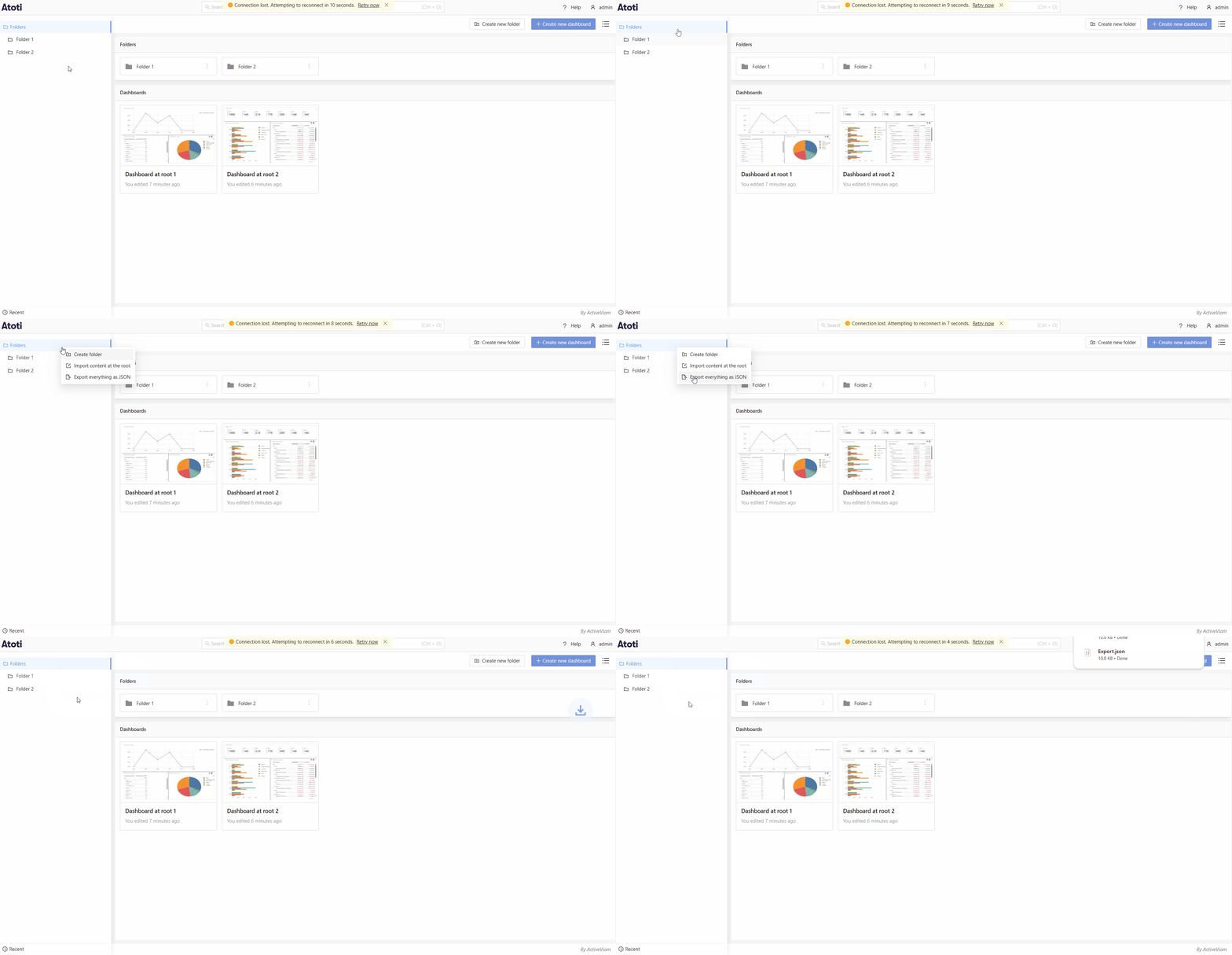
* In the left-hand sidebar, right-click on Folders.
* Select **Export everything as JSON**.
* A JSON file containing all dashboards and folders will be downloaded.
### Export all dashboards
* In the left-hand sidebar, right-click on Folders.
* Select **Export everything as JSON**.
* A JSON file containing all dashboards and folders will be downloaded.
 ## How to import dashboards or folders
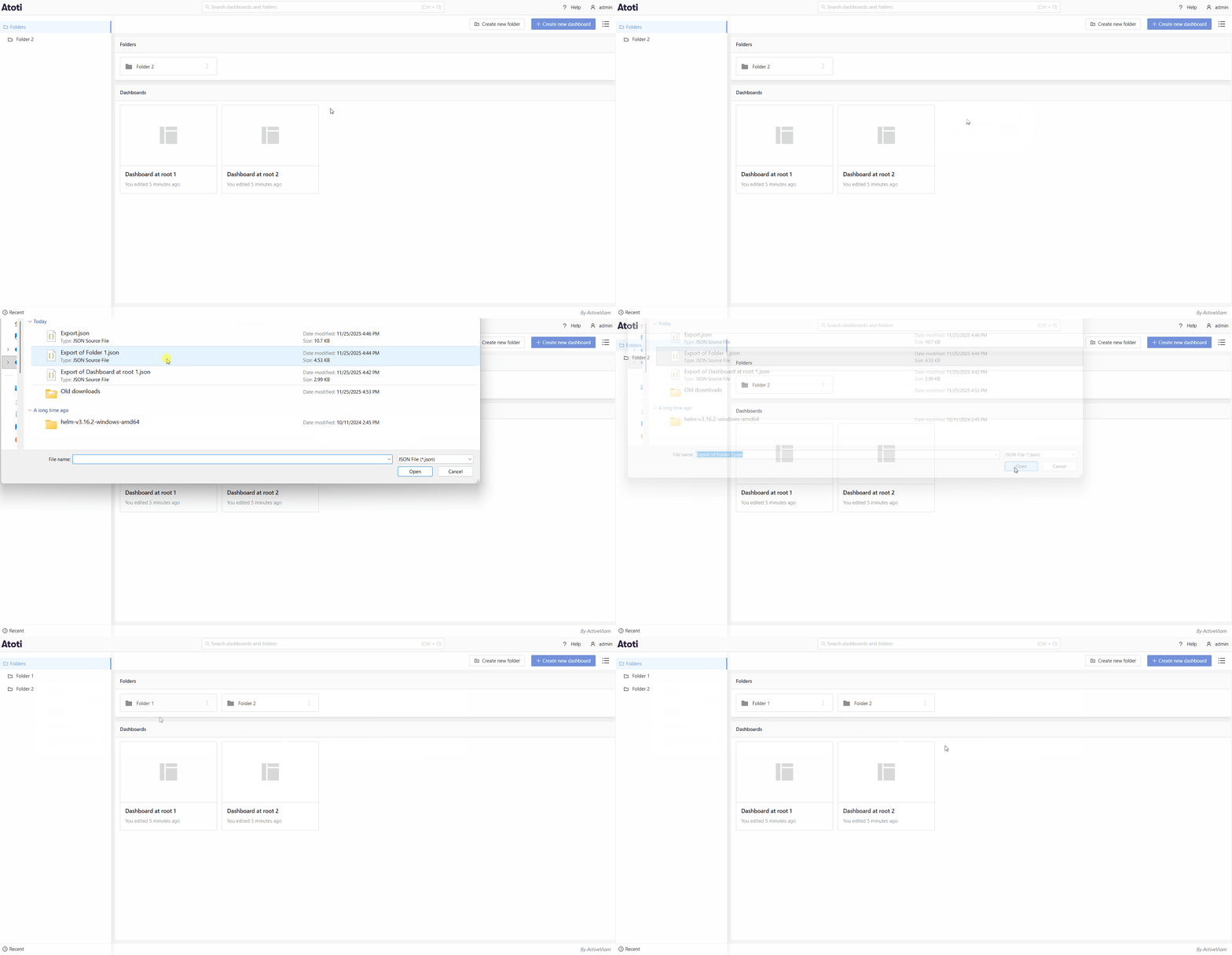
* In the home page, either right-click on a folder or in a folder
* Click the **Import** option. This will tell you where you are importing to
* Select the JSON file you would like to import.
* The dashboard or folder will appear in your workspace.
To import to a new project:
## How to import dashboards or folders
* In the home page, either right-click on a folder or in a folder
* Click the **Import** option. This will tell you where you are importing to
* Select the JSON file you would like to import.
* The dashboard or folder will appear in your workspace.
To import to a new project:
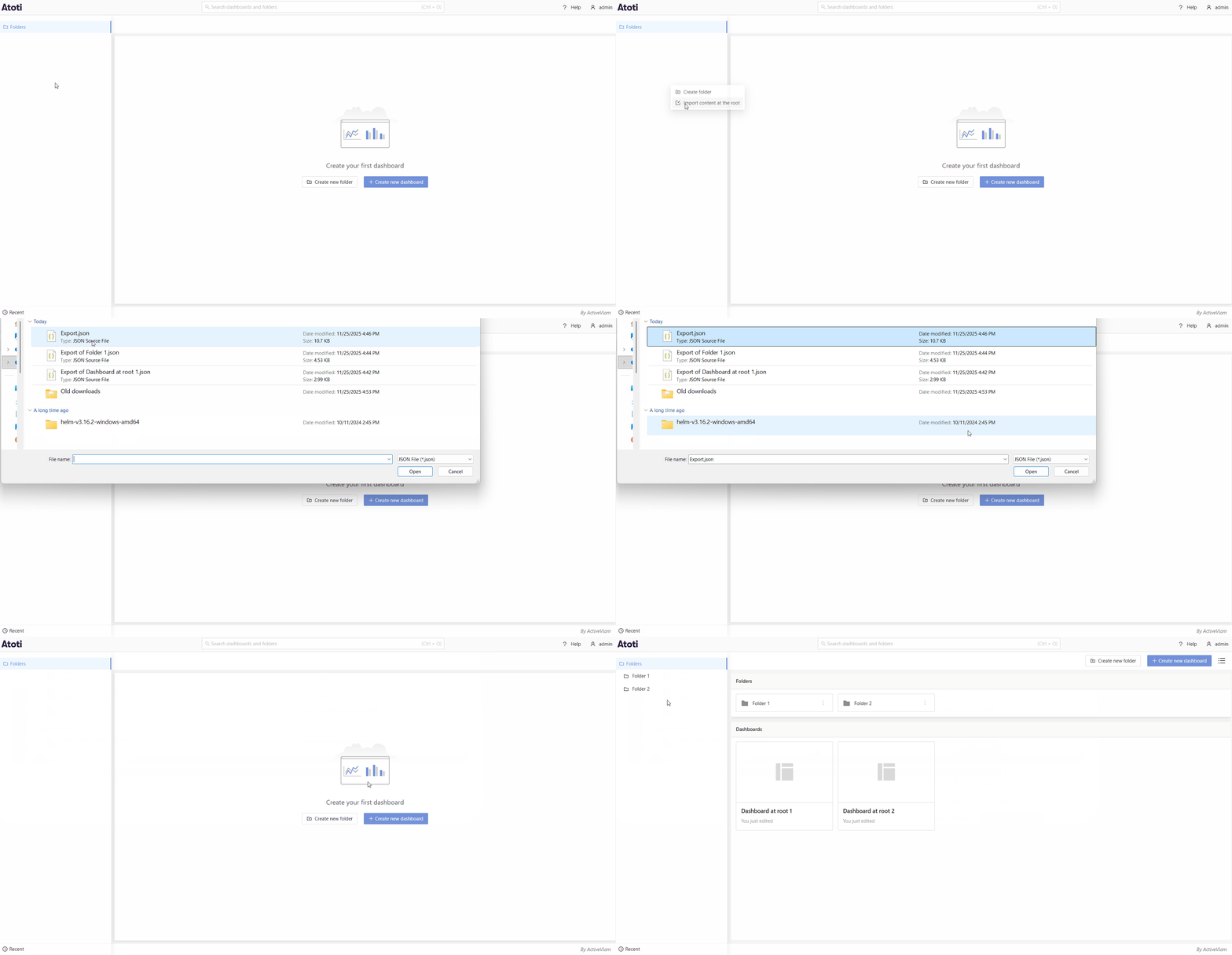 To import to a specific folder:
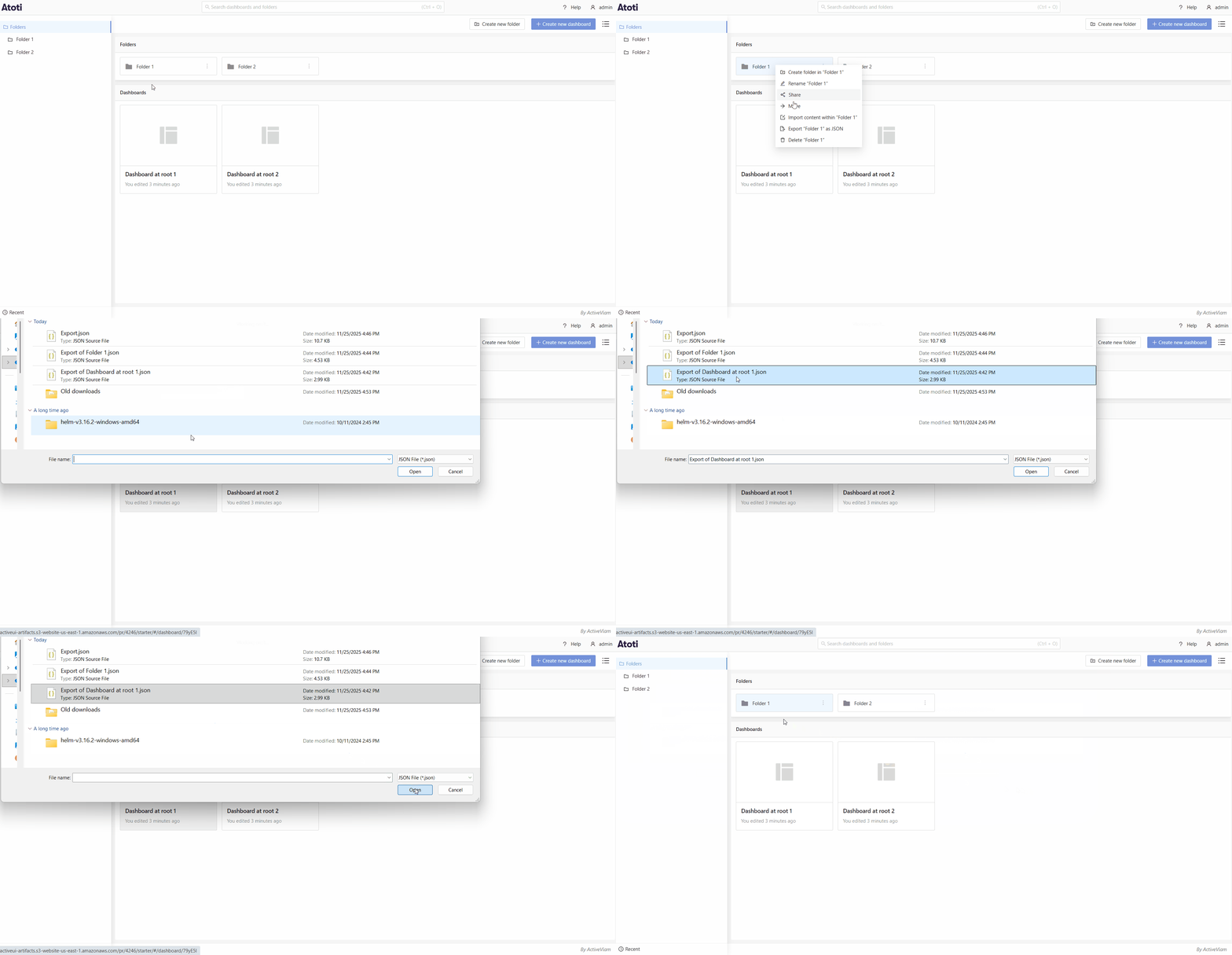 To import to the root: