> ## Documentation Index
> Fetch the complete documentation index at: https://docs.activeviam.com/llms.txt
> Use this file to discover all available pages before exploring further.
# Save a filter
> How to save, manage, and reuse filters in Atoti UI using the Saved filters menu, including creating folders, adding saved filters to widgets by drag-and-drop or click, renaming, deleting, and sharing filters across your organization.
Atoti UI provides the ability to save filters. These can then be reused, in any widget whose targeted [cube](../../navigate-atoti-ui/data-model#cube) contains a [hierarchy](../../navigate-atoti-ui/data-model#hierarchy) with the same name as the filter's hierarchy. They can also be [shared](../share-content#share-a-filter) with others in your organization.
## Save a filter
To save a filter:
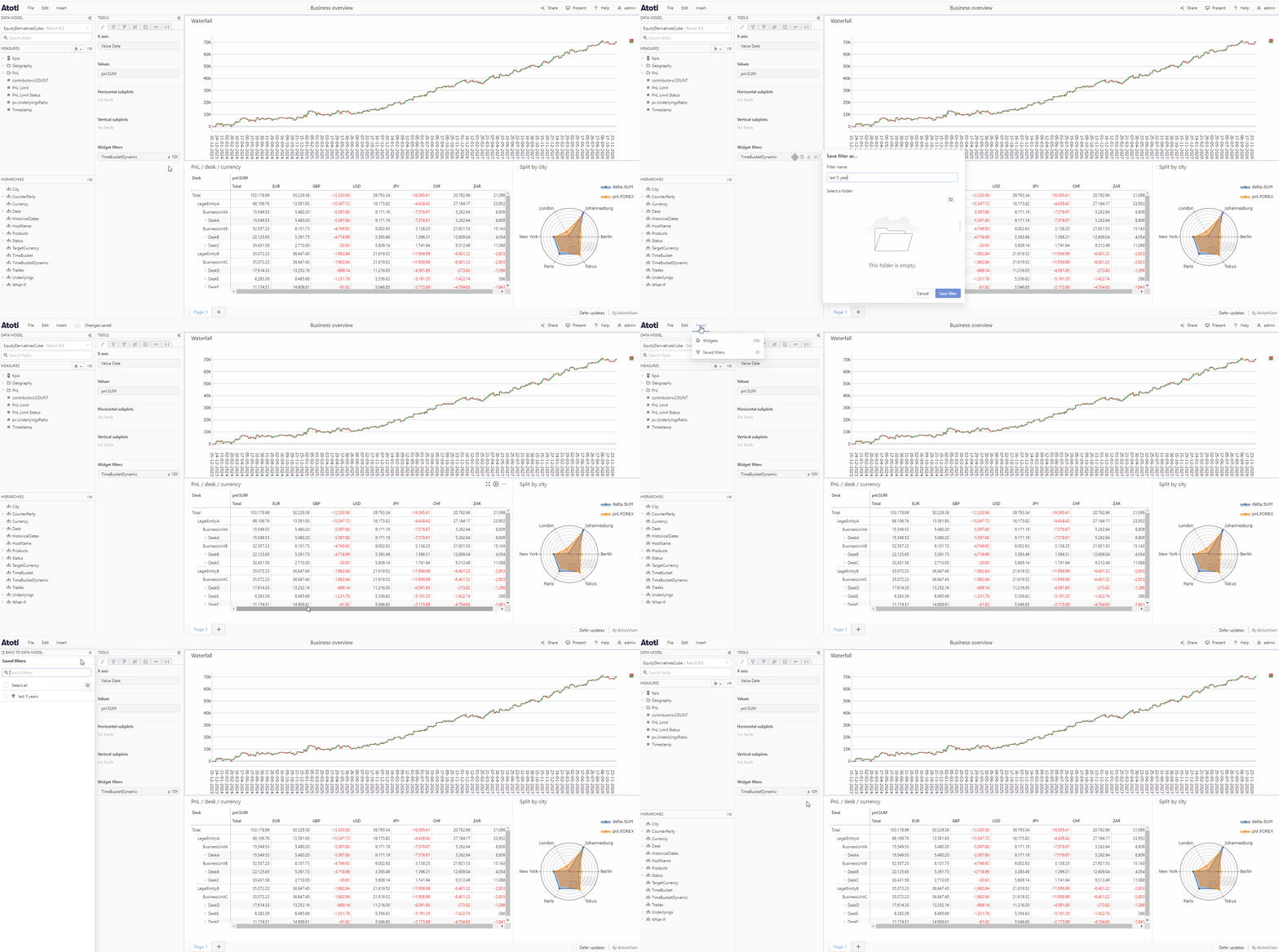
* Hover over the chosen filter tile in the tools panel, you will see some icons appear on the right of the tile.
* Click the save icon to open the **Save filter as** popup.
* Enter a name for your filter.
* If you wish to save your filter in a folder, you can either select an existing folder from the list or click the folder icon to create a new folder.
* Click **Save filter** to save your filter and close the popup.
 ## Manage saved filters
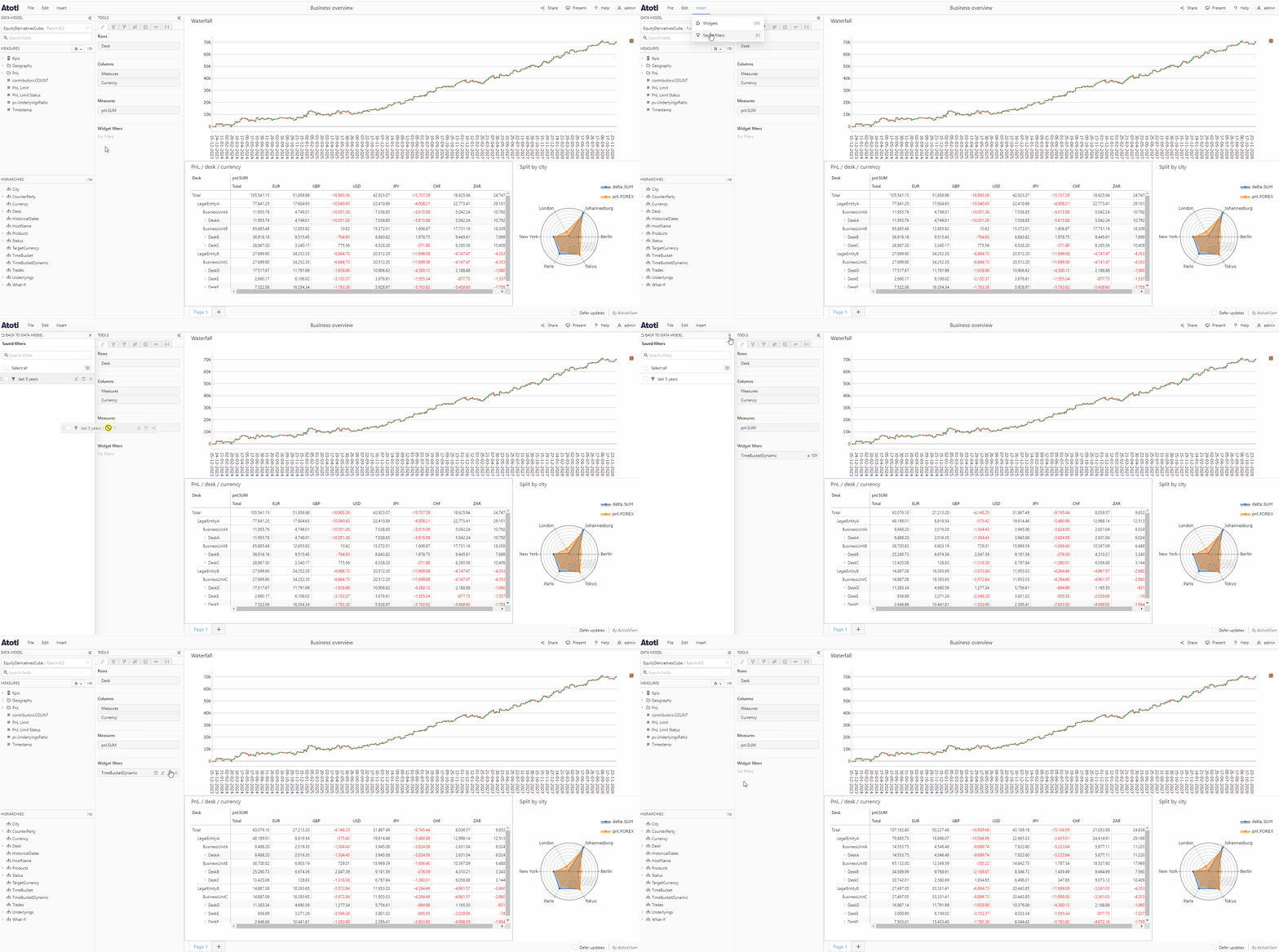
To open the **Saved filters** menu, click the **Insert** menu in the top navigation bar then choose **Saved filters**. Alternatively you can use the [keyboard shortcut](../../navigate-atoti-ui/keyboard-shortcuts#manage-content) F. The **Saved filters** menu will appear on the left of the application in the place of the [data model](../../navigate-atoti-ui/data-model), displaying all of your saved filters.
### Add a saved filter to a widget
You can add a saved filter to a widget, page or dashboard from the **Saved filters** menu.
* Drag a saved filter tile and drop it in the chosen [section](./about-filters#scopes-of-filters) of the **Filters** tab.
* Alternatively, clicking a saved filter tile will automatically add that filter to the **Widget filters** section of the **Filters** tab (or the **Widget filters** section of the **Fields** tab, if that is the selected tab), after any existing filters.
## Manage saved filters
To open the **Saved filters** menu, click the **Insert** menu in the top navigation bar then choose **Saved filters**. Alternatively you can use the [keyboard shortcut](../../navigate-atoti-ui/keyboard-shortcuts#manage-content) F. The **Saved filters** menu will appear on the left of the application in the place of the [data model](../../navigate-atoti-ui/data-model), displaying all of your saved filters.
### Add a saved filter to a widget
You can add a saved filter to a widget, page or dashboard from the **Saved filters** menu.
* Drag a saved filter tile and drop it in the chosen [section](./about-filters#scopes-of-filters) of the **Filters** tab.
* Alternatively, clicking a saved filter tile will automatically add that filter to the **Widget filters** section of the **Filters** tab (or the **Widget filters** section of the **Fields** tab, if that is the selected tab), after any existing filters.
 ### Rename a saved filter
* In the **Saved filters** menu, hover over a saved filter tile, you will see some icons appear on the right of the tile.
* Click the **edit** icon.
* The filter name will become a text input, type the new name and press enter.
* If you need to cancel renaming, press Escape.
### Delete a saved filter
* In the **Saved filters** menu, hover over a saved filter tile, you will see some icons appear on the right of the tile.
* Click the **delete** icon.
* If you are sure you want to delete, click the **Delete** button in the popconfirm which appears.
### Rename a saved filter
* In the **Saved filters** menu, hover over a saved filter tile, you will see some icons appear on the right of the tile.
* Click the **edit** icon.
* The filter name will become a text input, type the new name and press enter.
* If you need to cancel renaming, press Escape.
### Delete a saved filter
* In the **Saved filters** menu, hover over a saved filter tile, you will see some icons appear on the right of the tile.
* Click the **delete** icon.
* If you are sure you want to delete, click the **Delete** button in the popconfirm which appears.