> ## Documentation Index
> Fetch the complete documentation index at: https://docs.activeviam.com/llms.txt
> Use this file to discover all available pages before exploring further.
# Dashboards
> What dashboards are in Atoti UI, covering how to create, rename, save, and navigate multi-page dashboards, use present mode, undo and redo changes, and manage pages with unique layouts, filters, and widgets.
Dashboards are interactive reports that enable users to create a visual representation of their data. A user can monitor and explore their data by building dashboards containing [widgets](./widgets/about-widgets) such as pivot tables or charts. Each dashboard may contain one or more [pages](#dashboard-pages), and each page may display one or more widgets.
Dashboards can be [exported to PDF](../exports/export-to-csv-or-pdf#export-to-pdf) or [shared](./share-content#share-a-dashboard) with others in your organization.
## Create a dashboard
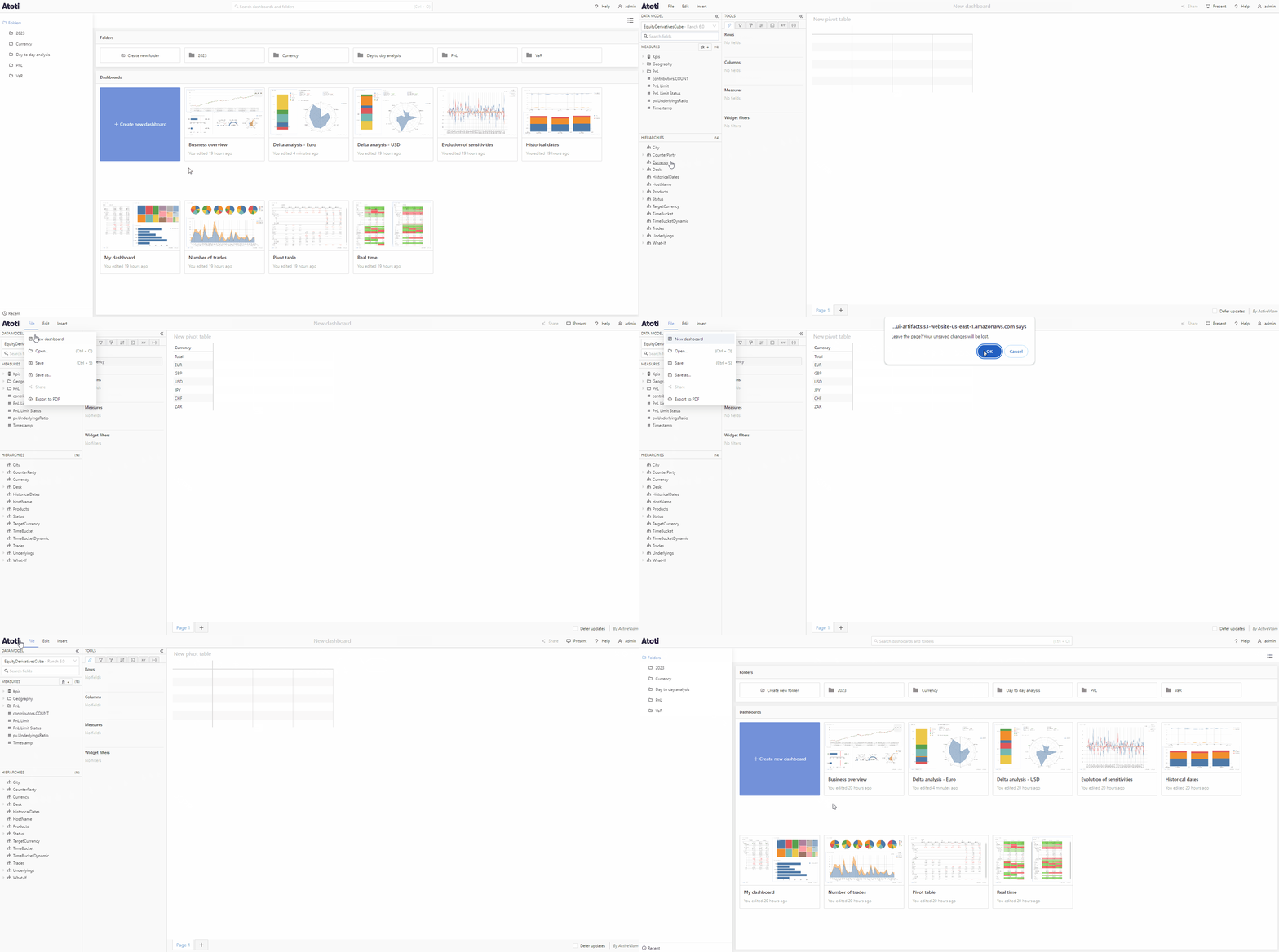
* To create a new dashboard from the home page, click the **Create new dashboard** button.
* To create a new dashboard from a dashboard page, select **New dashboard** from the **File** menu.
 Users who do not have the
[permission](../../developer-guide/customize-atoti-ui/permissions) to manage
content can create a new dashboard by using the **Start exploring** button in
the home page.
## Dashboard pages
**Pages** enable you to expand your workspace within a single dashboard, organize your data and quickly switch between different views. Each page can have unique [filters](./filters/about-filters) and a custom layout, displaying one or several widgets.
Pages can be managed using the pages bar at the bottom of the dashboard.
| Action | Instructions |
| ---------------- | --------------------------------------------------------------------------------------------- |
| Add a page | Click the **+** icon at the right of the pages bar. |
| Switch page | Click on the page tab you want to view. |
| Delete a page | Click the **X** icon at the right of the page tab. |
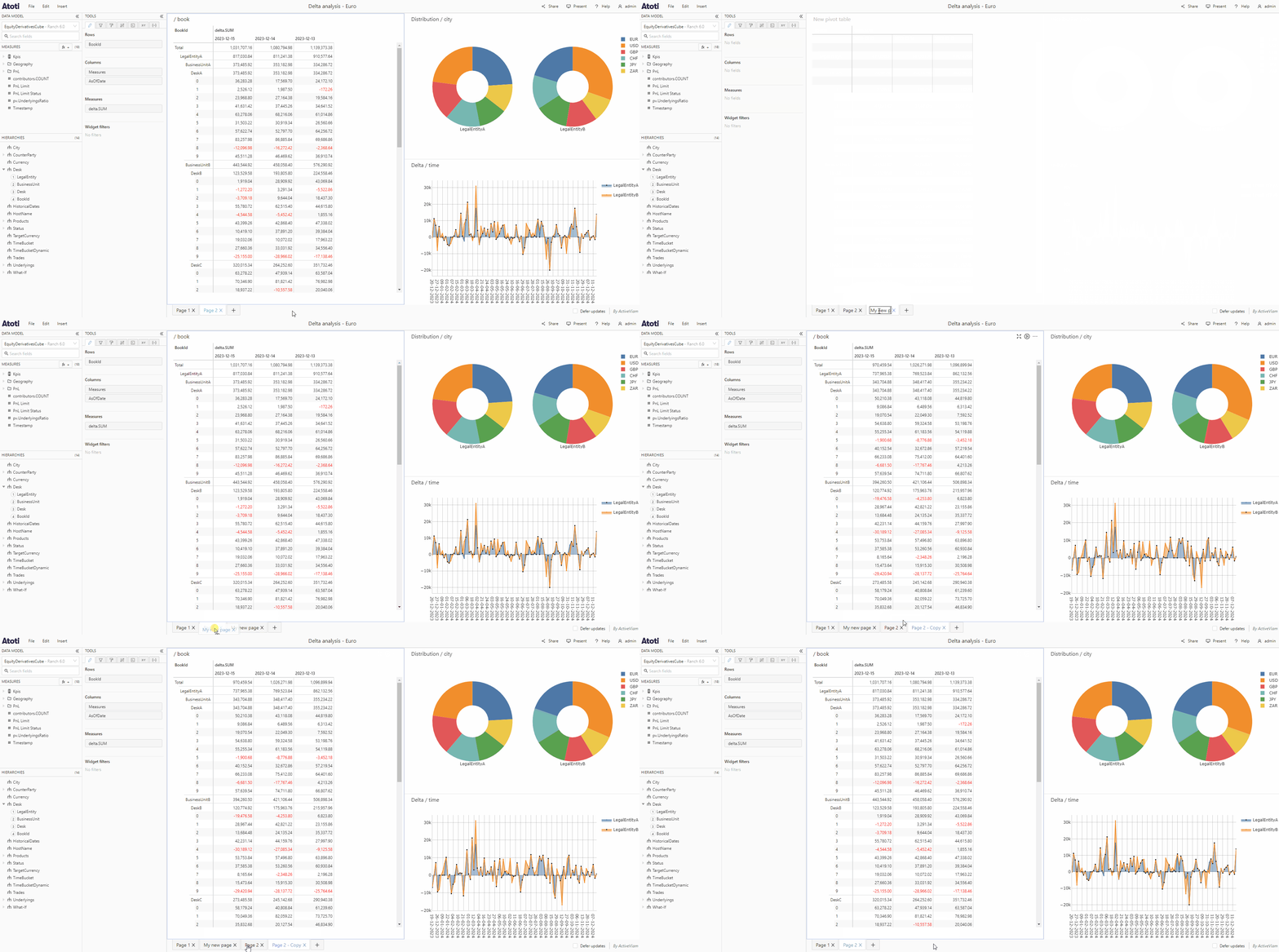
| Rename a page | Double click the page tab, it will change to a text input. Type the new name and press enter. |
| Duplicate a page | Right click on the page's tab, then select **Duplicate this page**. |
| Reorder pages | Click and hold a page tab, then drag it left or right and drop it in the new location. |
Users who do not have the
[permission](../../developer-guide/customize-atoti-ui/permissions) to manage
content can create a new dashboard by using the **Start exploring** button in
the home page.
## Dashboard pages
**Pages** enable you to expand your workspace within a single dashboard, organize your data and quickly switch between different views. Each page can have unique [filters](./filters/about-filters) and a custom layout, displaying one or several widgets.
Pages can be managed using the pages bar at the bottom of the dashboard.
| Action | Instructions |
| ---------------- | --------------------------------------------------------------------------------------------- |
| Add a page | Click the **+** icon at the right of the pages bar. |
| Switch page | Click on the page tab you want to view. |
| Delete a page | Click the **X** icon at the right of the page tab. |
| Rename a page | Double click the page tab, it will change to a text input. Type the new name and press enter. |
| Duplicate a page | Right click on the page's tab, then select **Duplicate this page**. |
| Reorder pages | Click and hold a page tab, then drag it left or right and drop it in the new location. |
 **Switching pages**
For better performance, dashboard pages are only loaded the first time you visit them, so there may be some initial delay when selecting another page for the first time. Once a page has been loaded, it will remain loaded even after you navigate to another page, so switching back to a previously active page will be fast.
## Save a dashboard
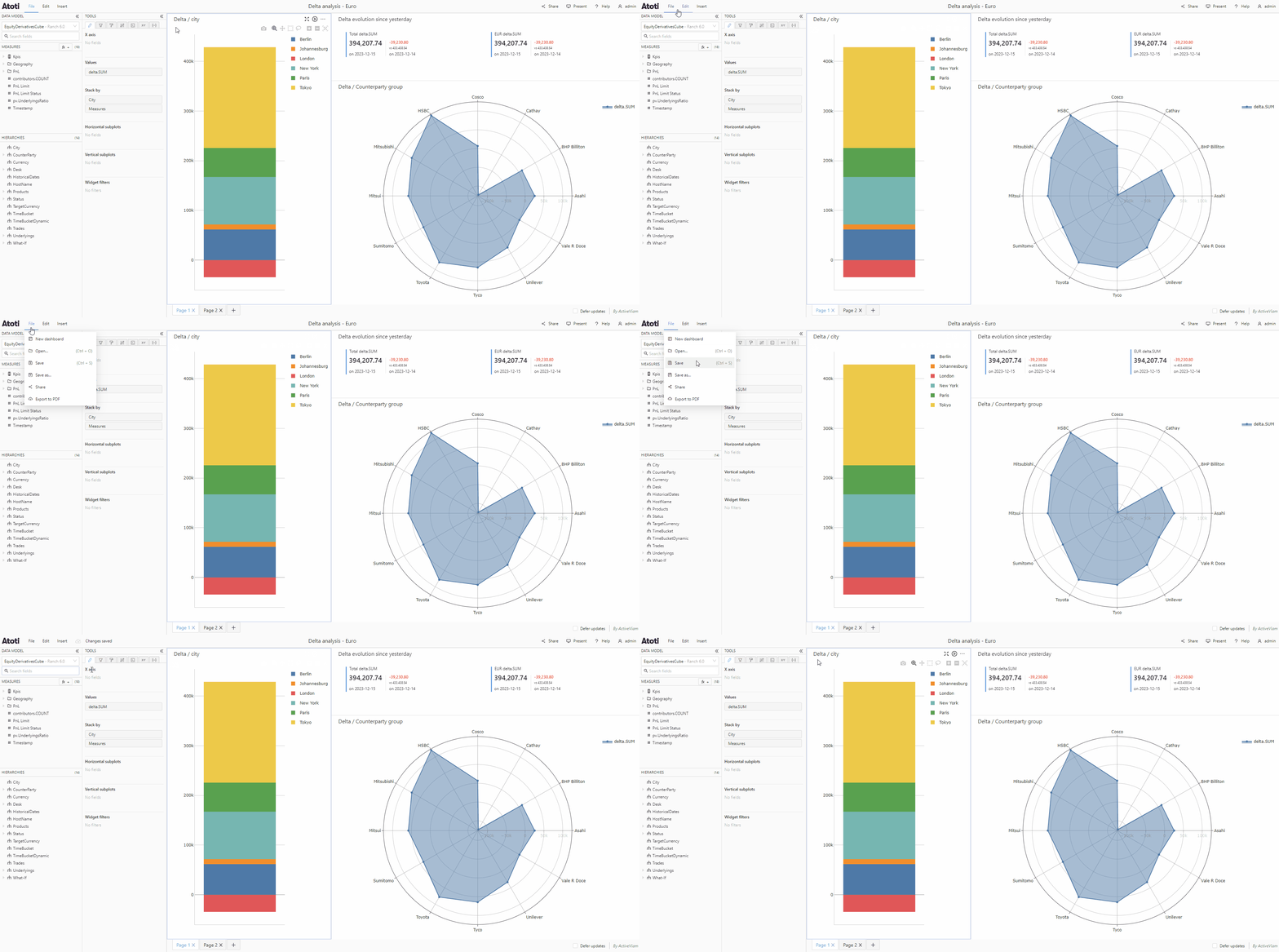
You can save a dashboard either by choosing **Save** from the **File** menu or by using the [keyboard shortcut](../navigate-atoti-ui/keyboard-shortcuts) Ctrl/Cmd + S. In the top navigation bar you will briefly see a message telling you that your changes have been saved.
**Switching pages**
For better performance, dashboard pages are only loaded the first time you visit them, so there may be some initial delay when selecting another page for the first time. Once a page has been loaded, it will remain loaded even after you navigate to another page, so switching back to a previously active page will be fast.
## Save a dashboard
You can save a dashboard either by choosing **Save** from the **File** menu or by using the [keyboard shortcut](../navigate-atoti-ui/keyboard-shortcuts) Ctrl/Cmd + S. In the top navigation bar you will briefly see a message telling you that your changes have been saved.
 When closing a dashboard, you may or may not see a popup reminding you to save
any unsaved changes, this can be enabled or disabled via
[settings](../../developer-guide/customize-atoti-ui/user-settings).
## Rename a dashboard
To rename a dashboard:
* Click on the dashboard's title in the top navigation bar. It will become a text input box.
* Enter the new title.
* Click outside of the input box or press Enter to save.
When closing a dashboard, you may or may not see a popup reminding you to save
any unsaved changes, this can be enabled or disabled via
[settings](../../developer-guide/customize-atoti-ui/user-settings).
## Rename a dashboard
To rename a dashboard:
* Click on the dashboard's title in the top navigation bar. It will become a text input box.
* Enter the new title.
* Click outside of the input box or press Enter to save.
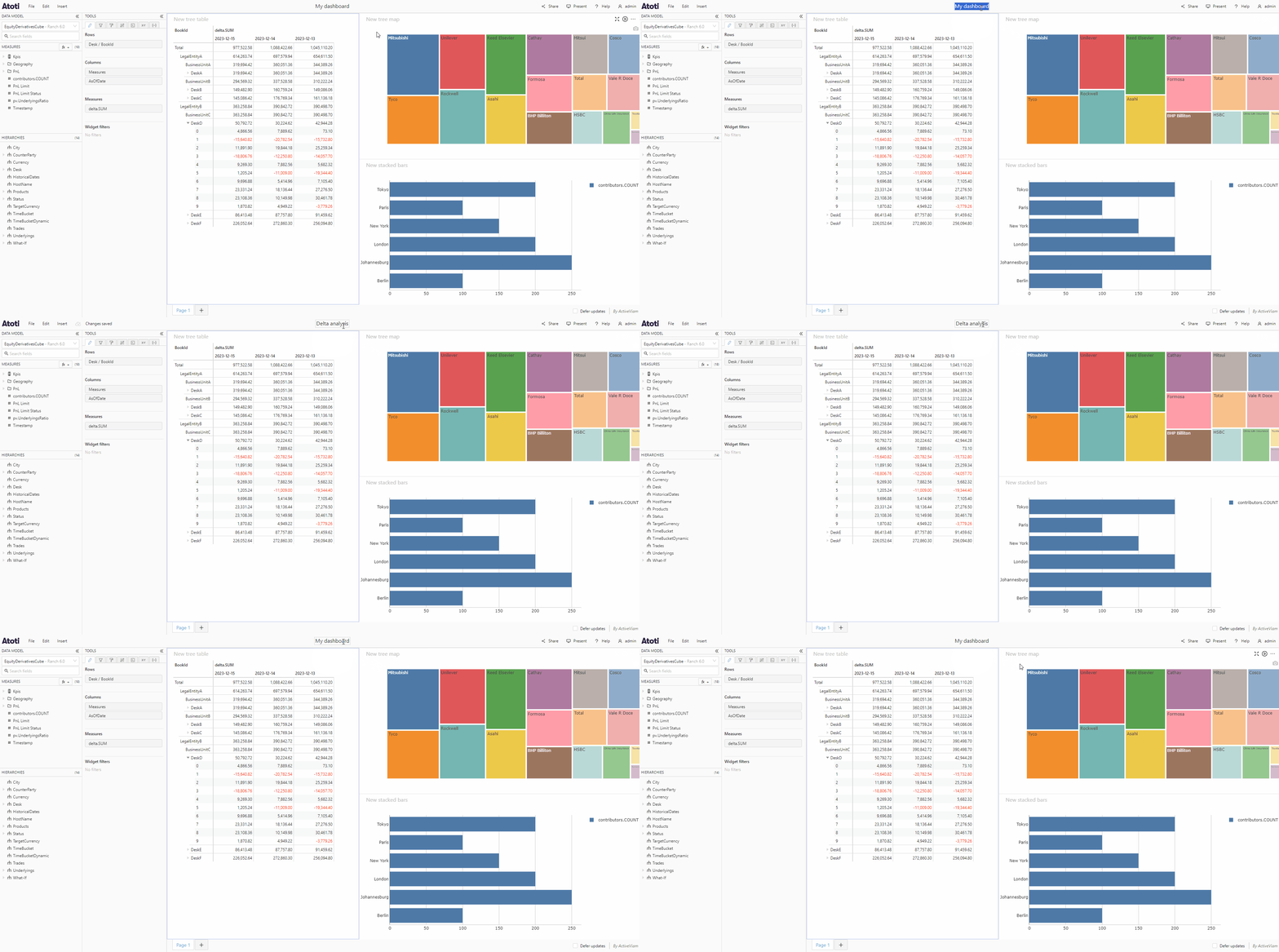 If you have any unsaved changes on your dashboard, these will also be saved when a dashboard is renamed, so make sure you want to keep any unsaved changes before renaming your dashboard.
You can only rename a dashboard if you have edit permissions for that dashboard.
## Undo or Redo changes to a dashboard
Changes to dashboards are tracked and can be undone and redone in the order they occurred.
You can undo and redo in two ways:
1. Using [Keyboard shortcuts](../navigate-atoti-ui/keyboard-shortcuts#dashboard-actions).
2. Using the **Undo** and **Redo** menu items from the **Edit** menu.
To clear all changes made to a dashboard since the last save, select **Reset dashboard** from the **Edit** menu.
If you have any unsaved changes on your dashboard, these will also be saved when a dashboard is renamed, so make sure you want to keep any unsaved changes before renaming your dashboard.
You can only rename a dashboard if you have edit permissions for that dashboard.
## Undo or Redo changes to a dashboard
Changes to dashboards are tracked and can be undone and redone in the order they occurred.
You can undo and redo in two ways:
1. Using [Keyboard shortcuts](../navigate-atoti-ui/keyboard-shortcuts#dashboard-actions).
2. Using the **Undo** and **Redo** menu items from the **Edit** menu.
To clear all changes made to a dashboard since the last save, select **Reset dashboard** from the **Edit** menu.
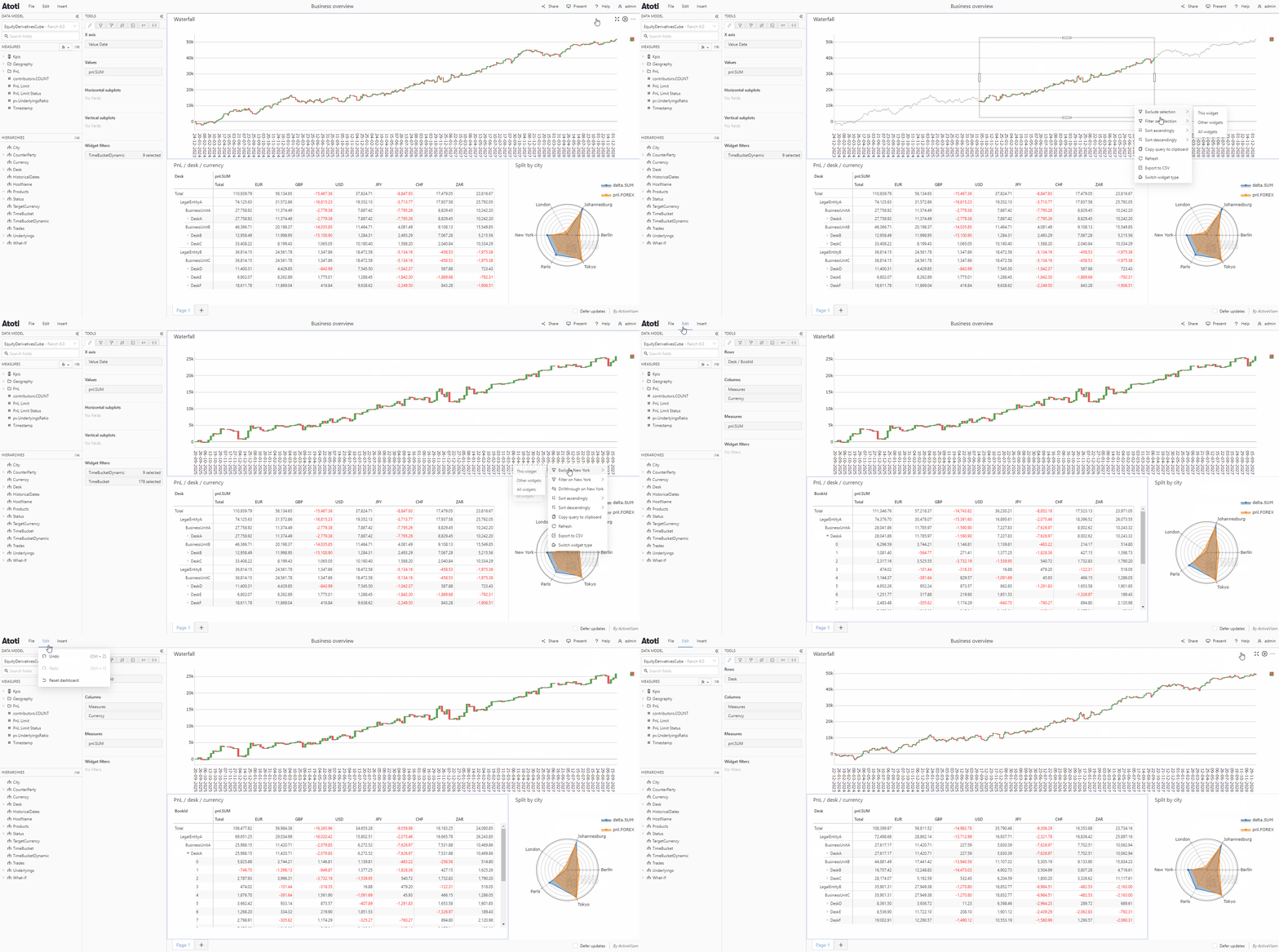 Saving or leaving a dashboard will clear the available history of actions.
## Present mode
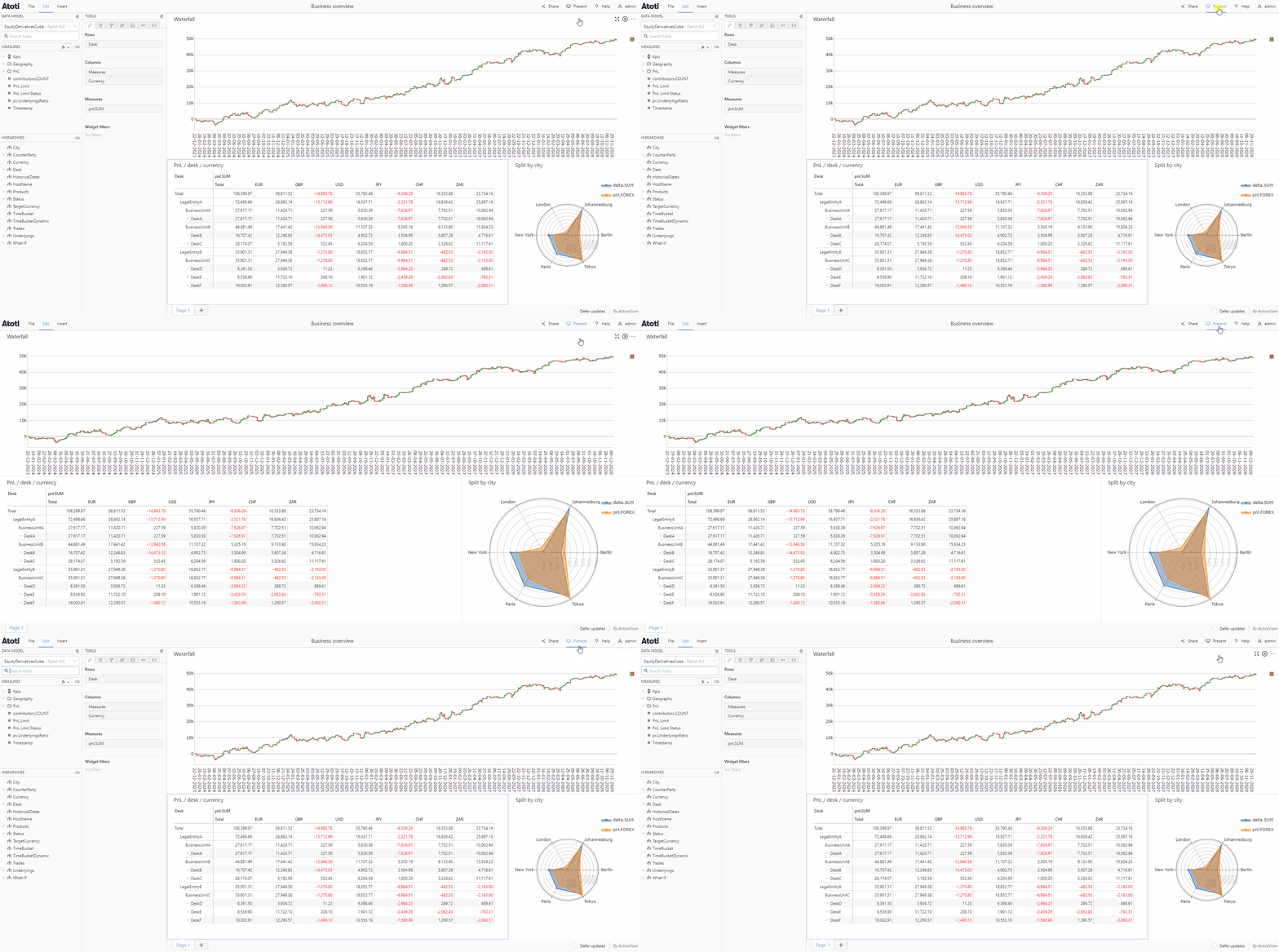
Dashboards can be viewed in **Present mode**, where the [data model](../navigate-atoti-ui/data-model) and the tools panel are hidden, but you can still switch between [pages](#dashboard-pages), adjust the layout and perform actions on your widgets, such as [filtering](./filters/about-filters) or [sorting](../analyze-data/sort-data).
Turn present mode on or off by clicking **Present** in the top navigation bar.
Saving or leaving a dashboard will clear the available history of actions.
## Present mode
Dashboards can be viewed in **Present mode**, where the [data model](../navigate-atoti-ui/data-model) and the tools panel are hidden, but you can still switch between [pages](#dashboard-pages), adjust the layout and perform actions on your widgets, such as [filtering](./filters/about-filters) or [sorting](../analyze-data/sort-data).
Turn present mode on or off by clicking **Present** in the top navigation bar.