> ## Documentation Index
> Fetch the complete documentation index at: https://docs.activeviam.com/llms.txt
> Use this file to discover all available pages before exploring further.
# Sort data
> How to sort tables and charts in Atoti UI by hierarchy or measure using the Sort ascendingly and Sort descendingly context menu options, covering breaking vs. non-breaking sort behavior for pivot table, tree table, and table widgets.
Atoti UI provides the ability to sort your data by a chosen [**hierarchy**](../navigate-atoti-ui/data-model#hierarchy) or [**measure**](../navigate-atoti-ui/data-model#measure).
The ability to sort data relies on a series of plugins. If you cannot find
them in your application, contact your system administrator.
## Sort a table
To sort a table:
1. Right-click on the header of the column you want to sort.
2. Select either **Sort ascendingly** or **Sort descendingly** from the context menu.
Once a sort has been applied, there will be an icon in the header of the sorted column. Clicking this icon will change the sort from ascending to descending, or vice versa.
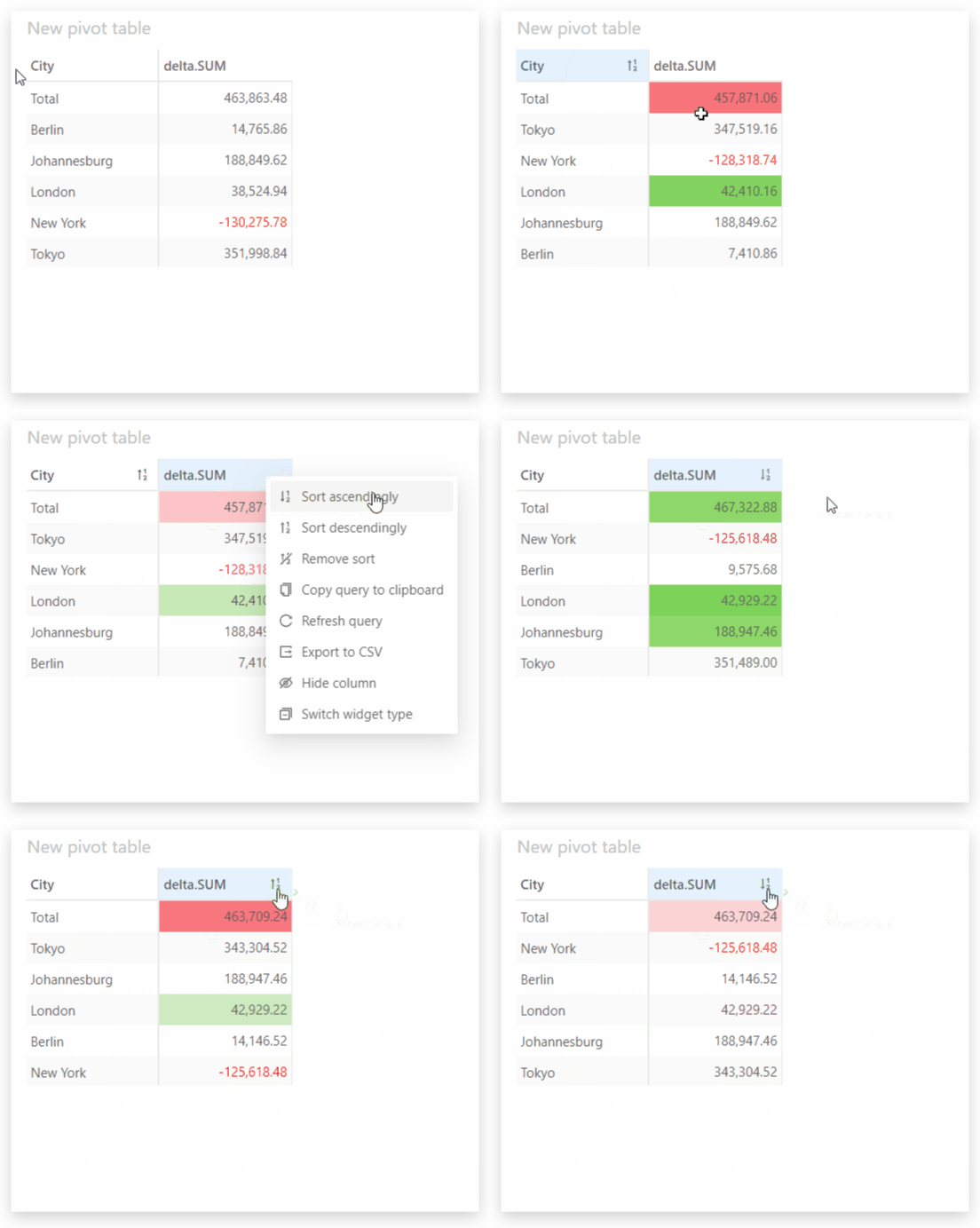 **Pivot table** and **Tree table** widgets have a non-breaking sort, whereas **Table** widgets have a breaking sort.
See the [Microsoft documentation](https://learn.microsoft.com/en-us/sql/mdx/order-mdx?view=sql-server-ver15) to learn more about the difference between a breaking and non-breaking sort.
## Sort a chart
To sort a chart:
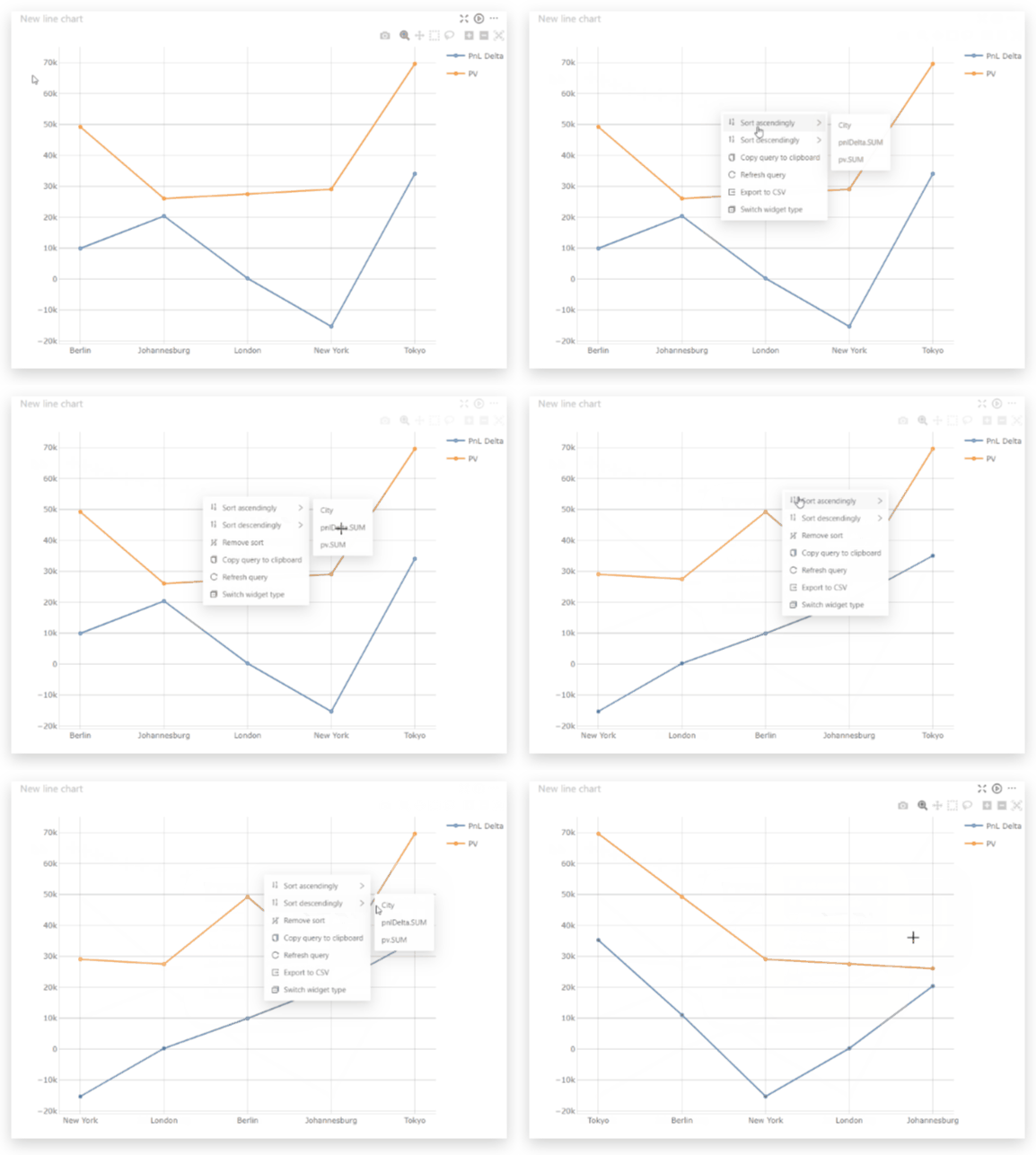
1. Right click anywhere on the chart.
2. Select either **Sort ascendingly** or **Sort descendingly** from the context menu.
3. A second menu will appear where you can select the measure or hierarchy to sort on.
**Pivot table** and **Tree table** widgets have a non-breaking sort, whereas **Table** widgets have a breaking sort.
See the [Microsoft documentation](https://learn.microsoft.com/en-us/sql/mdx/order-mdx?view=sql-server-ver15) to learn more about the difference between a breaking and non-breaking sort.
## Sort a chart
To sort a chart:
1. Right click anywhere on the chart.
2. Select either **Sort ascendingly** or **Sort descendingly** from the context menu.
3. A second menu will appear where you can select the measure or hierarchy to sort on.
 ## Remove sort
The process to remove a sort is the same for all types of widgets.
1. Right-click anywhere on the widget to open the context menu.
2. Select **Remove sort**.
## Remove sort
The process to remove a sort is the same for all types of widgets.
1. Right-click anywhere on the widget to open the context menu.
2. Select **Remove sort**.
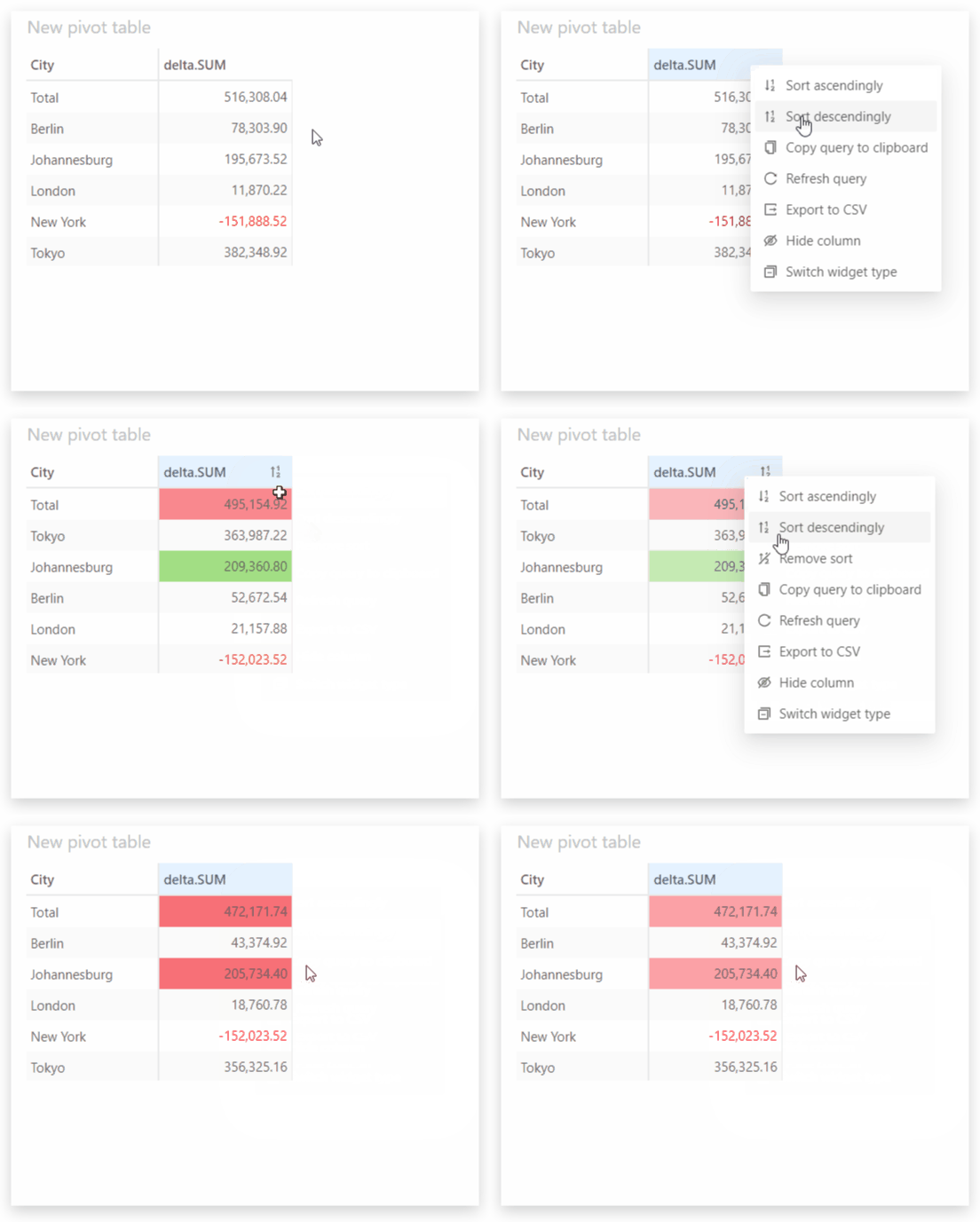 The **Remove sort** menu item only appears if the widget is currently sorted.