> ## Documentation Index
> Fetch the complete documentation index at: https://docs.activeviam.com/llms.txt
> Use this file to discover all available pages before exploring further.
# Drillthrough
> How to add a drillthrough table to an Atoti UI dashboard, either from the widgets panel or from a widget's context menu by right-clicking a table cell or chart point to filter by the selected members on a new dashboard page.
## Add a drillthrough table
Drillthrough tables can be added from the widgets panel in the [same way as other types of widget](../create-a-dashboard/widgets/add-or-modify-widgets).
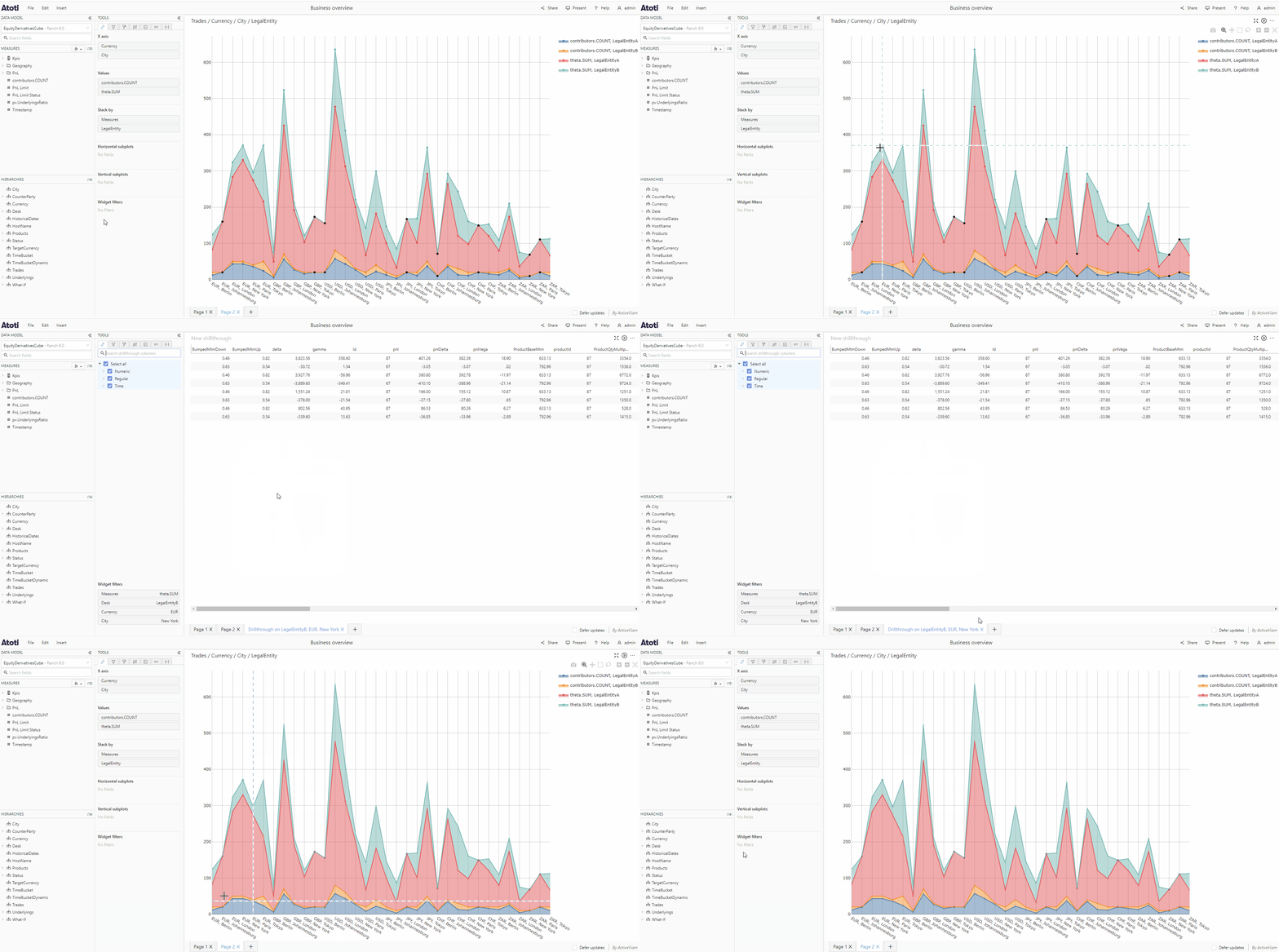
They can also be added from the context menu of another widget. To do this:
* Right-click a numeric table cell or a point on a chart to open the context menu.
* Select **Drillthrough on *member***, for example **Drillthrough on EUR**. Depending on how many hierarchies you have added to your widget, there might be several members listed at the selected cell/point, for example **Drillthrough on EUR, Berlin, LegalEntityA**.
* This will open a new [dashboard page](../create-a-dashboard/dashboards#dashboard-pages), displaying the drillthrough, filtered on all the members relevant to the selected table cell or chart point.