> ## Documentation Index
> Fetch the complete documentation index at: https://docs.activeviam.com/llms.txt
> Use this file to discover all available pages before exploring further.
# Add a calculation to a widget
> How to define a calculated measure or a calculated member on a single widget in Atoti UI with the Add a calculation submenu of tables and charts, how such a calculation is stored in the widget's query rather than on the cube, and how to edit or delete it afterwards.
A calculation added from a widget belongs to that widget's [query](../create-a-dashboard/widgets/edit-an-mdx-query) instead of being saved on the cube.
Create a calculation in a widget for an ad hoc formula.
It avoids adding to the cube something that only makes sense in that widget's context.
When several widgets, dashboards or users need the same formula, define it on the cube instead.
See [calculated measures](../modify-the-cube-from-the-ui/calculated-measures) or [calculated members](../modify-the-cube-from-the-ui/calculated-members).
## How to add a calculation
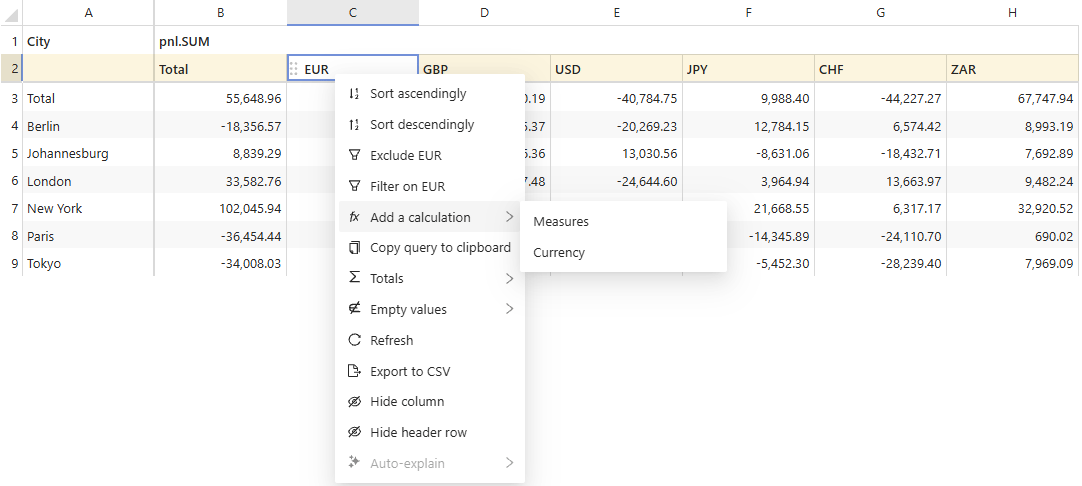
1. Right-click a table or a chart, and open the **Add a calculation** submenu.
2. Select **Measures** to define a [calculated measure](../modify-the-cube-from-the-ui/calculated-measures#create-a-calculated-measure), or a hierarchy to define a [calculated member](../modify-the-cube-from-the-ui/calculated-members#how-to-create-a-calculated-member) on it.
3. Fill in the editor that opens at the click location, then click **Apply**.
The new measure or member appears in the widget, after those already displayed.
Like the other members, it can then be [reordered](./sort-data#reorder-members-manually).
The submenu lists a **Measures** entry, plus one entry per hierarchy displayed by the widget.
Calculations cannot be created on virtual hierarchies, so those entries are disabled.
 Displaying a calculated member added this way also reveals the calculated
members that the cube defines on the same hierarchy. A query asks for both at
once.
## Where does the calculation live?
Storing the calculation in the widget's query, instead of on the cube, has a few consequences:
* It is part of the widget's state, so saving the widget or the dashboard holding it keeps the calculation.
* It follows the widget when the widget is copied.
* The other widgets are left untouched, including those built on the same cube.
* The cube is left untouched too, so the calculation stays invisible to the other users.
## How to edit or delete a calculation
1. Reopen the **Add a calculation** submenu.
2. Select **Measures**, or the hierarchy holding the calculation.
3. Find the calculation in the list within the popover.
4. Right-click it and select **Edit \{name}** or **Delete \{name}**.
Widget calculated measures can also be edited from the [**Fields** tab](../create-a-dashboard/widgets/add-fields), by clicking the pencil icon on its tile.
The submenu also lists the measures and members coming from the cube, but their **Edit** and **Delete** items are disabled.
Those are managed from the **Data model**, as explained in [calculated measures](../modify-the-cube-from-the-ui/calculated-measures) and [calculated members](../modify-the-cube-from-the-ui/calculated-members).
Displaying a calculated member added this way also reveals the calculated
members that the cube defines on the same hierarchy. A query asks for both at
once.
## Where does the calculation live?
Storing the calculation in the widget's query, instead of on the cube, has a few consequences:
* It is part of the widget's state, so saving the widget or the dashboard holding it keeps the calculation.
* It follows the widget when the widget is copied.
* The other widgets are left untouched, including those built on the same cube.
* The cube is left untouched too, so the calculation stays invisible to the other users.
## How to edit or delete a calculation
1. Reopen the **Add a calculation** submenu.
2. Select **Measures**, or the hierarchy holding the calculation.
3. Find the calculation in the list within the popover.
4. Right-click it and select **Edit \{name}** or **Delete \{name}**.
Widget calculated measures can also be edited from the [**Fields** tab](../create-a-dashboard/widgets/add-fields), by clicking the pencil icon on its tile.
The submenu also lists the measures and members coming from the cube, but their **Edit** and **Delete** items are disabled.
Those are managed from the **Data model**, as explained in [calculated measures](../modify-the-cube-from-the-ui/calculated-measures) and [calculated members](../modify-the-cube-from-the-ui/calculated-members).