> ## Documentation Index
> Fetch the complete documentation index at: https://docs.activeviam.com/llms.txt
> Use this file to discover all available pages before exploring further.
# Activate the state tab
> How to enable the advanced-extension in Atoti UI to expose the State tab, Query context tab, and Text editor widget, by editing extensions.json in Java or standalone deployments or via the Python SDK customization API.
This page helps you make the **State** tab accessible to your users, allowing them to see or edit their widget states.
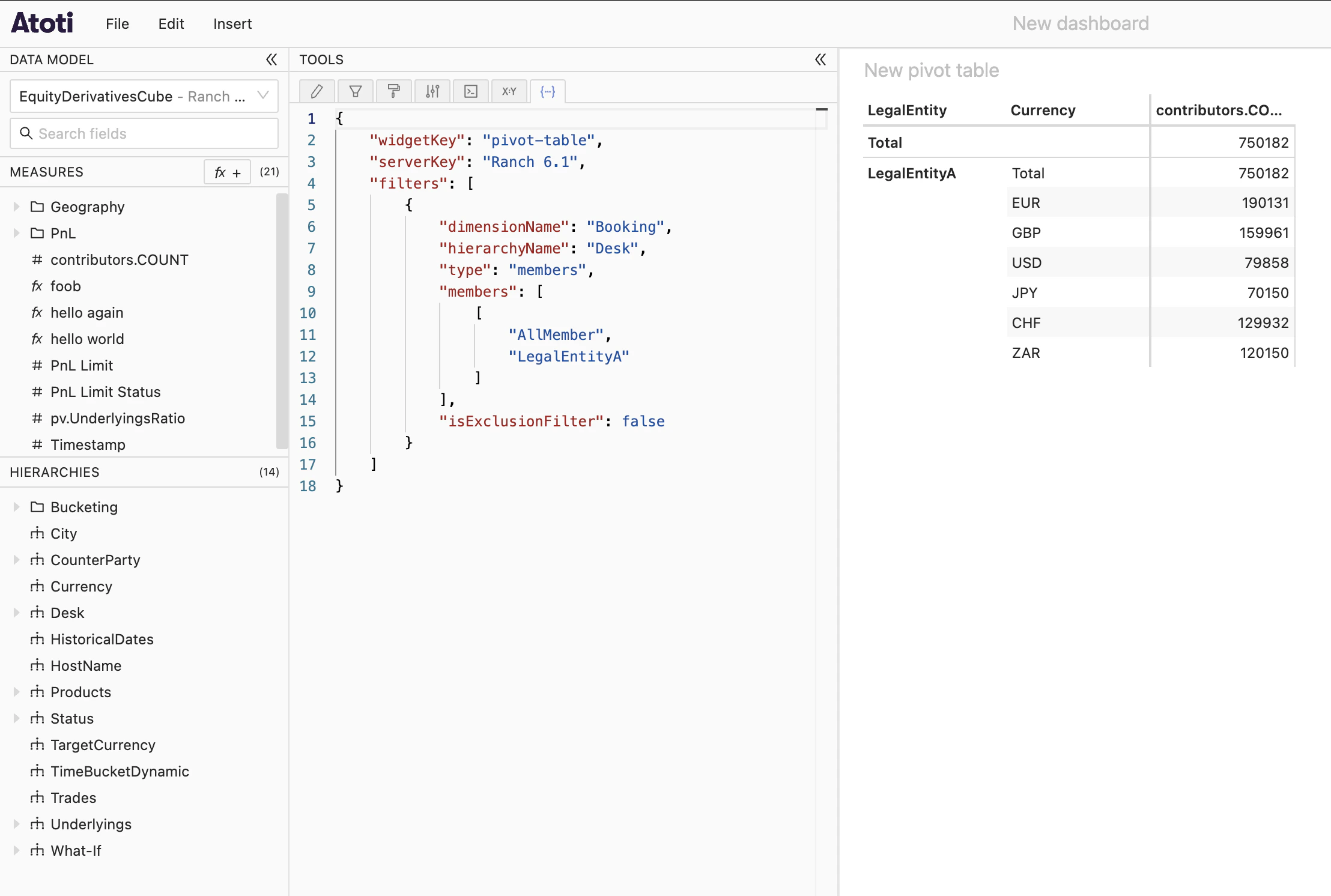 The **State** tab is part of an extension called `advanced-extension`, which comes with Atoti UI but is not activated by default. On top of the **State** tab, this extension also contains:
* the **Query context** tab
* the **Text editor** widget
To activate this extension, the solution depends on whether your UI is integrated in a Python or Java project or if it is served separately.
## In a Python project
To activate the advanced extension in a Python project and make the **State** tab accessible, refer to [this page](https://assets.activeviam.com/products/atoti/python-sdk/latest).
## In a Java project
Make sure your project includes the [Atoti UI Spring Boot starter](https://docs.activeviam.com/engine/java-sdk/latest/starters/atoti_ui_starter/).
Then, create or edit the file at `resources/static/atoti-ui/extensions.json` and make sure you have the following entry into it:
```json theme={"languages":{"custom":["/engine/python-sdk/0.9/languages/pycon.tmLanguage.json"]}}
"@activeviam/advanced-extension": "extensions/@activeviam/advanced-extension/extensionEntry.js"
```
Rebuild your project, then run it. Clear your browser cache and refresh your page by pressing Ctrl + F5 for instance. The **State** tab should now be present in your application.
## In a standalone Atoti UI
Similarly, open the file named `extensions.json` at the root of your folder and add the entry mentioned above into it.
If it is not already running, start your server. Then clear your browser cache and refresh your page as described above. The **State** tab should now be present in your application.
The **State** tab is part of an extension called `advanced-extension`, which comes with Atoti UI but is not activated by default. On top of the **State** tab, this extension also contains:
* the **Query context** tab
* the **Text editor** widget
To activate this extension, the solution depends on whether your UI is integrated in a Python or Java project or if it is served separately.
## In a Python project
To activate the advanced extension in a Python project and make the **State** tab accessible, refer to [this page](https://assets.activeviam.com/products/atoti/python-sdk/latest).
## In a Java project
Make sure your project includes the [Atoti UI Spring Boot starter](https://docs.activeviam.com/engine/java-sdk/latest/starters/atoti_ui_starter/).
Then, create or edit the file at `resources/static/atoti-ui/extensions.json` and make sure you have the following entry into it:
```json theme={"languages":{"custom":["/engine/python-sdk/0.9/languages/pycon.tmLanguage.json"]}}
"@activeviam/advanced-extension": "extensions/@activeviam/advanced-extension/extensionEntry.js"
```
Rebuild your project, then run it. Clear your browser cache and refresh your page by pressing Ctrl + F5 for instance. The **State** tab should now be present in your application.
## In a standalone Atoti UI
Similarly, open the file named `extensions.json` at the root of your folder and add the entry mentioned above into it.
If it is not already running, start your server. Then clear your browser cache and refresh your page as described above. The **State** tab should now be present in your application.