> ## Documentation Index
> Fetch the complete documentation index at: https://docs.activeviam.com/llms.txt
> Use this file to discover all available pages before exploring further.
# Start tasks, request approval, approve tasks
> How to start tasks, request approval, and approve or reject tasks in the Atoti Sign-Off default workflow, including how to review tasks from a linked dashboard.
This section describes the actions you need to complete when using the default 4-eyes workflow, but these may differ depending on the workflow you’re using. For a list of the default workflows in Atoti Sign-Off, see the **Workflow** section in [Create task definitions in the UI](../configure-tasks/create-task/create-task-ui).
## Start a task
When you are ready to start working with the data in a task, such as making adjustments and submitting the task for approval, the first step is starting your task.
To start a task:
1. In the **Tasks** screen, find the required task in the list.
2. In the **Action** column, click the “Start task” button.
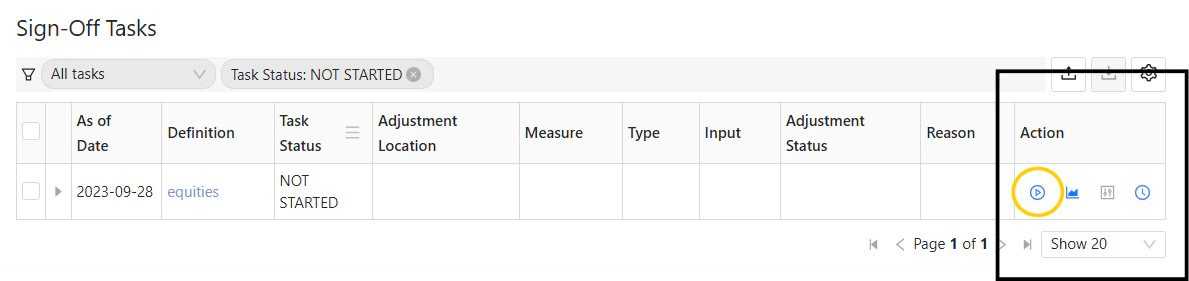 You can now make adjustments to the data or submit your task for approval. For details on adjustments, see [Sign-off adjustments](./adjustments).
## Restart a task
If needed, at any point after the task is started, you can roll back the modifications and adjustments you have made and start again.
1. In the **Tasks** screen, find the required task in the list.
2. In the **Action** column, click the “Restart task” button.
Atoti Sign-Off prompts you to confirm the action. You can also choose to retain or remove existing adjustments.
You can now make adjustments to the data or submit your task for approval. For details on adjustments, see [Sign-off adjustments](./adjustments).
## Restart a task
If needed, at any point after the task is started, you can roll back the modifications and adjustments you have made and start again.
1. In the **Tasks** screen, find the required task in the list.
2. In the **Action** column, click the “Restart task” button.
Atoti Sign-Off prompts you to confirm the action. You can also choose to retain or remove existing adjustments.
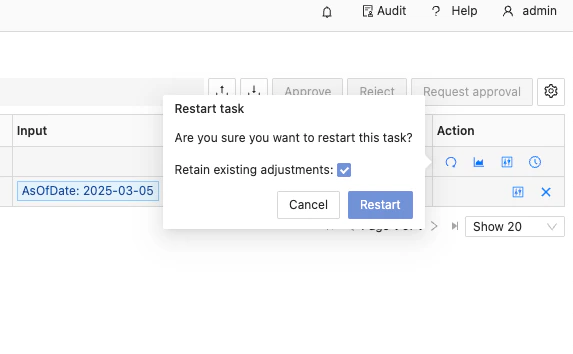 This dialog is customizable, so the content may differ depending on your implementation.
3. Click **Restart**.
When a task is restarted, the system performs the following:
* Rolls back all adjustments (if choosing not to retain them)
* Takes a fresh snapshot of the data
* Reapplies any recurring adjustments
* Resets the task to `INITIATED` and returns it to your workflow
## Request approval
Once you have reviewed your adjustments to the data in your task, you can request approval the following way:
1. In the **Tasks** screen, mark the checkbox of each task you want to submit for approval.
2. Click **Request approval** in the top right.
This dialog is customizable, so the content may differ depending on your implementation.
3. Click **Restart**.
When a task is restarted, the system performs the following:
* Rolls back all adjustments (if choosing not to retain them)
* Takes a fresh snapshot of the data
* Reapplies any recurring adjustments
* Resets the task to `INITIATED` and returns it to your workflow
## Request approval
Once you have reviewed your adjustments to the data in your task, you can request approval the following way:
1. In the **Tasks** screen, mark the checkbox of each task you want to submit for approval.
2. Click **Request approval** in the top right.
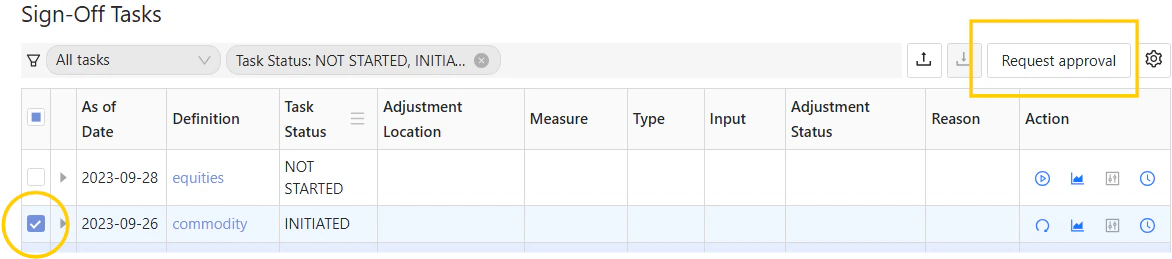 3. In the dialog now displayed, check the details of your task, enter a comment if needed, then click **Request approval**.
Your task now moves to a `PENDING` state until a designated approver approves or rejects it.
## Approve or reject a task
To approve a task:
1. In the **Tasks** screen, mark the checkbox of each task you want to approve.
You can easily review adjustments made to the data on a task using the Sign-off and Adjustment analysis dashboards. For more details, see [Analysis dashboards](./adjustments/perform-adjustments-ui#analysis-dashboards).
2. Click **Approve**. This opens a dialog, where you can check the details of the selected tasks.
3. Add a comment if needed. Any comment added here will be displayed in the task’s history.
Rejecting a task is very similar to the approval, just click the **Reject** button instead. The task is then moved back to the `INITIATED` state.
If you need more information when reviewing your task, you can review the task alongside the dashboard data.
### Using the task’s linked dashboard
1. First, ensure the limit is linked to a dashboard. For instructions on how to do this, see [Create task definitions in the UI](../configure-tasks/create-task/create-task-ui).
2. Click the “View linked dashboard” icon beside the task to open the relevant dashboard.
3. Click **Process task** in the menu bar to review the task.
3. In the dialog now displayed, check the details of your task, enter a comment if needed, then click **Request approval**.
Your task now moves to a `PENDING` state until a designated approver approves or rejects it.
## Approve or reject a task
To approve a task:
1. In the **Tasks** screen, mark the checkbox of each task you want to approve.
You can easily review adjustments made to the data on a task using the Sign-off and Adjustment analysis dashboards. For more details, see [Analysis dashboards](./adjustments/perform-adjustments-ui#analysis-dashboards).
2. Click **Approve**. This opens a dialog, where you can check the details of the selected tasks.
3. Add a comment if needed. Any comment added here will be displayed in the task’s history.
Rejecting a task is very similar to the approval, just click the **Reject** button instead. The task is then moved back to the `INITIATED` state.
If you need more information when reviewing your task, you can review the task alongside the dashboard data.
### Using the task’s linked dashboard
1. First, ensure the limit is linked to a dashboard. For instructions on how to do this, see [Create task definitions in the UI](../configure-tasks/create-task/create-task-ui).
2. Click the “View linked dashboard” icon beside the task to open the relevant dashboard.
3. Click **Process task** in the menu bar to review the task.
 This opens a drawer where you can review the task, just as you would in the **Tasks** screen.
### Using any dashboard
1. Click **Process task** in the menu bar to open the drawer.
2. Select a task among the available task definitions.
3. Choose your action and submit it.
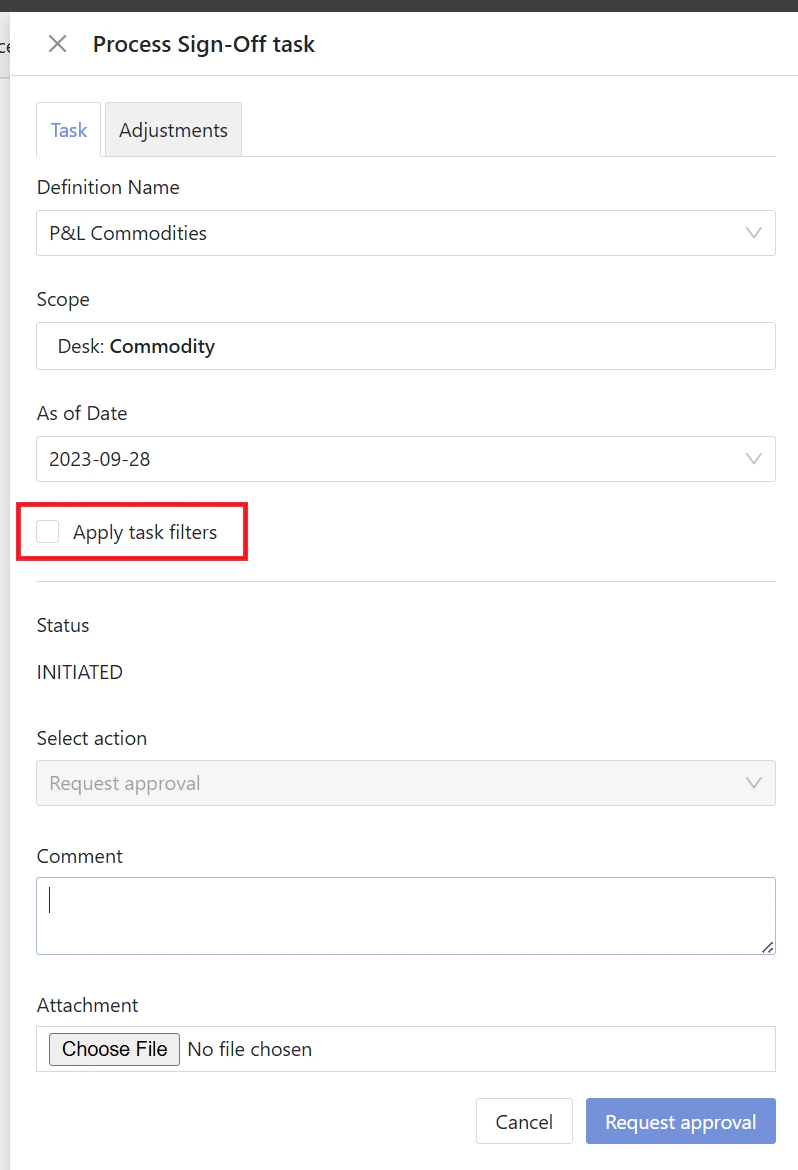
You can use the **Apply task filters** checkbox to apply filters matching the task’s scope to all the relevant widgets in the dashboard.
This opens a drawer where you can review the task, just as you would in the **Tasks** screen.
### Using any dashboard
1. Click **Process task** in the menu bar to open the drawer.
2. Select a task among the available task definitions.
3. Choose your action and submit it.
You can use the **Apply task filters** checkbox to apply filters matching the task’s scope to all the relevant widgets in the dashboard.