> ## Documentation Index
> Fetch the complete documentation index at: https://docs.activeviam.com/llms.txt
> Use this file to discover all available pages before exploring further.
# Perform adjustments in the UI
> How to create, manage, and delete adjustments in the Atoti Sign-Off UI, covering adjustment types, recurring adjustments, analysis dashboards, and failure recovery.
This page walks you through the possible adjustment types and the process of creating and managing adjustments.
Atoti Sign-Off does not offer any adjustment types out of the box. These are implemented on the application server. The types described below are available in Atoti Market Risk.
## Types and levels of adjustment
| Adjustment type | Description |
| --------------- | --------------------------------------------------------------------------------------------------------------------------------------------------------------------------------------------------------------------------------------------------- |
| Cube-level | Overrides a measure in the cube. No fact in the base store is added, instead, a separate store storing a representation of the location for which the override is done is used and a datastore look-up is performed to retrieve the override value. |
| Fact add-on | Offsets the current value of an entry in the base store by a specific amount. |
| Fact override | Overrides the current value of an entry with a new value. |
| Fact scaling | Modifies the data by a given factor. |
| Fact roll-over | Overrides the current data with data from a previous day. |
## Valid statuses
The status of the Sign-Off task where you can make adjustments depends on your specific configuration. By default, this status is `INITIATED`.
## Create an adjustment
The task definition of your task may have a dashboard specified, where you can make adjustments to the data. To access this, in the **Tasks** screen, click the “Linked dashboard” button in your task’s **Action** row.
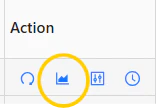 For details on adding a linked dashboard, see [Create task definitions in the UI](../../configure-tasks/create-task/create-task-ui).
If a dashboard has not been linked, the “Linked dashboard” button is inactive. In this case, you can use any dashboard to perform your adjustments.
1. In your dashboard, select the cube for your given Sign-Off task, and ensure a table widget is in the dashboard.
2. In the title bar, click the pencil icon in the top right hand corner of the widget to open the Adjustment Wizard.
For details on adding a linked dashboard, see [Create task definitions in the UI](../../configure-tasks/create-task/create-task-ui).
If a dashboard has not been linked, the “Linked dashboard” button is inactive. In this case, you can use any dashboard to perform your adjustments.
1. In your dashboard, select the cube for your given Sign-Off task, and ensure a table widget is in the dashboard.
2. In the title bar, click the pencil icon in the top right hand corner of the widget to open the Adjustment Wizard.
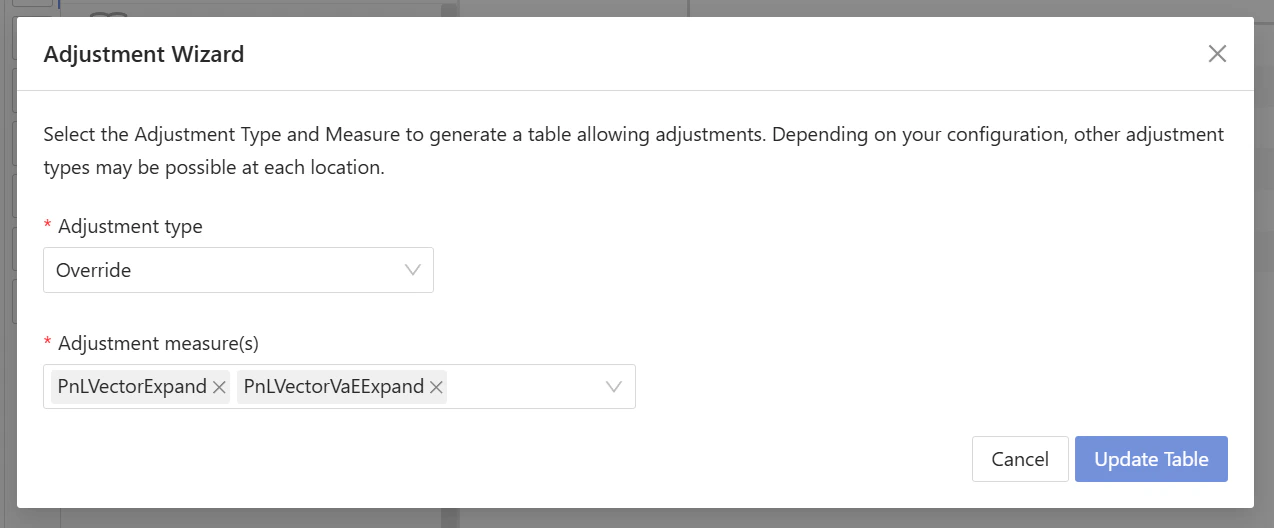
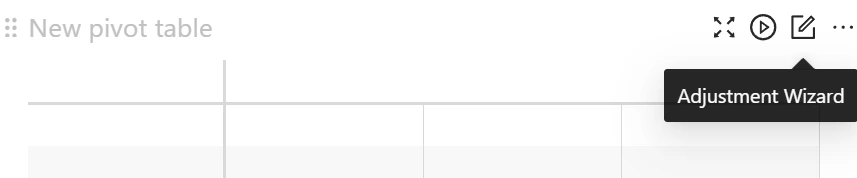 3. Select the adjustment type and the measures you want to adjust.
In order to create and submit adjustments, a [valid task](./perform-adjustments-ui#valid-statuses) must be selected in the **Process task** drawer.
3. Select the adjustment type and the measures you want to adjust.
In order to create and submit adjustments, a [valid task](./perform-adjustments-ui#valid-statuses) must be selected in the **Process task** drawer.
 The relevant information needed for the adjustment is now visible in the view. Depending on the adjustment type you have selected, the system displays one of three interfaces for adjustable cells:
* **Editable fields with pencil icons**: Click the cell to adjust the value directly. After making a change, if needed, you can revert it to the original value by clicking the undo icon.
The relevant information needed for the adjustment is now visible in the view. Depending on the adjustment type you have selected, the system displays one of three interfaces for adjustable cells:
* **Editable fields with pencil icons**: Click the cell to adjust the value directly. After making a change, if needed, you can revert it to the original value by clicking the undo icon.
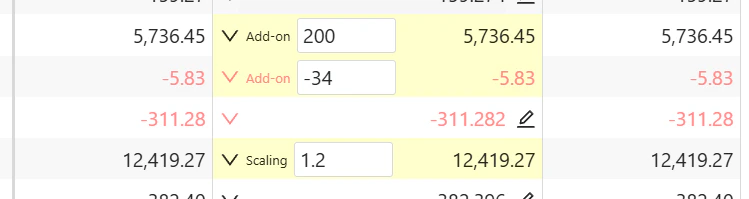
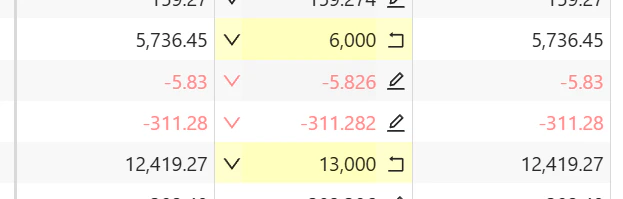 * **Editable fields inlined within a measure cell**: Click on the input to key in the numerical operand of the selected adjustment.
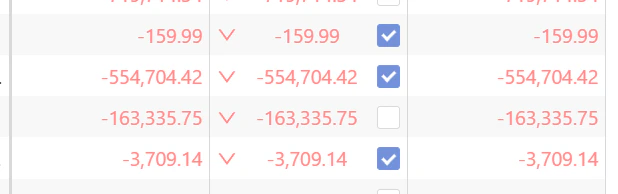
 * **Bulk update with checkboxes**: A checkbox beside each value allows you to select multiple entries for a bulk update. Choose all the values you wish to adjust and apply the changes in one action.
 You can use keyboard shortcuts to navigate between editable cells and to undo or redo your changes.
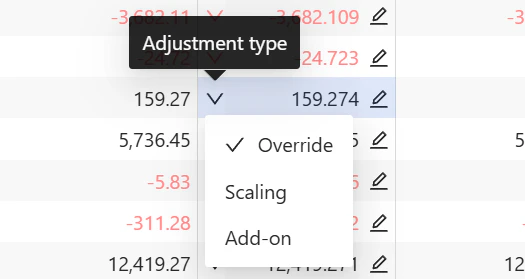
You can toggle between the different types of available adjustments for each cell by clicking on the dropdown icon on the left side.
You can use keyboard shortcuts to navigate between editable cells and to undo or redo your changes.
You can toggle between the different types of available adjustments for each cell by clicking on the dropdown icon on the left side.
 4. Once you’re satisfied with your changes, you can submit your pending adjustments using the **Adjustments** tab in the **Process task** drawer.
 5. Define the various elements required, depending on the type of adjustment, then click **OK**:
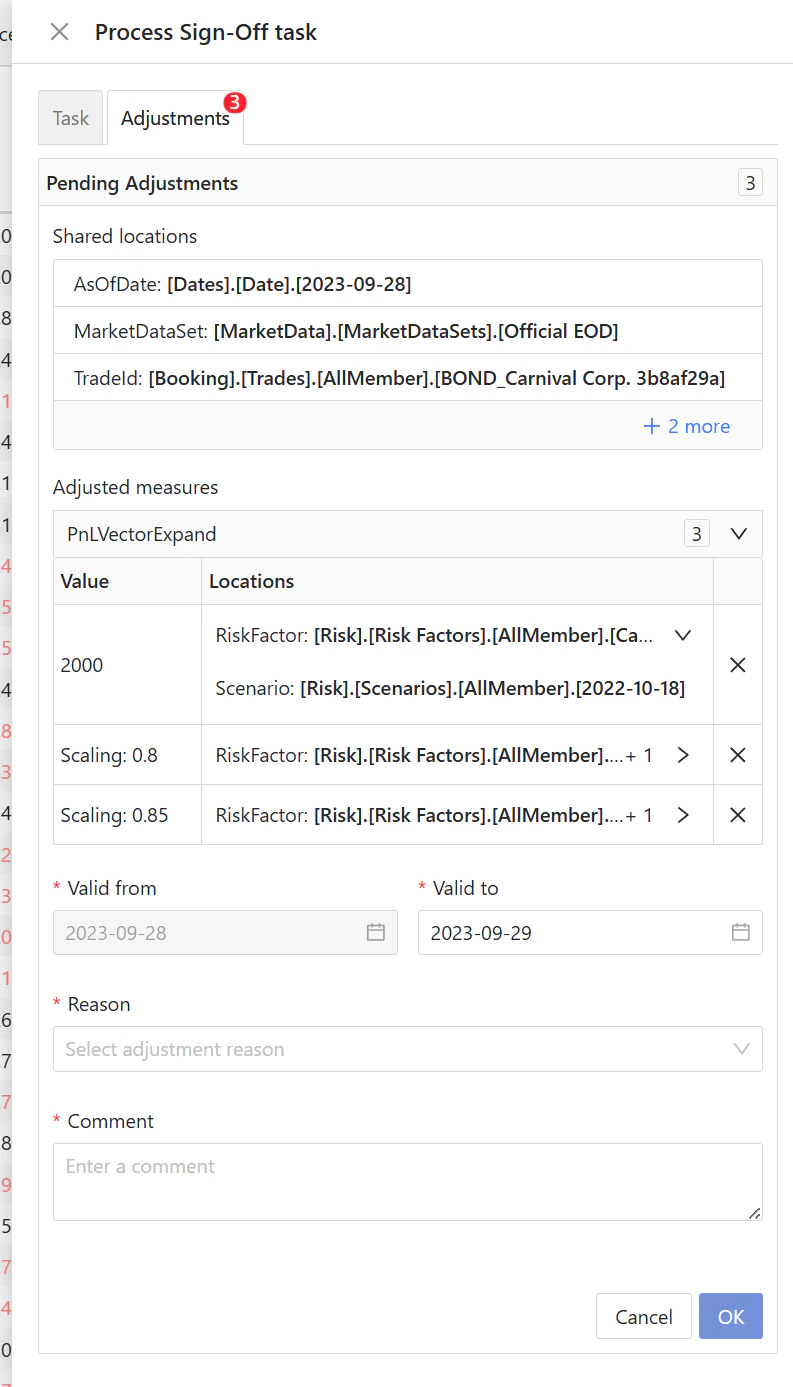 Alternatively, you can remove individual adjustments from that panel or click the **Cancel** button to delete all pending adjustments for the selected task.
Once sucessfully submitted, the adjusted values are visible in the pivot table, and the adjustments are displayed under the **Executed adjustments** panel.
Alternatively, you can remove individual adjustments from that panel or click the **Cancel** button to delete all pending adjustments for the selected task.
Once sucessfully submitted, the adjusted values are visible in the pivot table, and the adjustments are displayed under the **Executed adjustments** panel.
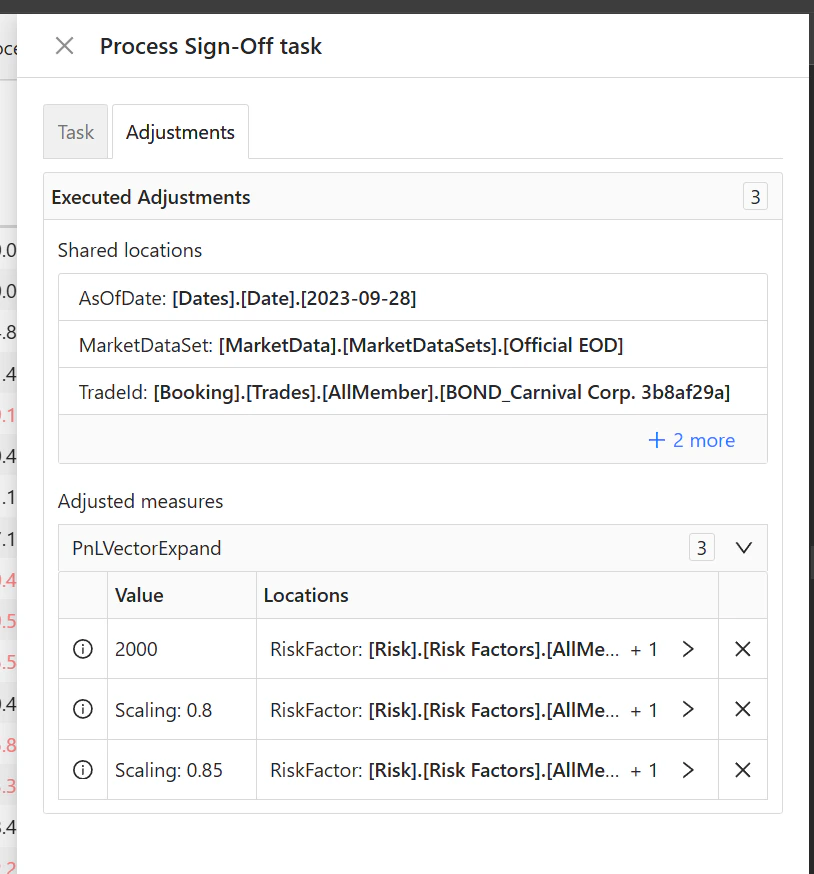 The adjustments are also listed in the **Tasks** screen, below the task.
 ## Recurring adjustments
To avoid having to enter the same adjustment each time, you can use the **Valid from** and **Valid to** fields to define the time period over which to apply a given adjustment.
Each time a task is initiated, any relevant recurring adjustments for
that date are automatically performed.
## Analysis dashboards
Atoti Sign-Off lets you view all of your adjustments for a given task in a dedicated **Sign-off analysis dashboard**. You can access it from the **Tasks** table, by clicking the “Sign-off analysis dashboard” button in the task’s **Action** column.
In addition, you can check out the before and after values of each individual adjustment in the **Adjustment analysis dashboard**. To do this, click the “Adjustment analysis dashboard” button in the **Action** column of the adjustment.
## Recurring adjustments
To avoid having to enter the same adjustment each time, you can use the **Valid from** and **Valid to** fields to define the time period over which to apply a given adjustment.
Each time a task is initiated, any relevant recurring adjustments for
that date are automatically performed.
## Analysis dashboards
Atoti Sign-Off lets you view all of your adjustments for a given task in a dedicated **Sign-off analysis dashboard**. You can access it from the **Tasks** table, by clicking the “Sign-off analysis dashboard” button in the task’s **Action** column.
In addition, you can check out the before and after values of each individual adjustment in the **Adjustment analysis dashboard**. To do this, click the “Adjustment analysis dashboard” button in the **Action** column of the adjustment.
 ## Delete adjustments
You may sometimes need to discard adjustments you have made, and then re-do them. For example, after a series of adjustments, you realize that the entire batch of trades was wrong or corrupted.
To discard an individual adjustment:
1. In the **Tasks** screen table, click the **x** button beside the adjustment you want to discard.
2. Click **Yes** to confirm.
The system updates the status of the adjustment to `Deleted`.
You can also discard executed adjustments from the **Adjustments** tab in the **Process task** drawer.
To discard adjustments in bulk:
1. In the **Tasks** screen table, select the checkbox beside each of the adjustment rows you wish to discard.
2. Click the **Delete** button above the table.
3. Click **Yes** to confirm.
By default, when you click the “Restart task” button to revert to the `INITIATED` status, there is an option to discard all adjustments associated with the task.
The system will still reapply any previously defined recurring adjustments, as they are considered valid.
## Re-applying adjustments on failure
Adjustments that you create for a cube are stored in memory, along with all other data in the cube. This means that if the cube restarts, the adjustments will no longer exist. Atoti Sign-Off is designed to identify these server failures and, when the cube becomes available again, it will re-apply the adjustments that you had previously created.
Adjustments are only applied for sign-off tasks that have not yet been approved. If the task has been submitted for approval, it will need to be submitted again once the adjustments have been re-applied. Additionally, we advise checking these adjustments before approving or submitting for approval, as the data in the cube may have changed, and they may no longer be appropriate.
Cubes are polled intermittently to identify when they stop and start running. You can configure the frequency and behavior of this polling by setting specific [properties](../../properties/property-files/application-yml#section-restful-service).
## Delete adjustments
You may sometimes need to discard adjustments you have made, and then re-do them. For example, after a series of adjustments, you realize that the entire batch of trades was wrong or corrupted.
To discard an individual adjustment:
1. In the **Tasks** screen table, click the **x** button beside the adjustment you want to discard.
2. Click **Yes** to confirm.
The system updates the status of the adjustment to `Deleted`.
You can also discard executed adjustments from the **Adjustments** tab in the **Process task** drawer.
To discard adjustments in bulk:
1. In the **Tasks** screen table, select the checkbox beside each of the adjustment rows you wish to discard.
2. Click the **Delete** button above the table.
3. Click **Yes** to confirm.
By default, when you click the “Restart task” button to revert to the `INITIATED` status, there is an option to discard all adjustments associated with the task.
The system will still reapply any previously defined recurring adjustments, as they are considered valid.
## Re-applying adjustments on failure
Adjustments that you create for a cube are stored in memory, along with all other data in the cube. This means that if the cube restarts, the adjustments will no longer exist. Atoti Sign-Off is designed to identify these server failures and, when the cube becomes available again, it will re-apply the adjustments that you had previously created.
Adjustments are only applied for sign-off tasks that have not yet been approved. If the task has been submitted for approval, it will need to be submitted again once the adjustments have been re-applied. Additionally, we advise checking these adjustments before approving or submitting for approval, as the data in the cube may have changed, and they may no longer be appropriate.
Cubes are polled intermittently to identify when they stop and start running. You can configure the frequency and behavior of this polling by setting specific [properties](../../properties/property-files/application-yml#section-restful-service).