> ## Documentation Index
> Fetch the complete documentation index at: https://docs.activeviam.com/llms.txt
> Use this file to discover all available pages before exploring further.
# Get started with Atoti Sign-Off
> How to get started with Atoti Sign-Off as a user, covering default workflows, creating and publishing task definitions, and processing assigned tasks.
Atoti Sign-Off enables you to define a set of daily tasks outlining what data needs to be reviewed, possibly adjusted, and signed off on. Depending on the configured workflow, the sign-off task, with any adjustments, can be submitted for approval.
The default implementation provided in Atoti Sign-Off comes with a defined workflow for the task definition creation, three defined workflows ([default workflows](#default-workflows)) for the tasks and user roles (manager, user).
This documentation explains the default implementation, but the workflows and the user roles can be customized for specific business needs - see [Customizing sign-off workflow](../dev/dev-extensions/custom-workflows)
in the **Atoti Sign-Off Developer Guide**.
Here are our recommendations for getting started, if you have no or limited experience with Atoti Sign-Off.
## Required role
In the default implementation, you must have the Manager role to be able
to create task definitions or perform any other actions on them. This requirement
can be changed in the Activiti configuration settings.
## Default workflows
Out of the box, Atoti Sign-Off provides these workflow options for tasks:
| Workflow | Description |
| ---------- | ------------------------------------------------------------------------------------------------------------------------------------------------------------------------ |
| Simple | Only one level of validation is required. Someone with the role of USER can both review and approve tasks with this workflow. |
| 4-eyes | Two separate levels of validation are required from Examiners, then Approvers. One person with the role that reviews, then another with the role that approves the task. |
| 4-eyes-kpi | Tasks are validated automatically, based on the KPIs you define. |
Taking the 4-eyes task workflow as an example, the default implementation provided in Atoti Sign-Off is detailed below.
## Create and publish your task definitions
Role: *Manager only*
Use the [Task Configuration](./configure-tasks/task-configuration-screen) screen to define your tasks.
1. Create task definitions individually, or prepare your task definitions in CSV to upload in bulk.
2. Publish the task definitions to create daily tasks that will be assigned to owners and approvers.
See [Create tasks](./configure-tasks/create-task) and [View, edit, and delete task definitions](./configure-tasks/view-archive-task).
## Process your assigned tasks
Role: *the designated User/Manager*
Use the [Tasks](./process-tasks/task-screen) screen to perform actions on the data in tasks assigned to you.
The default 4-eyes workflow is as follows:
1. The owner starts the task for a specific date, performs any
adjustments required for that day’s data and submits the task for
approval.
See:
* [Start tasks, request approval, approve tasks](./process-tasks/start-request-approval)
* [Adjustments](./process-tasks/adjustments)
2. The designated approver reviews any adjustments made, then
approves or rejects the task.
See:
* [Approve or reject a task](./process-tasks/start-request-approval#approve-or-reject-a-task)
* [Analysis dashboards](./process-tasks/adjustments/perform-adjustments-ui#analysis-dashboards)
3. The Export service automatically exports the data from the tasks when they are
approved.
To change the default workflows, your administrator can modify the
workflow types (that is, the actions available in the **Tasks** screen
for a given role).
For information on the configurations available, see
[Customizing sign-off workflow](../dev/dev-extensions/custom-workflows).
## Task statuses
The following diagram illustrates the operations in the approval process of the default 4-eyes workflow,
together with the corresponding status transitions of the task object
and the data in the task.
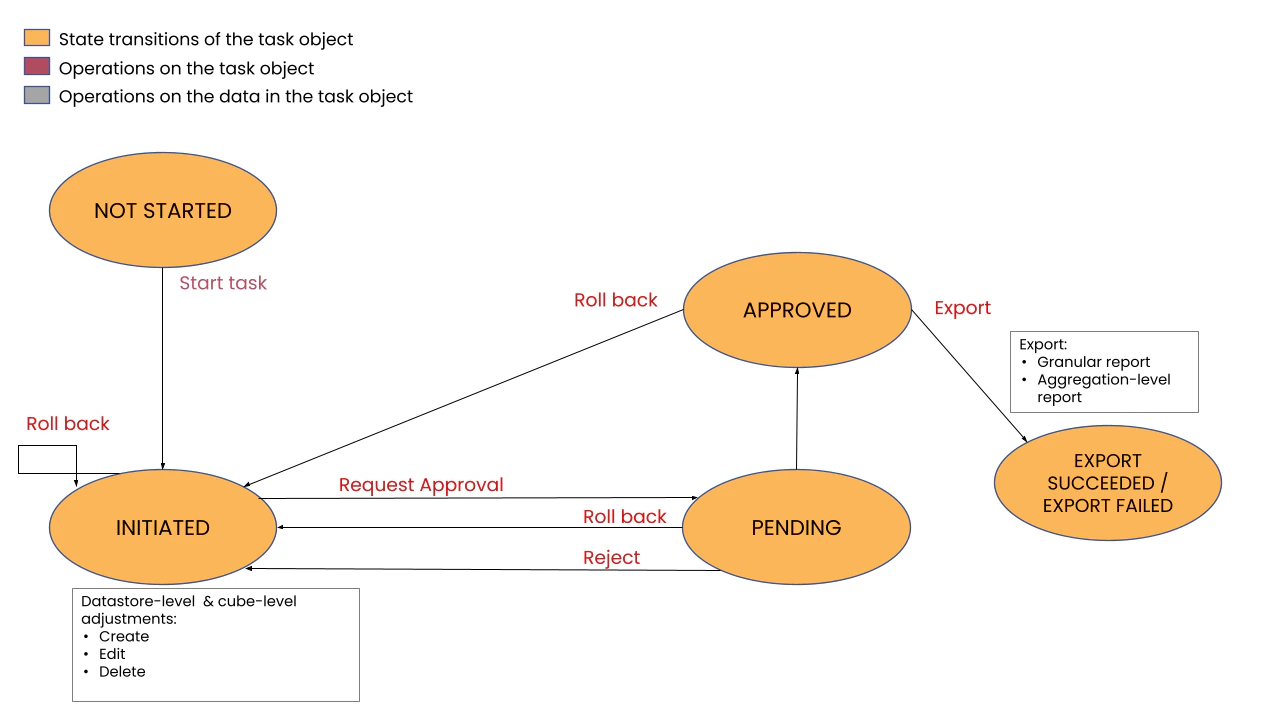 The following table describes the sequence of operations and status
transitions for a task as it goes through the approval process:
| Operation | Required state of the task |
| ------------------------------------------------------------------------------------------------------------ | ------------------------------- |
| Initiate sign-off | `NOT STARTED` |
| Create / edit / delete manual adjustments | `INITIATED` or `REJECTED` |
| Request approval | `INITIATED` or `REJECTED` |
| Approve approval request | `PENDING` |
| Reject approval request | `PENDING` |
| Roll back | Any status except `NOT STARTED` |
| Export By default, this is a server task that is automatically triggered when you Approve the sign-off task. | `APPROVED` |
The following table describes the sequence of operations and status
transitions for a task as it goes through the approval process:
| Operation | Required state of the task |
| ------------------------------------------------------------------------------------------------------------ | ------------------------------- |
| Initiate sign-off | `NOT STARTED` |
| Create / edit / delete manual adjustments | `INITIATED` or `REJECTED` |
| Request approval | `INITIATED` or `REJECTED` |
| Approve approval request | `PENDING` |
| Reject approval request | `PENDING` |
| Roll back | Any status except `NOT STARTED` |
| Export By default, this is a server task that is automatically triggered when you Approve the sign-off task. | `APPROVED` |