> ## Documentation Index
> Fetch the complete documentation index at: https://docs.activeviam.com/llms.txt
> Use this file to discover all available pages before exploring further.
# Audit history screen
> How to use the Audit History screen to view, filter, sort, and export a record of all changes made across your sign-off tasks.
The **Audit History** lets you view all your audit entries in a single screen.
Check out our video overview of the Audit Service:
## Access the Audit History screen
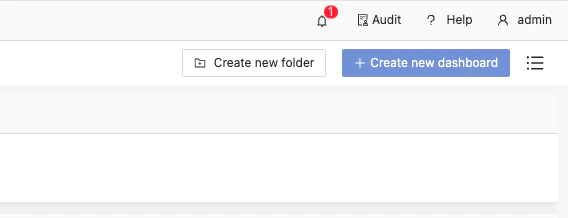
To view your audit history, navigate to the **Audit History** screen in Atoti UI. You can access it by clicking the **Audit** menu item in the top right hand corner of the application.
The menu might be hidden if the user is not authorized to access the Audit feature on any of the configured servers.
The **Audit History** screen displays all audit entries for the servers that have been configured and for which the user is authorized. For more information on this, see [Configuring the UI](https://docs.activeviam.com/products/modules/audit-service/1.0/online-help/getting-started/configuring-the-ui.).
 ## Configure the table
Once on the **Audit History** screen, you will see a table with the following columns displayed by default:
| Column | Description | Example |
| --------- | ----------------------------------------------------- | ------------------------------- |
| ID | The numeric ID of the audit entry. | 1 |
| Object ID | The ID of the object that was changed. | sign-off-definition::2023-09-01 |
| Type | The type of the object that was changed. | SignOffProcessDefinition |
| Field | The field that was changed. | status |
| Old Value | The old value of the field. | status |
| New Value | The new value of the field. | Saved |
| User | The user who made the change. | Published |
| Timestamp | The timestamp of the change, in your local time zone. | 2025-03-14 11:05:06 |
## Configure the table
Once on the **Audit History** screen, you will see a table with the following columns displayed by default:
| Column | Description | Example |
| --------- | ----------------------------------------------------- | ------------------------------- |
| ID | The numeric ID of the audit entry. | 1 |
| Object ID | The ID of the object that was changed. | sign-off-definition::2023-09-01 |
| Type | The type of the object that was changed. | SignOffProcessDefinition |
| Field | The field that was changed. | status |
| Old Value | The old value of the field. | status |
| New Value | The new value of the field. | Saved |
| User | The user who made the change. | Published |
| Timestamp | The timestamp of the change, in your local time zone. | 2025-03-14 11:05:06 |
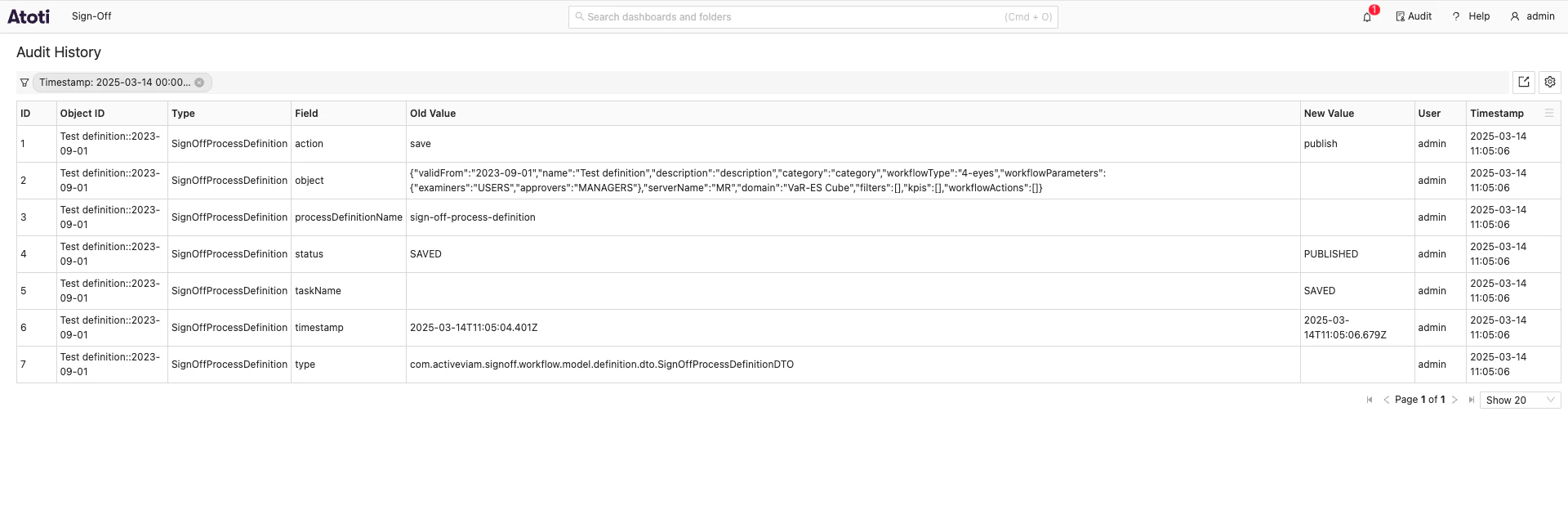 By default, the table displays audit entries for the current day, but you can filter and sort the data in a way that best suits your needs.
Additional fields can be added to the audit entry, see [Getting started](https://docs.activeviam.com/products/modules/audit-service/1.0/online-help/getting-started.) for more information.
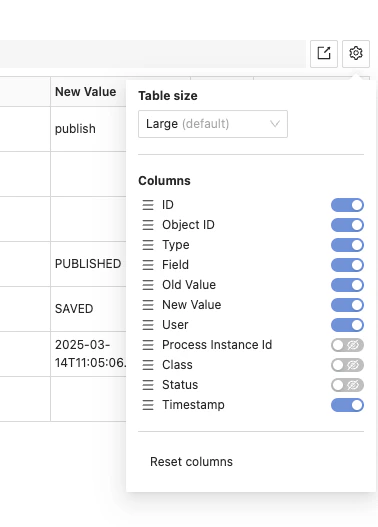
These will be hidden by default, but can be enabled by toggling the column visibility in the column configuration.
By default, the table displays audit entries for the current day, but you can filter and sort the data in a way that best suits your needs.
Additional fields can be added to the audit entry, see [Getting started](https://docs.activeviam.com/products/modules/audit-service/1.0/online-help/getting-started.) for more information.
These will be hidden by default, but can be enabled by toggling the column visibility in the column configuration.
 ## Export data
You can export the data from the audit table to a CSV file. To do so, use the export button located in the top right corner of the audit history table.
## Export data
You can export the data from the audit table to a CSV file. To do so, use the export button located in the top right corner of the audit history table.
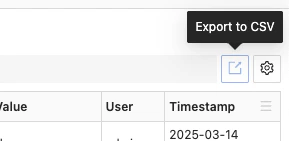 Clicking the export button displays a preview of the data to be exported. Click “Export X rows” to download the CSV file.
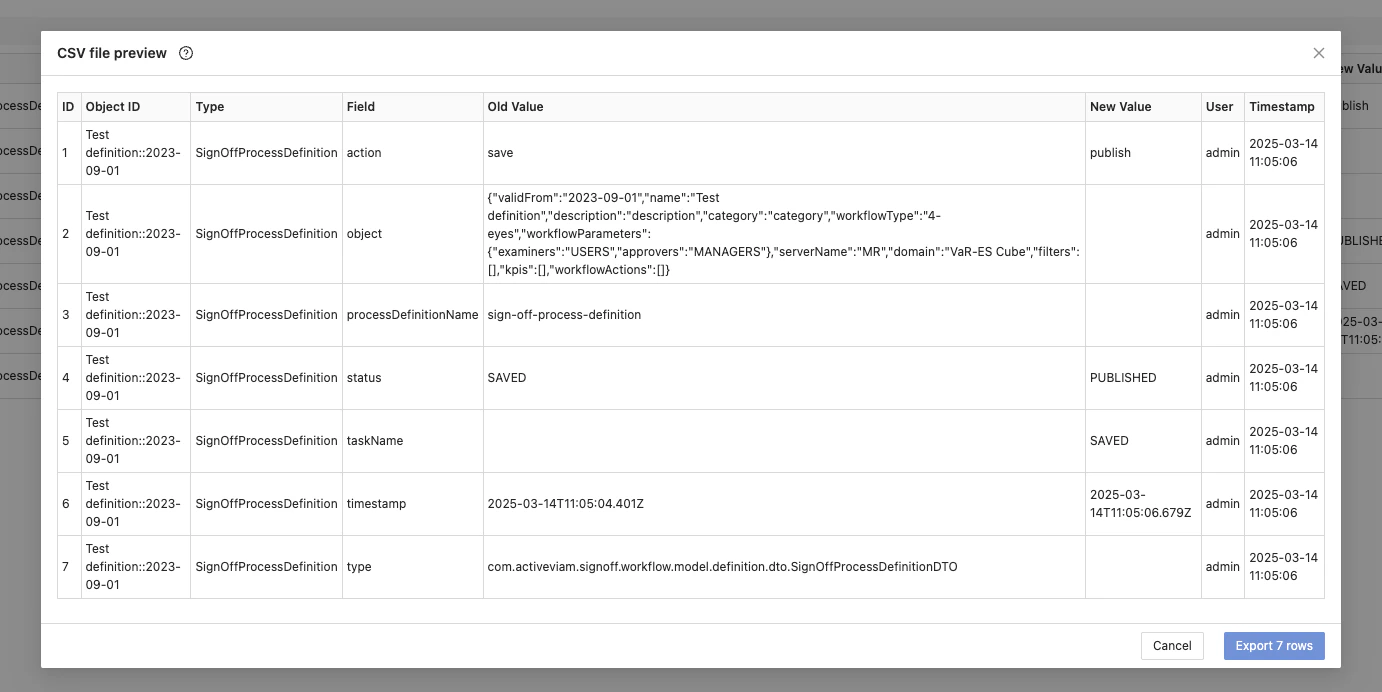 The exported data takes into account any table configurations you may have, including filters, sorting, and columns.