> ## Documentation Index
> Fetch the complete documentation index at: https://docs.activeviam.com/llms.txt
> Use this file to discover all available pages before exploring further.
# Customize sign-off
> How to customize the Atoti Sign-Off backend workflows for managing process definitions and process instances, including sample workflows, event listeners, and server signals.
This page describes how to customize the workflows for managing the
sign-off task definition and sign-off tasks.
Any customizations made in the sign-off logic will be reflected in the UI without requiring UI modifications.
For a description of how Atoti Sign-Off is set up, see [General principles](./custom-workflow-principles).
## Objects to customize
In Atoti Sign-Off there are two types of objects being managed:
* Sign-Off Process Definition (for the sign-off task definition)
* Sign-Off Process Instance (for the sign-off task)
## Sign-Off Process Definition
There is one default workflow for managing the sign-off process definitions which is sufficient for simple use cases.
This can be found in
`sign-off-process-definition.bpmn`, and can be used as an example and
adapted as needed.
The file is stored in the delivered source code, in **/src/main/resources/processes**
This sample workflow is used when creating a new sign-off task definition in the UI.
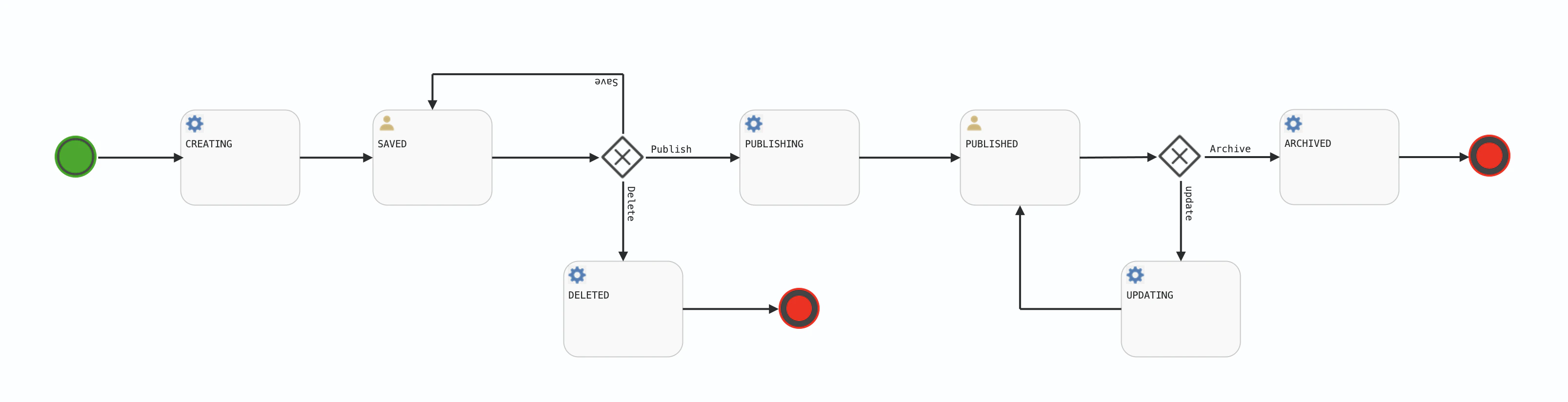 Additionally, the workflow uses:
* signOffProcessDefinitionCreate bean to perform the object creation in persistent storage.
* signOffProcessDefinitionUpdate bean to perform the update task in persistence storage.
* signOffProcessDefinitionDelete bean to perform the delete task in persistence storage.
* signOffProcessDefinitionImport bean to perform the import task in persistence storage.
### Example: set which roles can create tasks
In the default implementation, only those with the MANAGERS role can create and publish tasks. To change this configuration, set the role(s) as the value of the `candidateGroups` attribute in the following lines:
```XML theme={"languages":{"custom":["/engine/python-sdk/0.9/languages/pycon.tmLanguage.json"]}}
â¦.
```
The roles are as defined in the **SecurityConfig.java** configuration files.
In this example, both USERS and MANAGERS roles can create and publish tasks.
For details on the `candidateGroups` attribute, see the [Activiti documentation](https://www.activiti.org/userguide/#bpmnUserTask).
## Sign-Off Process Instance
There are three sample workflows for performing the sign-off tasks:
* **simple** in `sign-off-process-simple.bpmn`
* **4-eyes** in `sign-off-process-four-eyes.bpmn`
* **4-eyes-kpi** in `sign-off-process-four-eyes.bpmn`
The names **simple**,
**4-eyes**, and
**4-eyes-kpi** can be used in the
**Workflow Type** field of the sign-off
process definition objects. These are connected to the task
definition name in the `.bpmn` file using the `workflow.configuration`
map in `application.yml`, new workflows can be added here. For more
information, see the configuration file application.yml
The two workflows are both started using the `initiate()` method in
`SignOffProcesInstanceWorkflowService`. This determines the workflow
type, from the sign-off process definition object, and starts the appropriate workflow.
Additionally, the `initiate()` method will add workflow parameters –
for example, lists of users – from the sign-off process definition
object to the workflow as variables. These variables are then available
for use in the workflow process instance.
The **4-eyes-kpi** workflow is a sample
workflow illustrating how automated approval can be done using KPIs
provided.
The workflow is identical to the **4-eyes**
workflow, except for the fact that at the initiation of the sign-off
task, the statuses of the KPIs defined in the sign-off task definition are
retrieved from the application server. If the status of all those KPIs
is 1 (i.e. green), the sign-off task is automatically approved without
the intervention of the manager user.
In order to retrieve the KPIs from the application server, a REST call
is used: `IApplicationSignOff.fetchKPIs`. That REST call needs to be
added to the application server as part of the project-specific
implementation tasks.
The data retrieved via the call to `IApplicationSignOff.fetchKPIs` are
processed to determine whether the sign-off tasks should be
automatically approved or not. In the sample implementation, the
sign-off task is automatically approved if the statuses of all the KPIs
present in the definition of the sign-off tasks are equal to 1 (i.e. the
statuses are all green).
Tasks that can be automatically performed must have the correct permissioning definition in Activiti.
## Event listeners
Activiti event listeners are registered using Spring beans. The class
`SignOffProcessEventHandlers` contains a couple of examples.
### Notification email
The Spring bean **taskCreatedListener** in
`SignOffProcessEventHandlers` can be used to send notification emails.
The method `onTaskCreatedEvent()` will need to be updated to send the
emails, currently this method is called whenever the workflow process
instance enters a user task. It then extracts relevant information about
the task, including:
* Which users and groups can execute the task
* Information about the task
* The object being managed by the workflow
* The status of the workflow process instance
This information can then be sent to the user. However, this will require customizations similar to the following:
* Convert the Spring users and groups into email addresses.
* Use a template to construct the email (subject and body) from the information collected.
* Connect to an email server to send the email.
## Signals
Signals are a way of notifying all running processes of an event. Atoti Sign-Off sends two types of signals:
* `SERVER_DOWN`: this is sent when Atoti Sign-Off detects that an application server, such as MR or FRTB, has stopped responding. This signal is only sent to processes which relate to the particular application server that has stopped responding.
* `SERVER_UP`: this is sent when Atoti Sign-Off detects that an application server, such as MR or FRTB, has recommenced responding. This signal is only sent to processes which relate to the particular application server that has recommenced responding.
Atoti Sign-Off detects changes to the status of application servers by polling at regular intervals. The characteristics of this polling can be configured through application properties specified in the [application.yml](../../../user-ref/properties/property-files/application-yml#section-restful-service) file.
The three sample workflows respond to these signals. When they receive the `SERVER_DOWN` signal, if the task is in an `INITIATED` or `PENDING` state, it will be transitioned to an `AWAIT_SERVER_RESTART` state. This prevents changes being made until the server restarts. When the `SERVER_UP` signal is received, the task moves to the `RE_APPLY_ADJUSTMENTS` state and all previous adjustments are applied to the application server. Once this has been done the task transitions back to the `INITIATED` state.
Custom workflows can also listen for and respond to these signals. Please see the [Activiti documentation](https://www.activiti.org/userguide/#bpmnSignalEventDefinition) for details on catching a signal.
Additionally, the workflow uses:
* signOffProcessDefinitionCreate bean to perform the object creation in persistent storage.
* signOffProcessDefinitionUpdate bean to perform the update task in persistence storage.
* signOffProcessDefinitionDelete bean to perform the delete task in persistence storage.
* signOffProcessDefinitionImport bean to perform the import task in persistence storage.
### Example: set which roles can create tasks
In the default implementation, only those with the MANAGERS role can create and publish tasks. To change this configuration, set the role(s) as the value of the `candidateGroups` attribute in the following lines:
```XML theme={"languages":{"custom":["/engine/python-sdk/0.9/languages/pycon.tmLanguage.json"]}}
â¦.
```
The roles are as defined in the **SecurityConfig.java** configuration files.
In this example, both USERS and MANAGERS roles can create and publish tasks.
For details on the `candidateGroups` attribute, see the [Activiti documentation](https://www.activiti.org/userguide/#bpmnUserTask).
## Sign-Off Process Instance
There are three sample workflows for performing the sign-off tasks:
* **simple** in `sign-off-process-simple.bpmn`
* **4-eyes** in `sign-off-process-four-eyes.bpmn`
* **4-eyes-kpi** in `sign-off-process-four-eyes.bpmn`
The names **simple**,
**4-eyes**, and
**4-eyes-kpi** can be used in the
**Workflow Type** field of the sign-off
process definition objects. These are connected to the task
definition name in the `.bpmn` file using the `workflow.configuration`
map in `application.yml`, new workflows can be added here. For more
information, see the configuration file application.yml
The two workflows are both started using the `initiate()` method in
`SignOffProcesInstanceWorkflowService`. This determines the workflow
type, from the sign-off process definition object, and starts the appropriate workflow.
Additionally, the `initiate()` method will add workflow parameters –
for example, lists of users – from the sign-off process definition
object to the workflow as variables. These variables are then available
for use in the workflow process instance.
The **4-eyes-kpi** workflow is a sample
workflow illustrating how automated approval can be done using KPIs
provided.
The workflow is identical to the **4-eyes**
workflow, except for the fact that at the initiation of the sign-off
task, the statuses of the KPIs defined in the sign-off task definition are
retrieved from the application server. If the status of all those KPIs
is 1 (i.e. green), the sign-off task is automatically approved without
the intervention of the manager user.
In order to retrieve the KPIs from the application server, a REST call
is used: `IApplicationSignOff.fetchKPIs`. That REST call needs to be
added to the application server as part of the project-specific
implementation tasks.
The data retrieved via the call to `IApplicationSignOff.fetchKPIs` are
processed to determine whether the sign-off tasks should be
automatically approved or not. In the sample implementation, the
sign-off task is automatically approved if the statuses of all the KPIs
present in the definition of the sign-off tasks are equal to 1 (i.e. the
statuses are all green).
Tasks that can be automatically performed must have the correct permissioning definition in Activiti.
## Event listeners
Activiti event listeners are registered using Spring beans. The class
`SignOffProcessEventHandlers` contains a couple of examples.
### Notification email
The Spring bean **taskCreatedListener** in
`SignOffProcessEventHandlers` can be used to send notification emails.
The method `onTaskCreatedEvent()` will need to be updated to send the
emails, currently this method is called whenever the workflow process
instance enters a user task. It then extracts relevant information about
the task, including:
* Which users and groups can execute the task
* Information about the task
* The object being managed by the workflow
* The status of the workflow process instance
This information can then be sent to the user. However, this will require customizations similar to the following:
* Convert the Spring users and groups into email addresses.
* Use a template to construct the email (subject and body) from the information collected.
* Connect to an email server to send the email.
## Signals
Signals are a way of notifying all running processes of an event. Atoti Sign-Off sends two types of signals:
* `SERVER_DOWN`: this is sent when Atoti Sign-Off detects that an application server, such as MR or FRTB, has stopped responding. This signal is only sent to processes which relate to the particular application server that has stopped responding.
* `SERVER_UP`: this is sent when Atoti Sign-Off detects that an application server, such as MR or FRTB, has recommenced responding. This signal is only sent to processes which relate to the particular application server that has recommenced responding.
Atoti Sign-Off detects changes to the status of application servers by polling at regular intervals. The characteristics of this polling can be configured through application properties specified in the [application.yml](../../../user-ref/properties/property-files/application-yml#section-restful-service) file.
The three sample workflows respond to these signals. When they receive the `SERVER_DOWN` signal, if the task is in an `INITIATED` or `PENDING` state, it will be transitioned to an `AWAIT_SERVER_RESTART` state. This prevents changes being made until the server restarts. When the `SERVER_UP` signal is received, the task moves to the `RE_APPLY_ADJUSTMENTS` state and all previous adjustments are applied to the application server. Once this has been done the task transitions back to the `INITIATED` state.
Custom workflows can also listen for and respond to these signals. Please see the [Activiti documentation](https://www.activiti.org/userguide/#bpmnSignalEventDefinition) for details on catching a signal.