
> ## Documentation Index
> Fetch the complete documentation index at: https://docs.activeviam.com/llms.txt
> Use this file to discover all available pages before exploring further.

# Review incidents

> How to view and act on limit breaches and warnings in the Atoti Limits incidents screen, including filtering by status, reviewing breach details, and progressing incidents through the review workflow.

Incidents are limit breaches and warnings issued by Atoti Limits. The module evaluates limits as described in
[Evaluate limits](./evaluate-limits). When the value of a measure exceeds a threshold
specified in the limit, a breach occurs. Warnings, if configured, are issued when the utilization percentage reaches the
defined threshold.

You can specify the warning and breach values, and set up the polling frequency during limit creation. For details, see [Create limits in the UI](../using-limits/create-limit/create-limit-ui).

You can investigate exceptions in the **Status** screen. For an overview, see [Status screen](./status-screen).

This video explains how to evaluate and review limits:

<Frame>
  <iframe src="https://fast.wistia.com/embed/iframe/2fnngeh3dl" width="100%" height="400" frameBorder="0" allowFullScreen />
</Frame>

## Breaches

To review a breach:

When reviewing an incident, you can link a dashboard to access more detailed information. If you click the icon that takes you to your [linked dashboard](../using-limits/limits-inventory#linked-dashboards) while reviewing a breach, you can investigate directly within the dashboard. This allows you to analyze real-time data, visualize key metrics, and gather actionable insights to support your review and decision-making process.

1. Select the breach to review:

* To review a single breach, click the Process icon in the **Actions** column of the breach you want to review, then choose the **Review** action from the drawer.
* To review multiple breaches at the same time, select the checkbox of the breach you want to review, and click the **Review button** above the table.

<Note>
  When you review breaches in bulk, all entry fields and audit will be applied to each incident.
</Note>

<Frame>
  <img src="https://mintcdn.com/activeviam/iy5FyCKdXjhHAnDS/atoti-intelligence/workflows/limits/6.1/images/breach-review-buttons.png?fit=max&auto=format&n=iy5FyCKdXjhHAnDS&q=85&s=0609896b891219f6daea0af41e14cc92" alt="" width="1907" height="302" data-path="atoti-intelligence/workflows/limits/6.1/images/breach-review-buttons.png" />
</Frame>

<Note>
  You can select multiple incidents of the same type, that is, breaches or warnings, but you can’t select a mix of breaches and warnings for bulk review.
</Note>

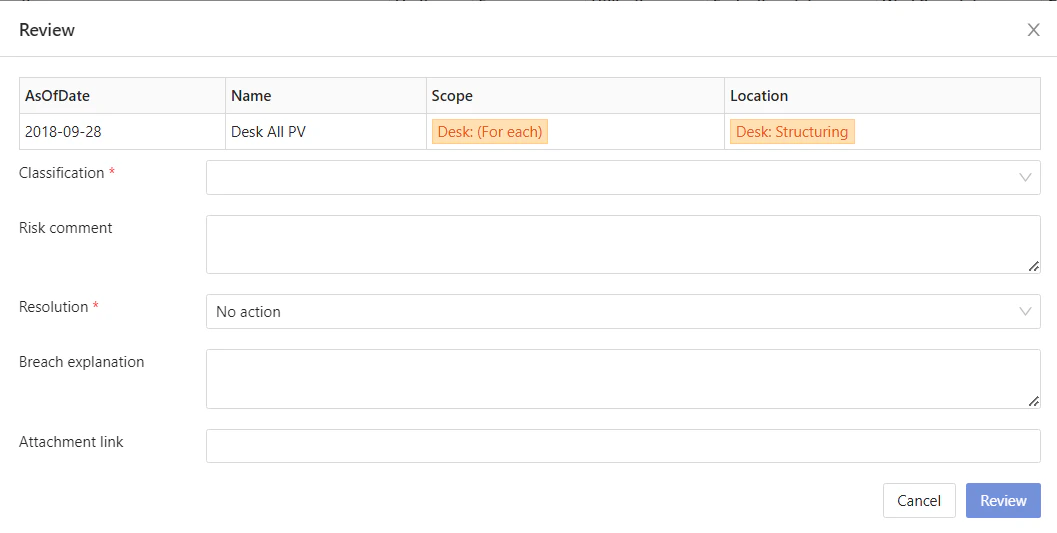
The **Review** dialog opens:

<Frame>
  <img src="https://mintcdn.com/activeviam/iy5FyCKdXjhHAnDS/atoti-intelligence/workflows/limits/6.1/images/breach-review-dialog.png?fit=max&auto=format&n=iy5FyCKdXjhHAnDS&q=85&s=a336e194f807d2192fe37836fd75caf9" alt="" width="1057" height="533" data-path="atoti-intelligence/workflows/limits/6.1/images/breach-review-dialog.png" />
</Frame>

* To review a breach alongside dashboard data:
  1. First ensure the limit is linked to a dashboard. For instructions on how to do this see [Linked dashboards](../using-limits/limits-inventory#linked-dashboards).
  2. Click the “View Utilization” icon next to the breach to open the relevant dashboard.
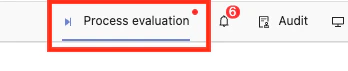
  3. From there, select the “Process Evaluation” button in the menu bar to review the limit.
     <Frame>
       <img src="https://mintcdn.com/activeviam/iy5FyCKdXjhHAnDS/atoti-intelligence/workflows/limits/6.1/images/process-evaluation.png?fit=max&auto=format&n=iy5FyCKdXjhHAnDS&q=85&s=5aeecd344d0347a269c5d14f268c9f27" alt="" width="348" height="71" data-path="atoti-intelligence/workflows/limits/6.1/images/process-evaluation.png" />
     </Frame>
     This opens a drawer where you can review the breach, just as you would using the Process icon in the **Actions** column on the status screen.

2. Fill in the required fields. These fields store information for audit and retrospective analysis of breach events.

<table><thead><tr><th>Field</th><th>Description</th></tr></thead><tbody><tr><td>Classification</td><td>Allows you to classify breaches according to the root cause of the breach.</td></tr><tr><td>Risk comment</td><td>Provide optional extra information on the selected <strong>Classification</strong>.</td></tr><tr><td>Resolution</td><td>Select the action to be taken to respond to this breach.</td></tr><tr><td>Breach explanation</td><td>Provide optional extra information on the selected <strong>Resolution</strong>.</td></tr><tr><td>Attachment link</td><td>Provide optional attachment link to relevant documentation. To learn more, see our video on <a href="../videos">adding attachments</a>.</td></tr></tbody></table>

3. Click **Save**. The limit’s status changes to `Reviewed`, and an entry is added to the **History** panel about the review.

## Warnings

The process for warnings is similar to that of breaches:

1. Select the breach to action:

* To comment on a single breach, click the Workflow Actions icon in the **Actions** column of the breach you want to review. Choose the **Comment** action from the drawer.
* To comment on a multiple incidents at the same time, select the checkbox of the breach you want to review, and click the **Comment button** above the table.

<Note>
  You can select multiple incidents of the same type, that is, breaches or warnings, but you can’t select a mix of breaches and warnings for bulk review.
</Note>

2. Fill in the required fields. These fields store information for audit and retrospective analysis of breach events.
3. Click **Save**. This does not change the limit’s status, but a `COMMENT` entry is added to the **History** panel.

## View the incident details

To check detailed information on a breach: in a limit’s **Actions** column, click the History icon to open the **History** panel. When a breach has not been reviewed yet, the **History** panel displays entries about when the limit was evaluated, and the result of the evaluation. Once you review the incident, a new entry displays the information provided during the review: the root cause of the breach in **Classification**, the **Resolution** indicating the action to be taken, and any comments.
