> ## Documentation Index
> Fetch the complete documentation index at: https://docs.activeviam.com/llms.txt
> Use this file to discover all available pages before exploring further.
# Evaluate limits
> How to trigger a limit evaluation in Atoti Limits, including scheduled intraday and end-of-day runs, and how to manually kick off an evaluation from the Inventory or Status screen.
Atoti Limits evaluates limits at regular intervals during the day, or at the end of each day, depending on the configuration.
However, you can also manually evaluate limit structures from the **Inventory** screen, or re-evaluate limits from the **Status** screen.
## Evaluate limit structures
To evaluate a limit structure:
1. In the **Inventory** screen, select the checkboxes of the limit structures you want to evaluate and click the **Evaluate** button.
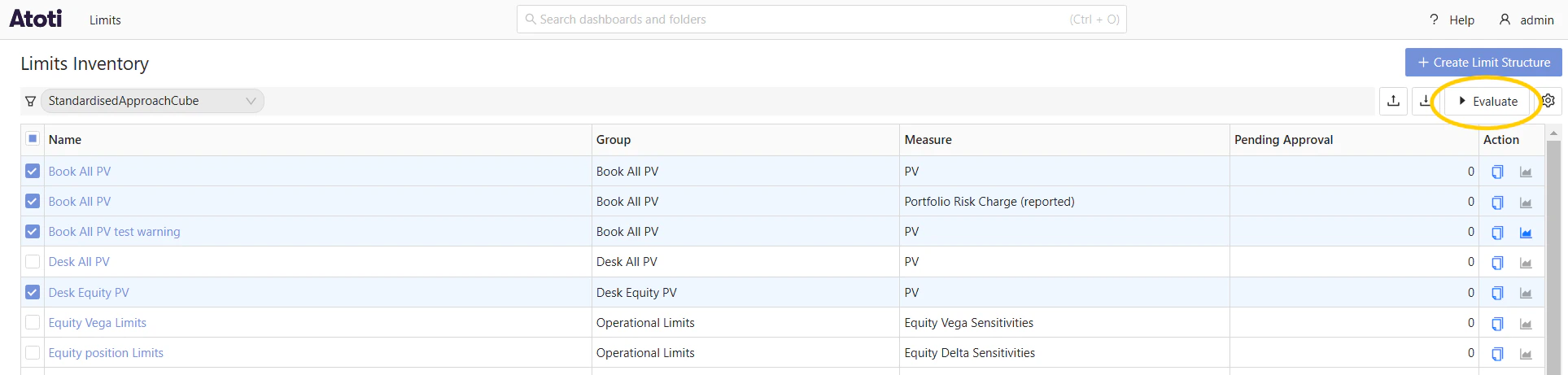 The **Evaluate Limit Structures** dialog opens:
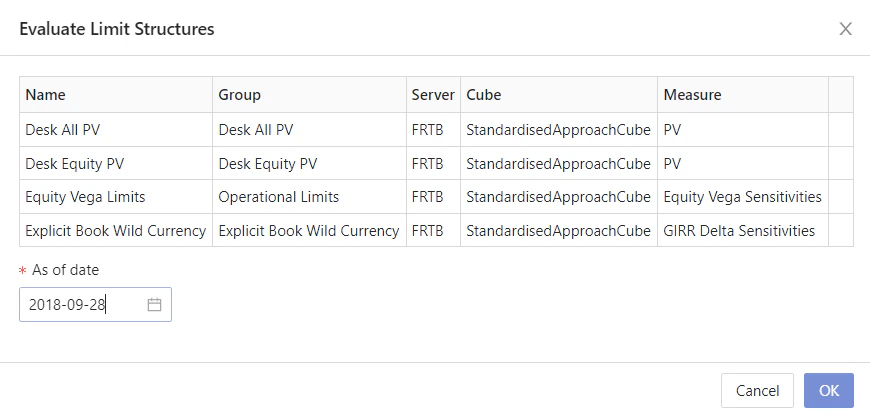 2. Fill in the **As of date** to perform the evaluation against.
By default, the **As of date** is populated with the latest available date in the Cube.
3. Click **OK**.
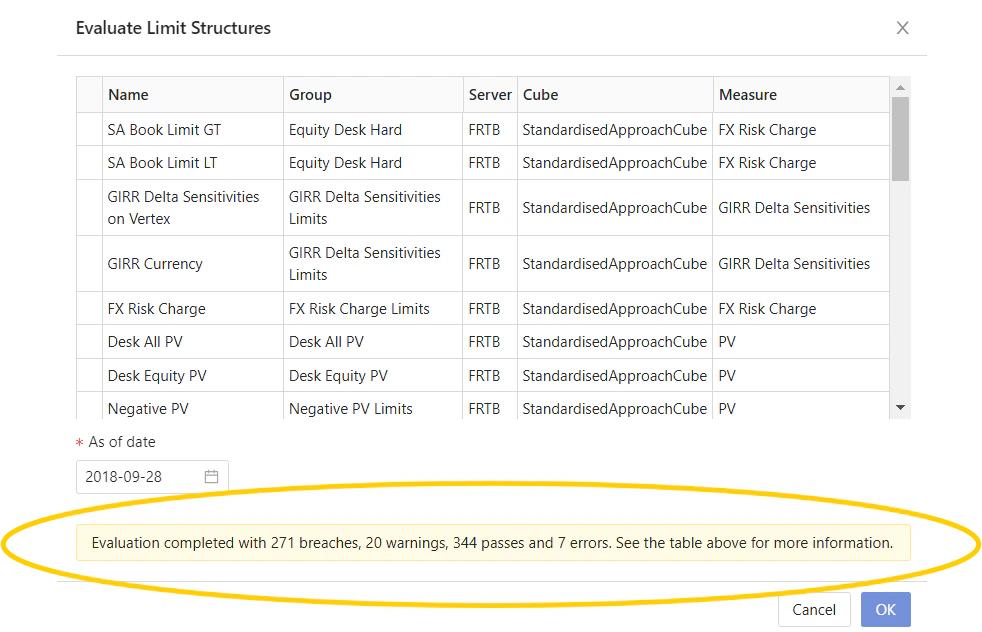
The table is updated to display the number of breaches and warnings that have been raised as a result of your evaluation.
2. Fill in the **As of date** to perform the evaluation against.
By default, the **As of date** is populated with the latest available date in the Cube.
3. Click **OK**.
The table is updated to display the number of breaches and warnings that have been raised as a result of your evaluation.
 4. Click the Close (**X**) button in the top right to close the **Evaluate Limit Structures** dialog.
## Re-evaluating a limit
After an incident has been observed, you may want to adjust your exposure and re-evaluate the limit. To do this:
1. Navigate to the **Status** screen by clicking **Limits** > **Status** in the top left corner of the UI.
4. Click the Close (**X**) button in the top right to close the **Evaluate Limit Structures** dialog.
## Re-evaluating a limit
After an incident has been observed, you may want to adjust your exposure and re-evaluate the limit. To do this:
1. Navigate to the **Status** screen by clicking **Limits** > **Status** in the top left corner of the UI.
 2. Find the limit to re-evaluate, and in the **Actions** column on the right, click the Re-evaluate button.
The **Re-evaluate** dialog opens:
2. Find the limit to re-evaluate, and in the **Actions** column on the right, click the Re-evaluate button.
The **Re-evaluate** dialog opens:
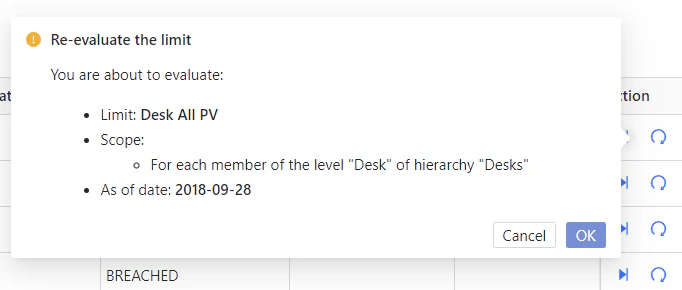 Click **OK** to confirm the re-evaluation of the limit. The **Breach** screen will refresh with the new breaches and warnings.