> ## Documentation Index
> Fetch the complete documentation index at: https://docs.activeviam.com/llms.txt
> Use this file to discover all available pages before exploring further.

# Data access permissions

> How to configure data access permissions in Atoti Limits to restrict which limits and incidents users can view, using role-based configuration properties for fields such as group, structure name, limit ID, and scope

Atoti Limits supports custom roles and permissions to manage access to the Limits cube and the limits and incidents users
can view. This page describes how to configure data access permissions for roles in Atoti Limits.

<Note>
  The roles referred to in this section should be defined in the properties of Atoti Limits, but users expected to have the roles
  will need to have these roles assigned to them in both Atoti Limits and the Atoti server. We recommend that you place your security
  configurations in one module, then depend on that module in both Atoti Limits and the Atoti server.
</Note>

## Prerequisite: define roles

Before configuring the permissions, ensure all users and roles have been defined in Atoti Limits. While it is possible, we strongly
advise against configuring permissions for the [predefined roles](./limits-roles) included with
Atoti Limits. These roles control basic access to features of the module and will be shared by many users. Instead,
define custom roles based on your business needs and assign them to users as required.

<Tip>
  Users can be assigned multiple data access roles, and the data they can access will be the intersection of the
  permissions granted by each role. For example, if `ROLE_A` grants access to `group = Group 1` and `ROLE_B` grants access
  to `scope = Book=Book 1`, a user with both roles will only be able to see limits with `group = Group 1` **and**
  `scope = Book=Book 1`.
</Tip>

Once you have defined some roles, you can configure the permissions for each role.

## Configure permissions

Atoti Limits uses configuration properties to define the permissions for each role. You can configure these properties
in the [`application.yml`](../../user-ref/properties/property-files/application-yml) file, and they are available in the application via the
`LimitsRolePermissionsConfigurationProperties` class. If defined, the application will use these properties to filter the
data that users can access.

Atoti Limits supports restricting access based on the following fields:

<table><thead><tr><th>Field</th><th>Sub property name</th></tr></thead><tbody><tr><td>Group</td><td>structure-groups</td></tr><tr><td>Structure Name</td><td>structure-names</td></tr><tr><td>Structure ID</td><td>structure-ids</td></tr><tr><td>Measure</td><td>structure-measures</td></tr><tr><td>Limit ID</td><td>limit-ids</td></tr><tr><td>Scope Level</td><td>scopes.level</td></tr><tr><td>Scope Members</td><td>scopes.members</td></tr></tbody></table>

### Property structure

The configuration is stored in a nested map structure. The top-level keys are server names, which let you define separate
permissions for different servers. The second-level keys are the role names, each mapping to a set of lists that define
the member values available to the role.

Generic example:

```yaml theme={"languages":{"custom":["/engine/python-sdk/0.9/languages/pycon.tmLanguage.json"]}}
limits:
  data-access-control:
    SERVER_NAME_1: # Define a separate set of permissions for each server as needed
      role-permissions:
        ROLE_EXAMPLE_1: # Define separate permissions for each role in the server
          structure-groups:
            - group1
            - group2
          structure-measures:
            - PnL
```

### Choose fields

Deciding which fields to use for restricting access will depend on your business requirements and data model. For example, let’s say
you have all Equity-related limits under the `Equity Desk` group, and you want users with role `ROLE_EQUITY_DESK` to only
see these limits and the incidents associated with them. In this case, you could configure the role to have a value defined
for the `structure-groups` field.

Here’s an example of this configuration:

```yaml theme={"languages":{"custom":["/engine/python-sdk/0.9/languages/pycon.tmLanguage.json"]}}
limits:
  data-access-control:
    MyServer:
      role-permissions:
        ROLE_EQUITY_DESK:
          structure-groups:
            - Equity Desk
```

When choosing which fields to use, it is also important to consider the relationship between the fields and how your
data is structured. The fields offer different levels of granularity for restricting access, and it is only necessary to
define members for the most granular fields that you want access to be restricted on. This is because granting access to a
member of one field will implicitly grant access to linked members of all other fields.

For example, say you have a limit with the following values:

* Group: `MyGroup`
* Structure Name: `MyStructure`
* Measure: `MyMeasure`
* Structure ID: `structure_1`
* Limit ID: `limit_1`

Defining a role with `limit-ids: [limit_1]` is the most granular way to grant access to this limit only. If this is the
only limit in the structure, the same result can be achieved with `structure-ids: [structure_1]` or `structure-names: [MyStructure]`,
but the role will have access to any limits that may be added to the structure in the future.

Another reason to always use the most granular field(s) possible is that the values can conflict if not configured correctly,
resulting in unexpected behavior. Building on the example above, in addition to the `limit-ids` value, say you configure the role
with `structure-ids: [structure_2]`. This will **not** result in the role having access to both `limit_1` and all limits
in `structure_2`, but rather no access at all. Instead, you should use the more granular of the two fields, `limit-ids`,
and list `limit_1` plus the IDs of the limits in `structure_2`.

#### Scopes

Scopes are configured slightly different from the other fields. Whereas the other fields are defined as lists of values,
the scopes are defined as a `level` value, a list of `members`, and a [`matchMode`](#match-mode). The `members` list is optional, and if
not defined, the role will have access to scopes for all members at the specified level. If `members` are present for a level,
the role will have access to the scopes for the members listed that are:

* `EQUALS` (=) or `TOTAL_EQUALS` (&=) AND
* Simple scope (single member) OR
* Advanced scope (multiple members) and all members are included in the permission properties

<Note>
  `NOT_EQUALS` (`<>`) and `TOTAL_NOT_EQUALS` (`&<>`) scopes are not supported in the permission properties. If your organization has limits with exclusive scopes,
  please use a field other than `scope` to control access to these limits.
</Note>

For example, the following configuration grants role `ROLE_3_BOOK_SCOPE` access to three member values on the `Book` level:

```yaml theme={"languages":{"custom":["/engine/python-sdk/0.9/languages/pycon.tmLanguage.json"]}}
limits:
  data-access-control:
    MyServer:
      role-permissions:
        ROLE_3_BOOK_SCOPE:
          scopes:
          - level: Book
            members:
              - Book 1
              - Book 2
              - Book 3
```

##### Match mode

The optional `matchMode` property lets you specify the way scopes are matched based on the configured member values. The following modes are available:

<table><thead><tr><th>Mode</th><th>Description</th></tr></thead><tbody><tr><td><code>MATCH\_ALL</code></td><td>The scopes filtered on will contain <strong>all</strong> configured member values, and <strong>only</strong> those member values. This is the <strong>default</strong> and <strong>most restrictive</strong> mode.</td></tr><tr><td><code>MATCH\_ANY</code></td><td>The scopes filtered on will contain <strong>any</strong> individual or combination of the configured member values, and <strong>only</strong> those member values.</td></tr><tr><td><code>CONTAINS\_ALL</code></td><td>The scopes filtered on will contain <strong>all</strong> configured member values, but <strong>may also contain</strong> levels and members that are not in the configuration.</td></tr><tr><td><code>CONTAINS\_ANY</code></td><td>The scopes filtered on will contain <strong>at least one</strong> of the configured member values, but <strong>may also contain</strong> levels and members that are not in the configuration. This is the <strong>least restrictive</strong> mode.</td></tr></tbody></table>

Let’s take a look at how the `matchMode` property affects the scopes that are accessible to users. First, we’ll log in to the application
as a user with no restrictions so we can see all the scopes in the cube:

<Frame>
  <img src="https://mintcdn.com/activeviam/iy5FyCKdXjhHAnDS/atoti-intelligence/workflows/limits/6.1/images/role-permissions/all-scopes-cube.png?fit=max&auto=format&n=iy5FyCKdXjhHAnDS&q=85&s=b2772ad2db1e38da6a952c2ffacb31fa" alt="All Scopes - Cube" width="1917" height="741" data-path="atoti-intelligence/workflows/limits/6.1/images/role-permissions/all-scopes-cube.png" />
</Frame>

And all the inventory available to this user based on those scopes:
<Frame>
  <img src="https://mintcdn.com/activeviam/iy5FyCKdXjhHAnDS/atoti-intelligence/workflows/limits/6.1/images/role-permissions/all-scopes-inventory.png?fit=max&auto=format&n=iy5FyCKdXjhHAnDS&q=85&s=ed1ccf718545c2f465d34092f1544c38" alt="All Scopes - Inventory" width="1918" height="985" data-path="atoti-intelligence/workflows/limits/6.1/images/role-permissions/all-scopes-inventory.png" />
</Frame>

##### `matchMode: MATCH_ALL` (default)

Next, we’ll configure a role with the following permissions:

```yaml theme={"languages":{"custom":["/engine/python-sdk/0.9/languages/pycon.tmLanguage.json"]}}
limits:
  data-access-control:
    MyServer:
      role-permissions:
        ROLE_BOOK_1_2_SCOPE:
          scopes:
          - level: Book
            members:
              - Book 1
              - Book 2
```

We assign this role to `restrictedUser` and log in to the application to see the scopes available to this user:

<Frame>
  <img src="https://mintcdn.com/activeviam/iy5FyCKdXjhHAnDS/atoti-intelligence/workflows/limits/6.1/images/role-permissions/match-all-book-scopes-cube.png?fit=max&auto=format&n=iy5FyCKdXjhHAnDS&q=85&s=26f30231875ebf720882aca86f2f3d5d" alt="Match All - Cube" width="1918" height="313" data-path="atoti-intelligence/workflows/limits/6.1/images/role-permissions/match-all-book-scopes-cube.png" />
</Frame>

And the inventory available to this user based on those scopes:

<Frame>
  <img src="https://mintcdn.com/activeviam/iy5FyCKdXjhHAnDS/atoti-intelligence/workflows/limits/6.1/images/role-permissions/match-all-book-scopes-inventory.png?fit=max&auto=format&n=iy5FyCKdXjhHAnDS&q=85&s=b6cd375bde67e6a5e28d699d7759b23e" alt="Match All - Inventory" width="1918" height="338" data-path="atoti-intelligence/workflows/limits/6.1/images/role-permissions/match-all-book-scopes-inventory.png" />
</Frame>

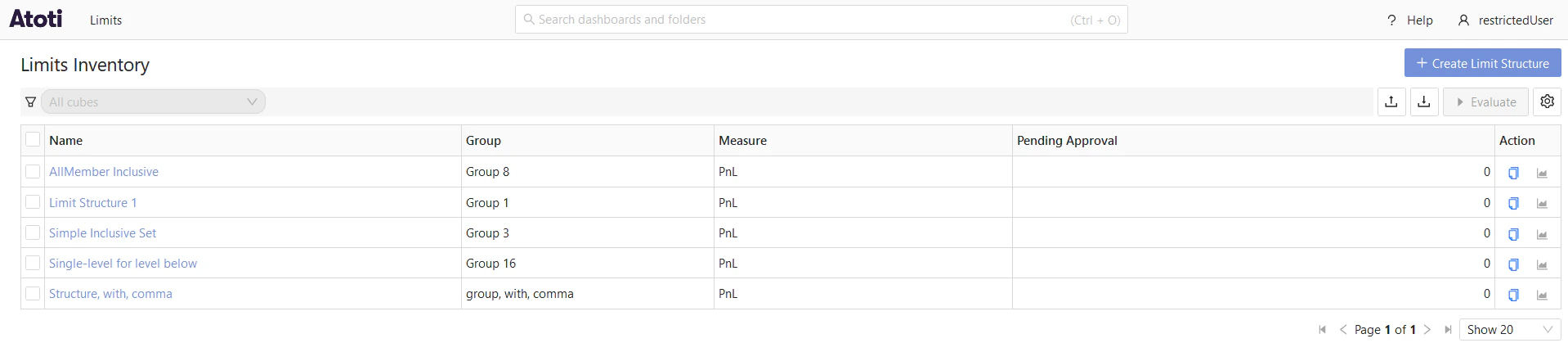
##### `matchMode: MATCH_ANY`

Next, we’ll update the configuration to set `matchMode` to `MATCH_ANY`:

```yaml theme={"languages":{"custom":["/engine/python-sdk/0.9/languages/pycon.tmLanguage.json"]}}
limits:
  data-access-control:
    MyServer:
      role-permissions:
        ROLE_BOOK_1_2_SCOPE:
          scopes:
          - match-mode: MATCH_ANY
            level: Book
            members:
              - Book 1
              - Book 2
```

We assign this role to `restrictedUser` and log in to the application to see the scopes available to this user:

<Frame>
  <img src="https://mintcdn.com/activeviam/iy5FyCKdXjhHAnDS/atoti-intelligence/workflows/limits/6.1/images/role-permissions/match-any-book-scopes-cube.png?fit=max&auto=format&n=iy5FyCKdXjhHAnDS&q=85&s=d56e633f0de17025d0d133a282eaa6f3" alt="Match Any - Cube" width="1918" height="361" data-path="atoti-intelligence/workflows/limits/6.1/images/role-permissions/match-any-book-scopes-cube.png" />
</Frame>

And the inventory available to this user based on those scopes:
<Frame>
  <img src="https://mintcdn.com/activeviam/iy5FyCKdXjhHAnDS/atoti-intelligence/workflows/limits/6.1/images/role-permissions/match-any-book-scopes-inventory.png?fit=max&auto=format&n=iy5FyCKdXjhHAnDS&q=85&s=d0208f386e83a7c612f8c18322fd9558" alt="Match Any - Inventory" width="1918" height="430" data-path="atoti-intelligence/workflows/limits/6.1/images/role-permissions/match-any-book-scopes-inventory.png" />
</Frame>

##### `matchMode: CONTAINS_ALL`

Next, we’ll update the configuration to set `matchMode` to `CONTAINS_ALL`:

```yaml theme={"languages":{"custom":["/engine/python-sdk/0.9/languages/pycon.tmLanguage.json"]}}
limits:
  data-access-control:
    MyServer:
      role-permissions:
        ROLE_BOOK_1_2_SCOPE:
          scopes:
          - match-mode: CONTAINS_ALL
            level: Book
            members:
              - Book 1
              - Book 2
```

We assign this role to `restrictedUser` and log in to the application to see the scopes available to this user:

<Frame>
  <img src="https://mintcdn.com/activeviam/iy5FyCKdXjhHAnDS/atoti-intelligence/workflows/limits/6.1/images/role-permissions/contains-all-book-scopes-cube.png?fit=max&auto=format&n=iy5FyCKdXjhHAnDS&q=85&s=28d82d202a0dbc44dae3ac40bdbabe78" alt="Contains All - Cube" width="1918" height="333" data-path="atoti-intelligence/workflows/limits/6.1/images/role-permissions/contains-all-book-scopes-cube.png" />
</Frame>

And the inventory available to this user based on those scopes:

<Frame>
  <img src="https://mintcdn.com/activeviam/iy5FyCKdXjhHAnDS/atoti-intelligence/workflows/limits/6.1/images/role-permissions/contains-all-book-scopes-inventory.png?fit=max&auto=format&n=iy5FyCKdXjhHAnDS&q=85&s=8db6fe9fdccba215d403f470951f3ed2" alt="Contains All - Inventory" width="1918" height="360" data-path="atoti-intelligence/workflows/limits/6.1/images/role-permissions/contains-all-book-scopes-inventory.png" />
</Frame>

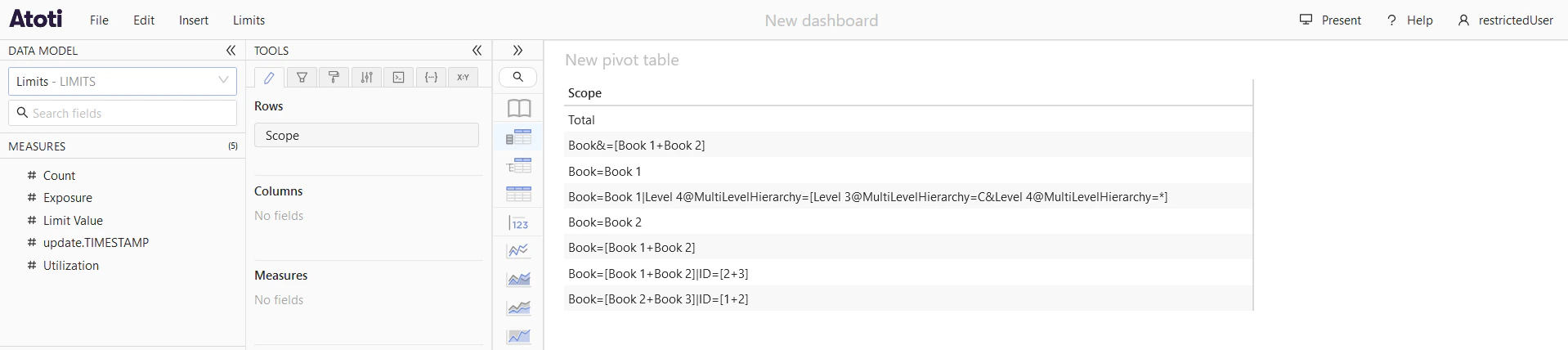
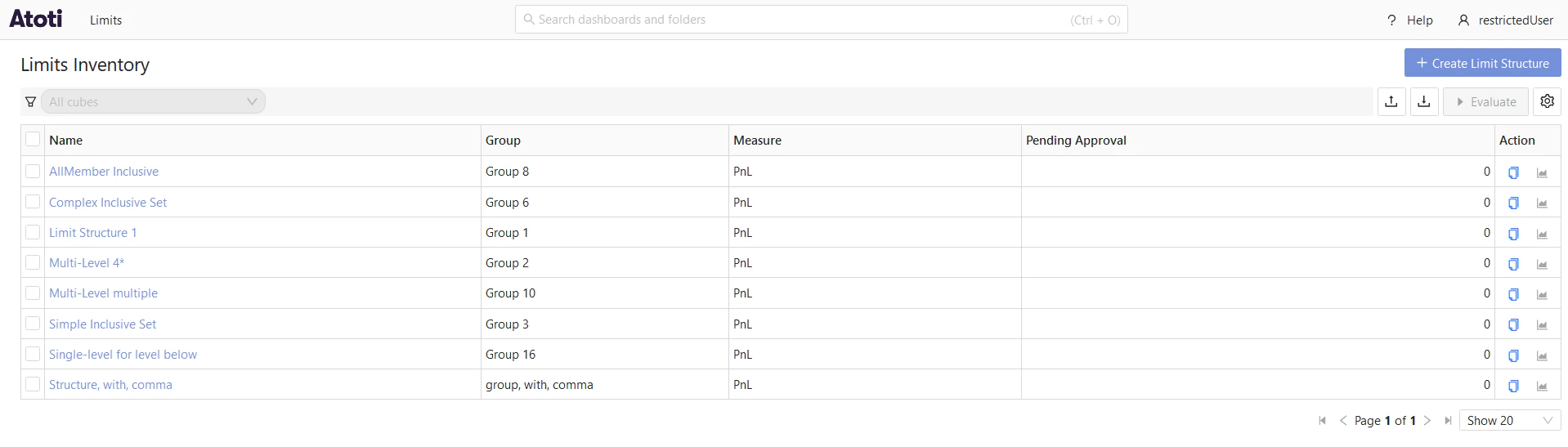
##### `matchMode: CONTAINS_ANY`

Next, we’ll update the configuration to set `matchMode` to `CONTAINS_ANY`:

```yaml theme={"languages":{"custom":["/engine/python-sdk/0.9/languages/pycon.tmLanguage.json"]}}
limits:
  data-access-control:
    MyServer:
      role-permissions:
        ROLE_BOOK_1_2_SCOPE:
          scopes:
          - match-mode: CONTAINS_ANY
            level: Book
            members:
              - Book 1
              - Book 2
```

We assign this role to `restrictedUser` and log in to the application to see the scopes available to this user:
<Frame>
  <img src="https://mintcdn.com/activeviam/iy5FyCKdXjhHAnDS/atoti-intelligence/workflows/limits/6.1/images/role-permissions/contains-any-book-scopes-cube.png?fit=max&auto=format&n=iy5FyCKdXjhHAnDS&q=85&s=e75b6c3a297b09b49c3e27f98813378b" alt="Contains Any - Cube" width="1918" height="428" data-path="atoti-intelligence/workflows/limits/6.1/images/role-permissions/contains-any-book-scopes-cube.png" />
</Frame>

And the inventory available to this user based on those scopes:
<Frame>
  <img src="https://mintcdn.com/activeviam/iy5FyCKdXjhHAnDS/atoti-intelligence/workflows/limits/6.1/images/role-permissions/contains-any-book-scopes-inventory.png?fit=max&auto=format&n=iy5FyCKdXjhHAnDS&q=85&s=d88d19979f91fd48e0b00ca0278c45fb" alt="Contains Any - Inventory" width="1918" height="547" data-path="atoti-intelligence/workflows/limits/6.1/images/role-permissions/contains-any-book-scopes-inventory.png" />
</Frame>

#### Multiple levels

If multiple levels are configured with member values in the permission properties, only member values configured with the same
`matchMode` will be considered together when filtering the scopes. For example, consider the following configuration:

```yaml theme={"languages":{"custom":["/engine/python-sdk/0.9/languages/pycon.tmLanguage.json"]}}
limits:
  data-access-control:
    MyServer:
      role-permissions:
        ROLE_BOOK_1_ID_1_SCOPE:
          scopes:
          - level: Book
            members:
              - Book 1
          - level: ID
            members:
              - ID 1
```

Both levels are configured with the default `matchMode` of `MATCH_ALL`. Since they share the same `matchMode`, the role will only
have access to scopes that match both `Book 1` and `ID 1` (i.e. `Book=Book 1|ID=1`). If you change the `matchMode` for the `ID` level to `CONTAINS_ALL`, the
role will then have access to scopes that either match `Book 1` or contain `ID 1` (i.e. `Book=Book 1`, `ID=1`, `Desk=Equities|ID=1`).

## Apply the permissions

The permissions configured in `application.yml` are automatically applied to the Limits cube when viewed in Atoti UI,
as well as to the **Inventory** and **Status** screens. The permissions are also applied to the KPIs and related calculated members
in the business cube, ensuring that users only see data that they have permission to access.

Assign these roles to users the same way as any other role in Atoti Limits. To control access to the KPIs and calculated members
created by Atoti Limits in the business cube, configure users with the same role(s) in the business server configuration as well.
<Note>
  Atoti Limits creates each KPI and calculated member with a default set of owners and readers based on the `limits.autoconfiguration.content-server.limits-created-measures-owners`
  property. This property should be auto-configured based on the owner of the `kpi` folder in the content server, which you can override if needed. Any user with that role
  will have access to *all* KPIs and calculated members, regardless of any other permissions. Unless you have a specific reason to do so, users with a data access role
  should **not** also be given the role from `limits-created-measures-owners`, as this will allow them to see KPIs and calculated members for data they can’t see in Atoti Limits.
</Note>

## Example

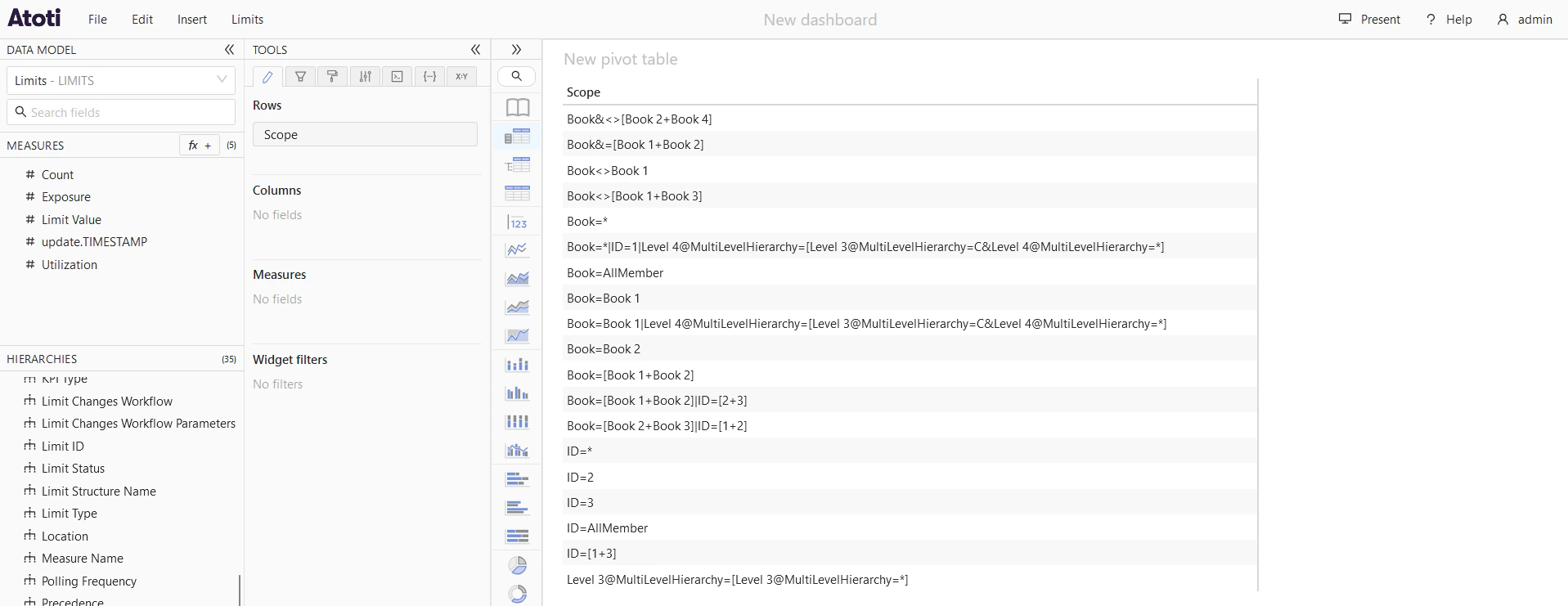
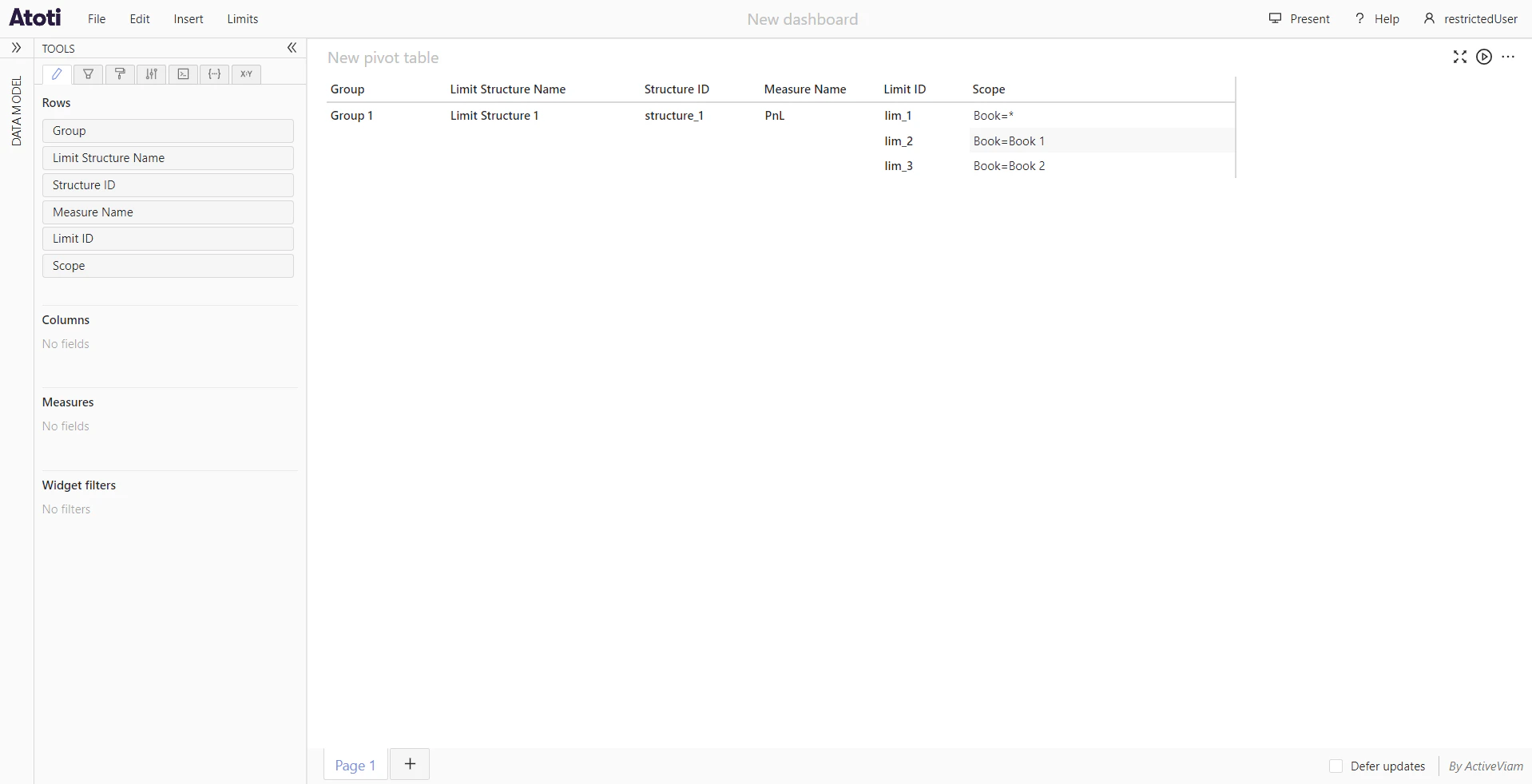
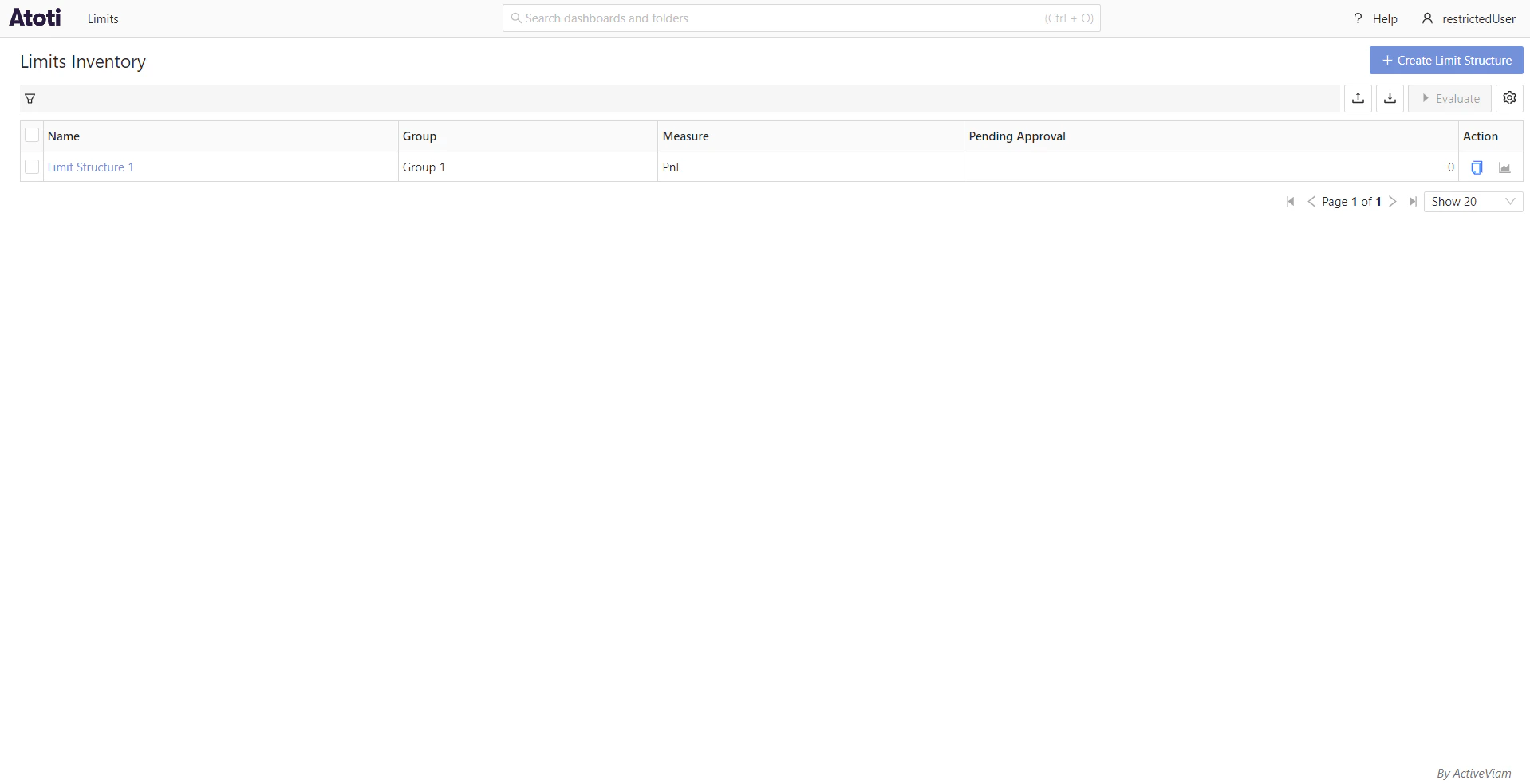
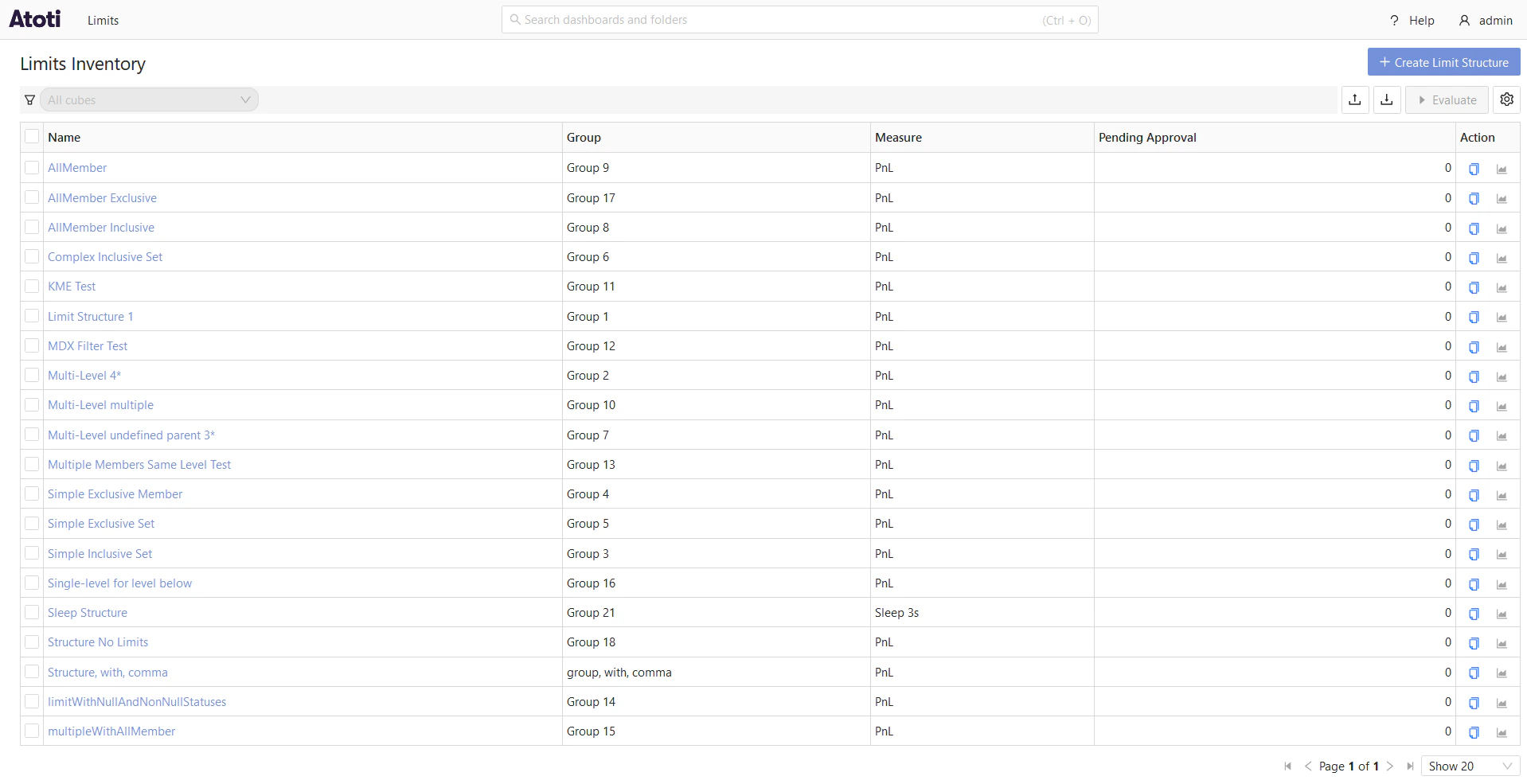
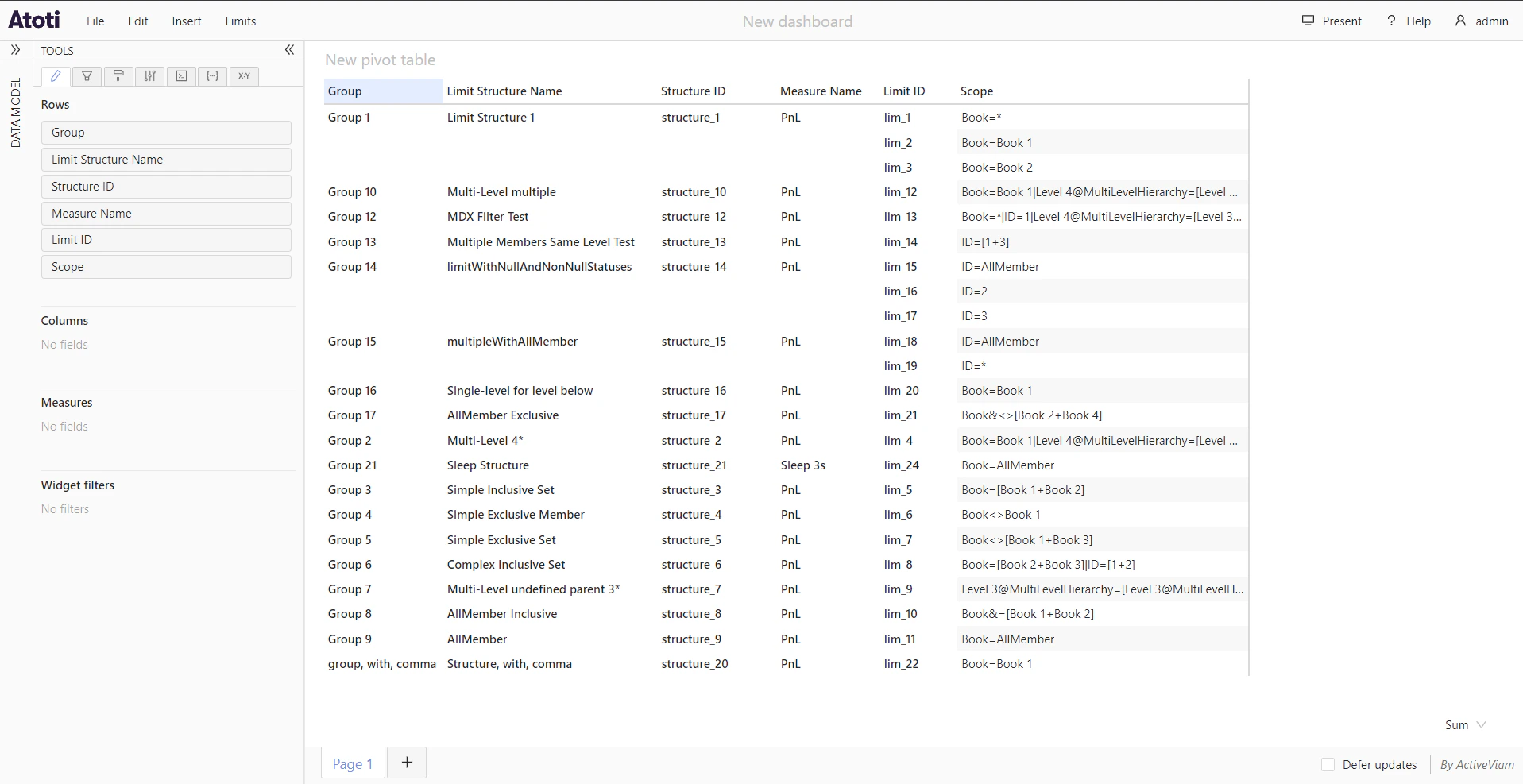
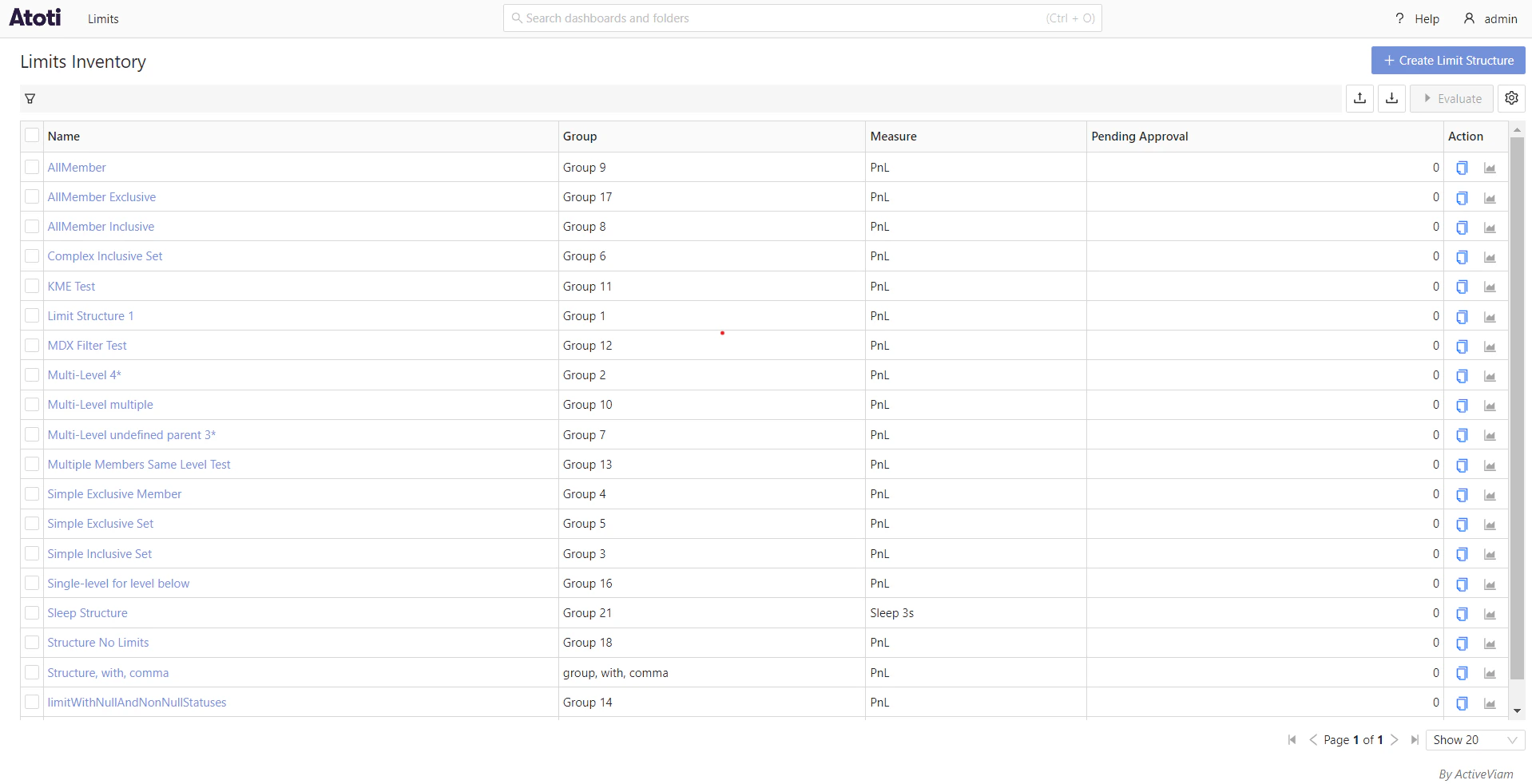
The following screenshots show the data available to 2 different users in the application: `admin` who does not have any
data restrictions, and `restrictedUser`, who has been configured to only have access to limits within the group `Group 1`.

Configuration:

```yaml theme={"languages":{"custom":["/engine/python-sdk/0.9/languages/pycon.tmLanguage.json"]}}
limits:
  data-access-control:
    servers:
      ConnectedAcc:
        role-permissions:
          ROLE_RESTRICTED_USER:
            structure-groups:
              - Group 1
```

### `admin`:

<Frame>
  <img src="https://mintcdn.com/activeviam/iy5FyCKdXjhHAnDS/atoti-intelligence/workflows/limits/6.1/images/role-permissions/admin-cube-view.png?fit=max&auto=format&n=iy5FyCKdXjhHAnDS&q=85&s=4b2a868c980c754010c13585f43a0fa8" alt="Admin cube view" width="1917" height="987" data-path="atoti-intelligence/workflows/limits/6.1/images/role-permissions/admin-cube-view.png" />
</Frame>

<Frame>
  <img src="https://mintcdn.com/activeviam/iy5FyCKdXjhHAnDS/atoti-intelligence/workflows/limits/6.1/images/role-permissions/admin-limits-inventory.png?fit=max&auto=format&n=iy5FyCKdXjhHAnDS&q=85&s=1b3a007ce874eb15a5ad7157e327c4c8" alt="Admin limits view" width="1918" height="982" data-path="atoti-intelligence/workflows/limits/6.1/images/role-permissions/admin-limits-inventory.png" />
</Frame>

### `restrictedUser`:

<Frame>
  <img src="https://mintcdn.com/activeviam/iy5FyCKdXjhHAnDS/atoti-intelligence/workflows/limits/6.1/images/role-permissions/restricted-cube-view.png?fit=max&auto=format&n=iy5FyCKdXjhHAnDS&q=85&s=d833915d9edaf36f8979b0b4da59120b" alt="Restricted user cube view" width="1918" height="982" data-path="atoti-intelligence/workflows/limits/6.1/images/role-permissions/restricted-cube-view.png" />
</Frame>

<Frame>
  <img src="https://mintcdn.com/activeviam/iy5FyCKdXjhHAnDS/atoti-intelligence/workflows/limits/6.1/images/role-permissions/restricted-limits-inventory.png?fit=max&auto=format&n=iy5FyCKdXjhHAnDS&q=85&s=70ee01a9781d20bfab83cc9f69fb74e5" alt="Restricted user limits view" width="1918" height="983" data-path="atoti-intelligence/workflows/limits/6.1/images/role-permissions/restricted-limits-inventory.png" />
</Frame>