> ## Documentation Index
> Fetch the complete documentation index at: https://docs.activeviam.com/llms.txt
> Use this file to discover all available pages before exploring further.
# Visualize This user guide
> How to interact with the Visualize This AI assistant in Atoti UI, covering natural language requests for charts and dashboards, cube knowledge queries, and the types of visualizations the assistant generates from Atoti-specific tool context.
Visualize This is a feature that enables AI-assisted visualization within the Atoti UI. It provides an integrated AI assistant and a set of Atoti-specific tools that together generate charts, dashboards, and insights from natural language queries.
### Atoti Intelligence Essentials
This is part of the Atoti Intelligence Essentials offer.
## What is Visualize This
Visualize This provides two core capabilities:
* **AI assistant**: an integrated AI assistant in the Atoti UI that generates visualizations on request
* **Atoti-specific tools**: a set of tools designed to work with Atoti's data structures and features
## Why use Visualize This
Visualize This is powered by a large language model with access to Atoti-specific tools. This combination makes it useful in three ways:
* **Data visualization**: Create charts, dashboards, and multi-widget pages from natural language requests, without manually configuring widgets. The assistant selects appropriate visualization types and maps your data to them.
* **Cube knowledge**: Ask questions about your cube structure — available measures, hierarchies, dimensions — and get answers drawn from the Atoti context provided to the assistant.
* **General-purpose assistance**: Because the assistant is backed by an LLM, it can also handle any question you would ask a conversational AI, from explaining a concept to writing a cookie recipe.
## Where to find the Visualize This
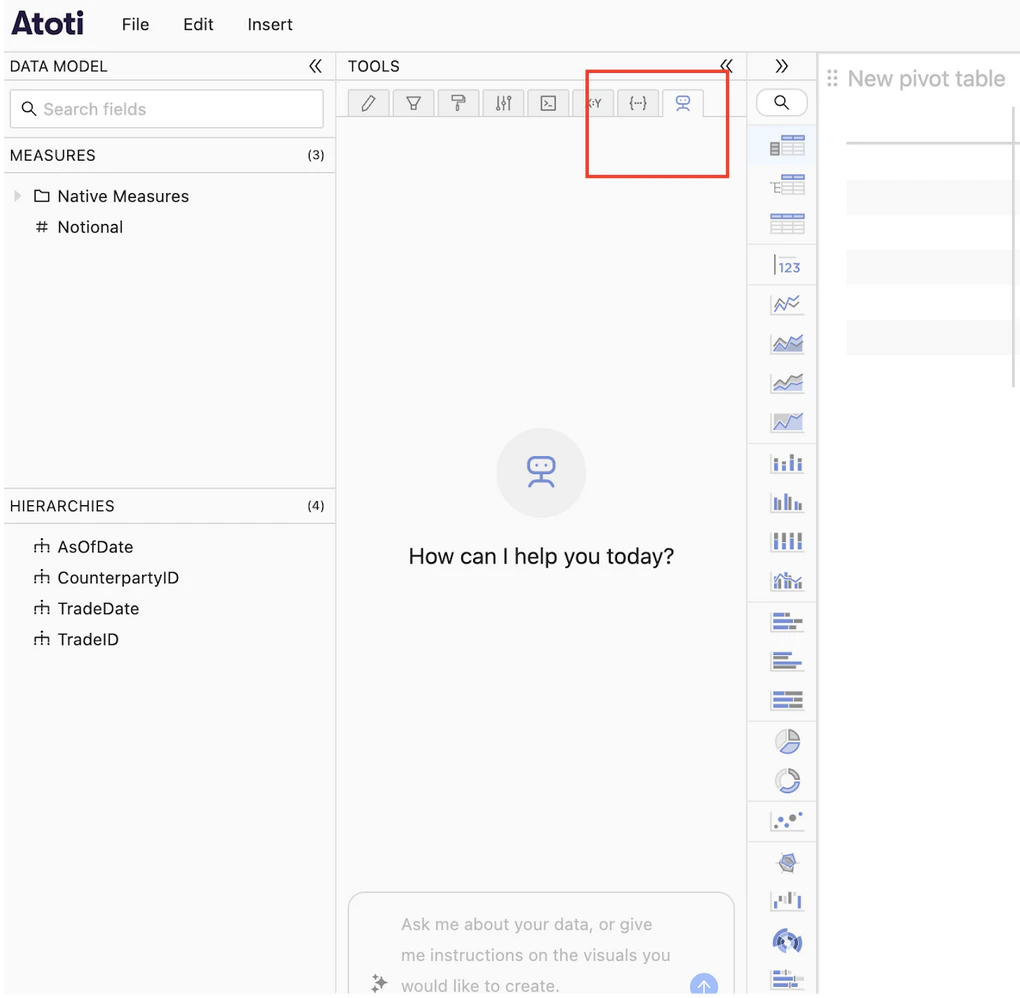
Visualize This appears in the Atoti UI after successful setup. No additional navigation is required to locate it.
The screenshot below shows the assistant as it appears in the interface:
 ## How to use Visualize This
### Prerequisites
Before using Visualize This, ensure the following requirements are met:
* Visualize This is set up in the project
* An LLM is configured
* The Atoti application is running
* The Atoti UI is accessible
### Create a visualization
Follow these steps to create a visualization with Visualize This:
1. Start the Atoti application
2. Open the Atoti UI in a browser
3. Locate Visualize This in the interface
4. Type a question or request in natural language
5. Wait for the assistant to generate the visualization
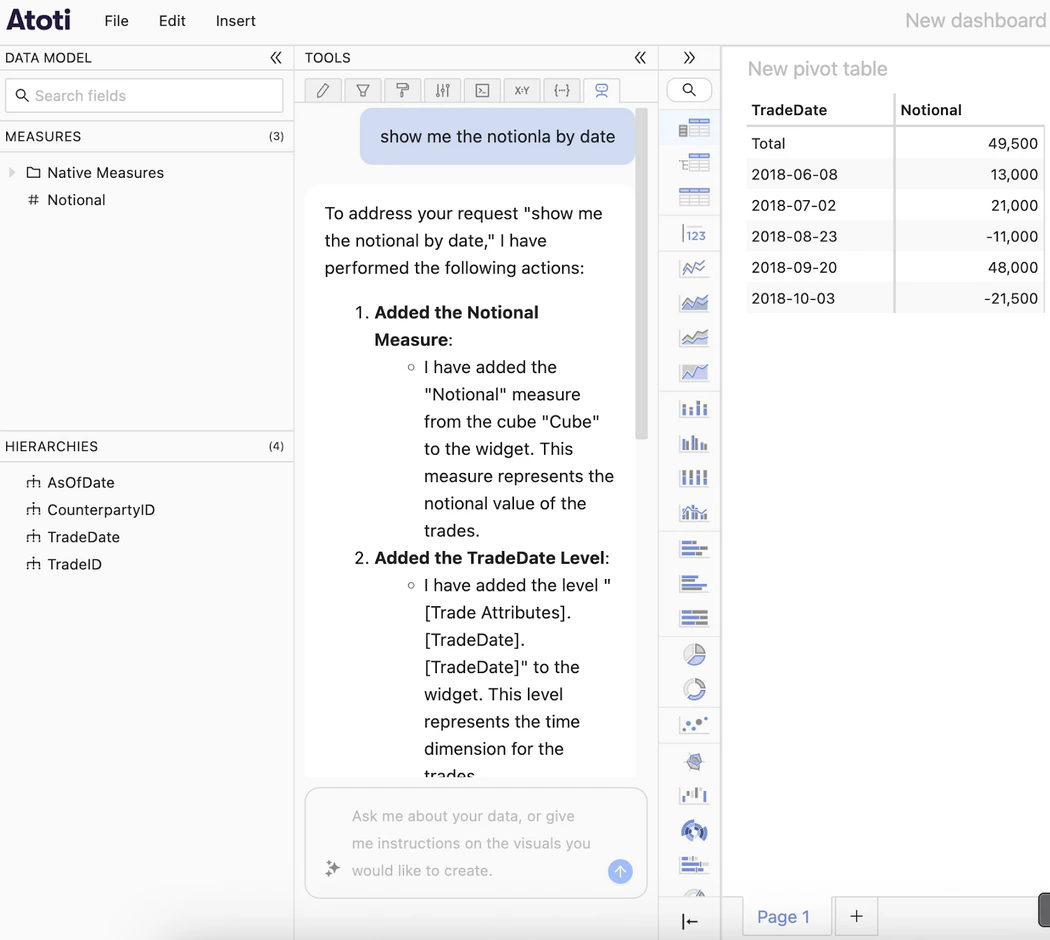
The screenshot below shows an example interaction:
## How to use Visualize This
### Prerequisites
Before using Visualize This, ensure the following requirements are met:
* Visualize This is set up in the project
* An LLM is configured
* The Atoti application is running
* The Atoti UI is accessible
### Create a visualization
Follow these steps to create a visualization with Visualize This:
1. Start the Atoti application
2. Open the Atoti UI in a browser
3. Locate Visualize This in the interface
4. Type a question or request in natural language
5. Wait for the assistant to generate the visualization
The screenshot below shows an example interaction:
 The assistant can handle the following types of requests:
* Create specific chart types such as bar charts, line graphs, and pie charts
* Analyze trends over time
* Compare values across dimensions
* Generate dashboards with multiple visualizations
## Related reading
* [Set up Visualize This](../developer-guide/enable-ai-tools/atoti-java-sdk/chat/setup) to configure the feature in a Java project
* [Configure Visualize This](../developer-guide/enable-ai-tools/atoti-java-sdk/chat/configuration) to add cube context and improve response quality
The assistant can handle the following types of requests:
* Create specific chart types such as bar charts, line graphs, and pie charts
* Analyze trends over time
* Compare values across dimensions
* Generate dashboards with multiple visualizations
## Related reading
* [Set up Visualize This](../developer-guide/enable-ai-tools/atoti-java-sdk/chat/setup) to configure the feature in a Java project
* [Configure Visualize This](../developer-guide/enable-ai-tools/atoti-java-sdk/chat/configuration) to add cube context and improve response quality