> ## Documentation Index
> Fetch the complete documentation index at: https://docs.activeviam.com/llms.txt
> Use this file to discover all available pages before exploring further.
# Auto-Explain user guide
> How to access and use Auto-Explain in Atoti UI to identify the root causes of metric changes, covering pivot table cell selection, context menu access, result interpretation, and contribution percentage output.
Auto-Explain is a feature that automatically analyzes data variations and identifies root causes. It examines the underlying data structure to determine which factors contributed to a metric change between two data points.
### Atoti Intelligence Essentials
This is part of the Atoti Intelligence Essentials offer.
## What is Auto-Explain
Auto-Explain analyzes data to identify the root causes of variations. When a metric changes between two data points, Auto-Explain examines the underlying data structure to determine which factors contributed to the change.
Auto-Explain produces two kinds of output:
* **Root-cause analysis**: the root cause members, their contribution percentages, and the contribution tables. This is produced by a deterministic algorithm and does not require an LLM.
* **AI summary**: an optional natural-language summary of the results. This requires an LLM to be configured. When no LLM is configured, requesting an AI summary returns a message indicating the AI summary is unavailable instead of a generated summary.
## Why use Auto-Explain
Auto-Explain reduces the time spent investigating data variations manually. Key benefits include:
* Identify root causes automatically
* Get clear explanations of metric changes
* Work with existing Atoti data models
* Focus analysis on relevant dimensions through configuration
## Where to find Auto-Explain
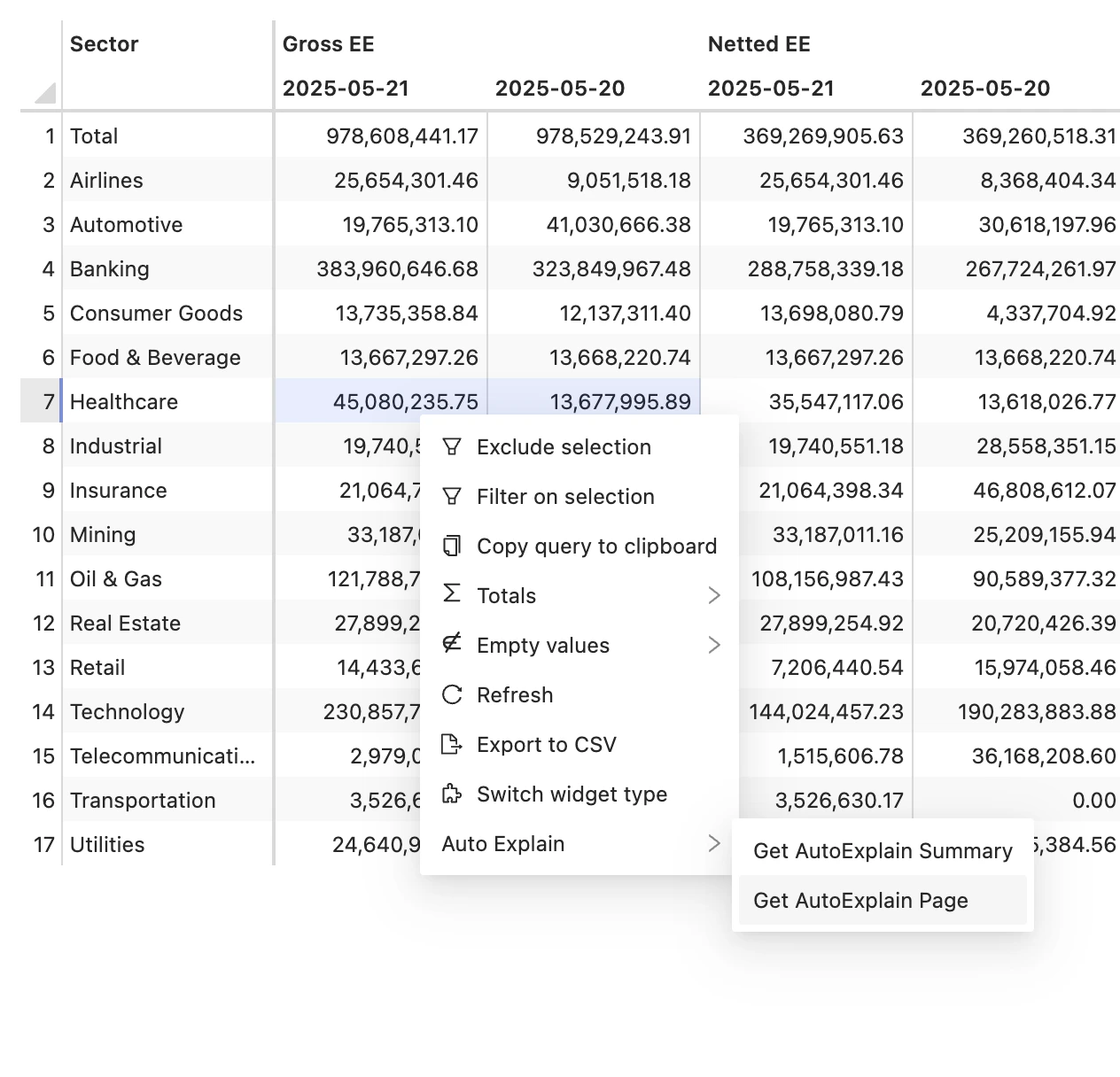
Auto-Explain is available in the context menu of pivot tables in the Atoti UI after successful setup.
To access it, right-click on a selected cell in a pivot table and select **Auto-Explain** from the context menu:
 ## How to use Auto-Explain
### Prerequisites
Before using Auto-Explain, ensure the following requirements are met:
* Auto-Explain is set up in the project
* The Atoti application is running
* The Atoti UI is accessible
* A pivot table with data is available
### Analyze a variation
Follow these steps to analyze a variation between two cells:
1. Open a pivot table in the Atoti UI
2. Select two cells to compare
3. Right-click one of the selected cells
4. Select **Auto-Explain** from the context menu
5. Wait for the analysis to complete
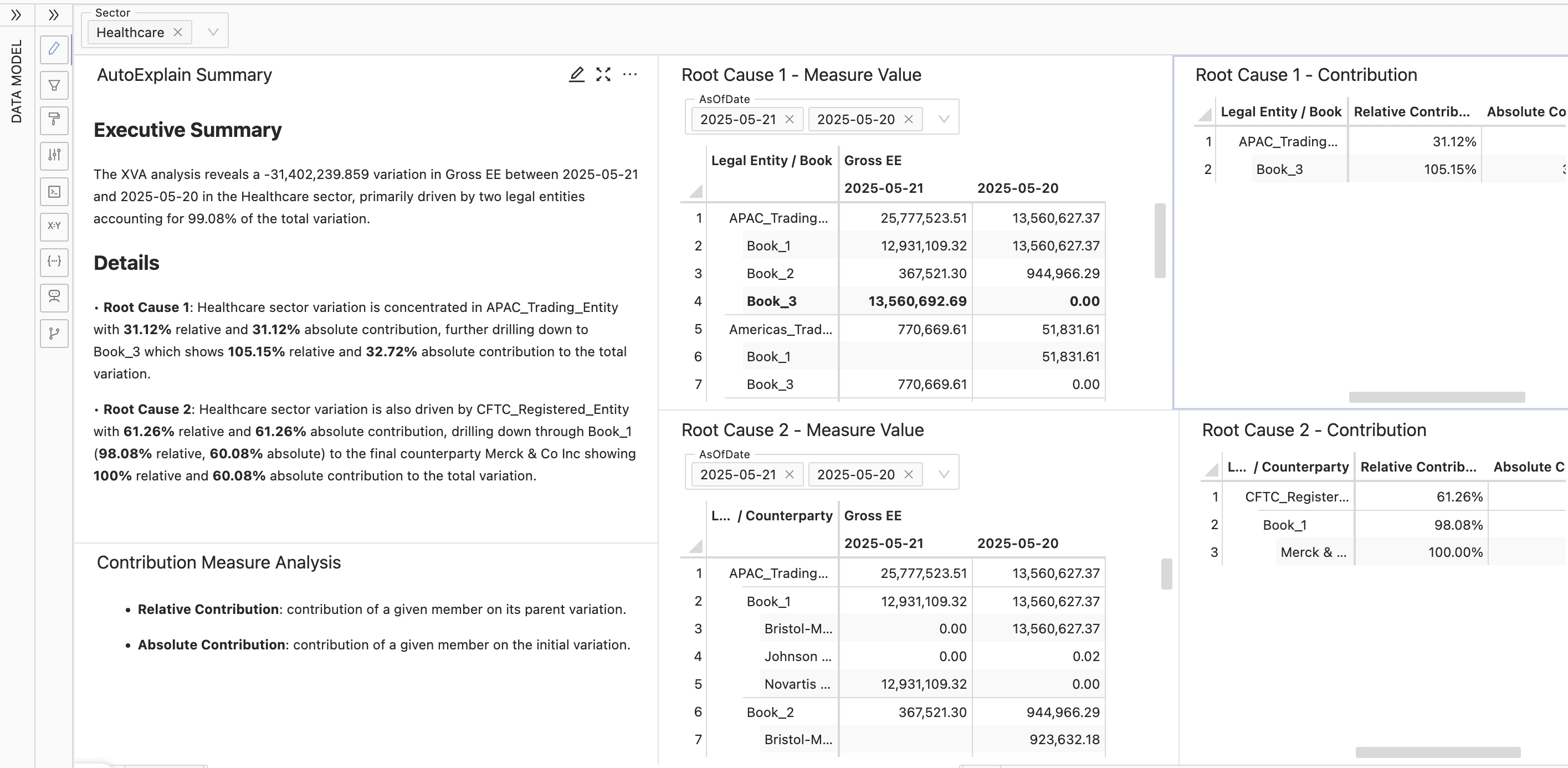
Auto-Explain analyzes the variation and displays the results:
## How to use Auto-Explain
### Prerequisites
Before using Auto-Explain, ensure the following requirements are met:
* Auto-Explain is set up in the project
* The Atoti application is running
* The Atoti UI is accessible
* A pivot table with data is available
### Analyze a variation
Follow these steps to analyze a variation between two cells:
1. Open a pivot table in the Atoti UI
2. Select two cells to compare
3. Right-click one of the selected cells
4. Select **Auto-Explain** from the context menu
5. Wait for the analysis to complete
Auto-Explain analyzes the variation and displays the results:
 ### Interpret the results
The Auto-Explain results always include:
* Root cause members that contribute to the variation
* Contribution percentages for each factor
* Hierarchy levels where variations occur
If an LLM is configured and the analysis was requested with AI summary enabled, an additional natural-language summary of the results appears below the contribution data. The AI disclaimer is displayed alongside the summary. If an AI summary is requested but no LLM is configured, a message indicating the AI summary is unavailable appears instead of a generated summary.
## Related reading
* [Set up Auto-Explain](../developer-guide/enable-ai-tools/atoti-java-sdk/auto-explain/setup) to add the feature to a Java project
* [Configure Auto-Explain](../developer-guide/enable-ai-tools/atoti-java-sdk/auto-explain/configuration) to customize analysis behavior and adjust thresholds
### Interpret the results
The Auto-Explain results always include:
* Root cause members that contribute to the variation
* Contribution percentages for each factor
* Hierarchy levels where variations occur
If an LLM is configured and the analysis was requested with AI summary enabled, an additional natural-language summary of the results appears below the contribution data. The AI disclaimer is displayed alongside the summary. If an AI summary is requested but no LLM is configured, a message indicating the AI summary is unavailable appears instead of a generated summary.
## Related reading
* [Set up Auto-Explain](../developer-guide/enable-ai-tools/atoti-java-sdk/auto-explain/setup) to add the feature to a Java project
* [Configure Auto-Explain](../developer-guide/enable-ai-tools/atoti-java-sdk/auto-explain/configuration) to customize analysis behavior and adjust thresholds