> ## Documentation Index
> Fetch the complete documentation index at: https://docs.activeviam.com/llms.txt
> Use this file to discover all available pages before exploring further.
# How to connect AI to an Atoti cube
> Atoti Intelligence connects AI in two directions: connect an LLM to Atoti via Spring AI for use from Atoti UI, or connect Atoti to any MCP-compatible third-party application via the Atoti MCP Server.
Atoti Intelligence does not bundle an LLM. How AI connects depends on where users work, and the two paths differ in what the client provides.
* **From Atoti UI — connect an LLM to Atoti.** The client brings an LLM and connects it to Atoti Server via Spring AI. Any Spring AI provider works. Atoti Server is the application: it hosts the agent, runs the agent loop on the Spring AI Chat Client, executes native Atoti tools against the cube, and enforces role-based security.
* **From a third-party application — connect Atoti to that application.** The client does not connect an LLM to Atoti. Instead, Atoti Server exposes an MCP server, built with Spring AI, that plugs into any MCP-compatible application (Claude, ChatGPT, and others). The third-party application brings its own LLM and agent, runs the agent loop, and calls Atoti tools through the MCP server. Atoti Server runs each tool request against the cube under the user's security context.
This page assumes familiarity with Atoti Server, Atoti UI, and the in-memory cube.
## Why does Atoti Intelligence need an LLM?
Atoti Intelligence does not include its own internal large language model (LLM). Clients connect an LLM of their choice instead. This approach provides:
* No vendor lock-in
* Flexibility to run on-premises, in the cloud, or with a custom LLM
* Full control over data privacy and model selection
An LLM enables Atoti Intelligence to:
* Analyze data and generate clear explanations
* Understand user queries in natural language
* Create visualizations based on context
* Provide conversational assistance
## What are the two ways to connect an LLM to an Atoti cube?
Atoti Intelligence connects to an LLM in one of two ways. The choice depends on where Atoti Intelligence is used.
1. Atoti UI is used to interact with Atoti Intelligence. The user's prompt is sent from Atoti UI.
2. A third-party application (Claude, ChatGPT, etc.) is used to interact with Atoti Intelligence. The user's prompt is sent from the third-party application's UI.
Keep in mind that Auto-Explain and Visualize This can only be used from inside an Atoti UI dashboard.
They are not available when interacting with Atoti from a third-party application.
### What are the building blocks of an LLM application?
An LLM application is built from a small set of elements. Each element has one role.
* **LLM**: The reasoning engine. It takes a question in plain text and returns an answer in plain text. It holds no memory between calls.
* **System prompt**: A message that gives the LLM context, examples, and guidance for handling different user queries.
* **Tools**: Actions the model can take to retrieve more data. Examples include querying a cube, calling a system, or running a calculation.
* **RAG**: Retrieval-Augmented Generation. Documents and data fetched from external sources to inform the answer.
* **Skill**: A focused, reusable capability. It pairs an instruction with the action that carries it out. It is composed of system prompts and tools.
* **Agent**: An LLM running in a loop. It reacts to prompts. At each step it decides whether to answer, fetch data through RAG, call a tool, or use a skill. The loop continues until the task is complete.
* **Application**: The layer that brings everything together. It wraps one or more agents in an interface and orchestrates each request end to end.
* **Application UI**: The part of the application where a user interacts with agents through prompts.
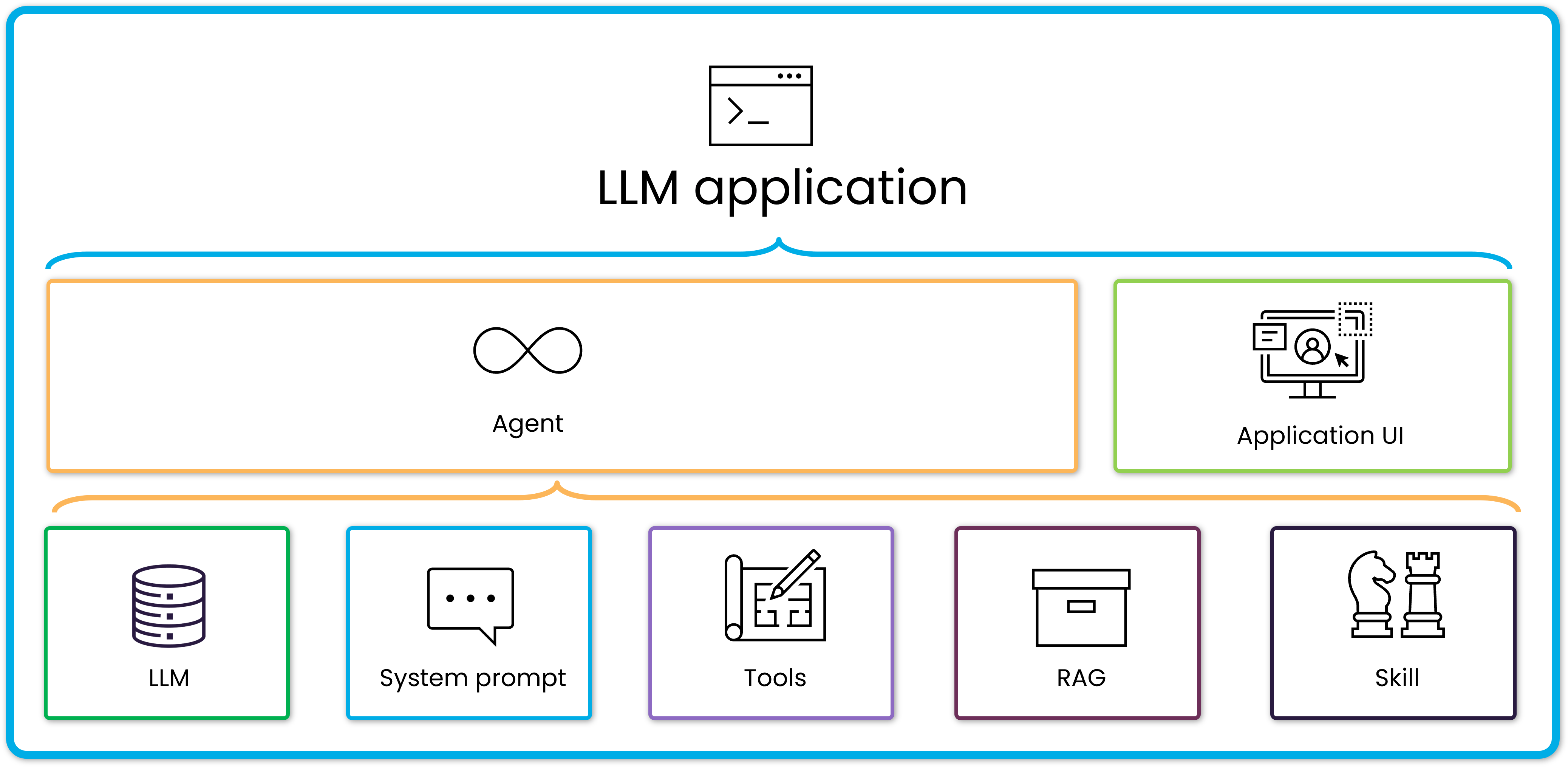 The structure of an LLM application
## How does an LLM connect to an Atoti cube?
The sections below cover each paths in full: how the integration is structured, and how a prompt becomes an answer.
Visualize This can only be used from inside an Atoti UI dashboard. This is not available when interacting with Atoti from a third-party application.
In both paths, the cube runs every query under the user's own profile. The difference is which system handles authentication and token passing.
### Prompts from Atoti UI
When Atoti UI is used for prompts, Atoti Server is the application.
Atoti Server hosts the agent and runs the agent loop on the Spring AI Chat Client. It executes native Atoti tools, including discovery, cube query, drillthrough, and filter, against the cube. It enforces role-based security on every query. The LLM is external to Atoti Server: it receives text and returns tool calls or a final answer.
Atoti UI is the application UI. Atoti UI Chat is the conversational entry into the cube. The analyst prompts in natural language.
The structure of an LLM application
## How does an LLM connect to an Atoti cube?
The sections below cover each paths in full: how the integration is structured, and how a prompt becomes an answer.
Visualize This can only be used from inside an Atoti UI dashboard. This is not available when interacting with Atoti from a third-party application.
In both paths, the cube runs every query under the user's own profile. The difference is which system handles authentication and token passing.
### Prompts from Atoti UI
When Atoti UI is used for prompts, Atoti Server is the application.
Atoti Server hosts the agent and runs the agent loop on the Spring AI Chat Client. It executes native Atoti tools, including discovery, cube query, drillthrough, and filter, against the cube. It enforces role-based security on every query. The LLM is external to Atoti Server: it receives text and returns tool calls or a final answer.
Atoti UI is the application UI. Atoti UI Chat is the conversational entry into the cube. The analyst prompts in natural language.
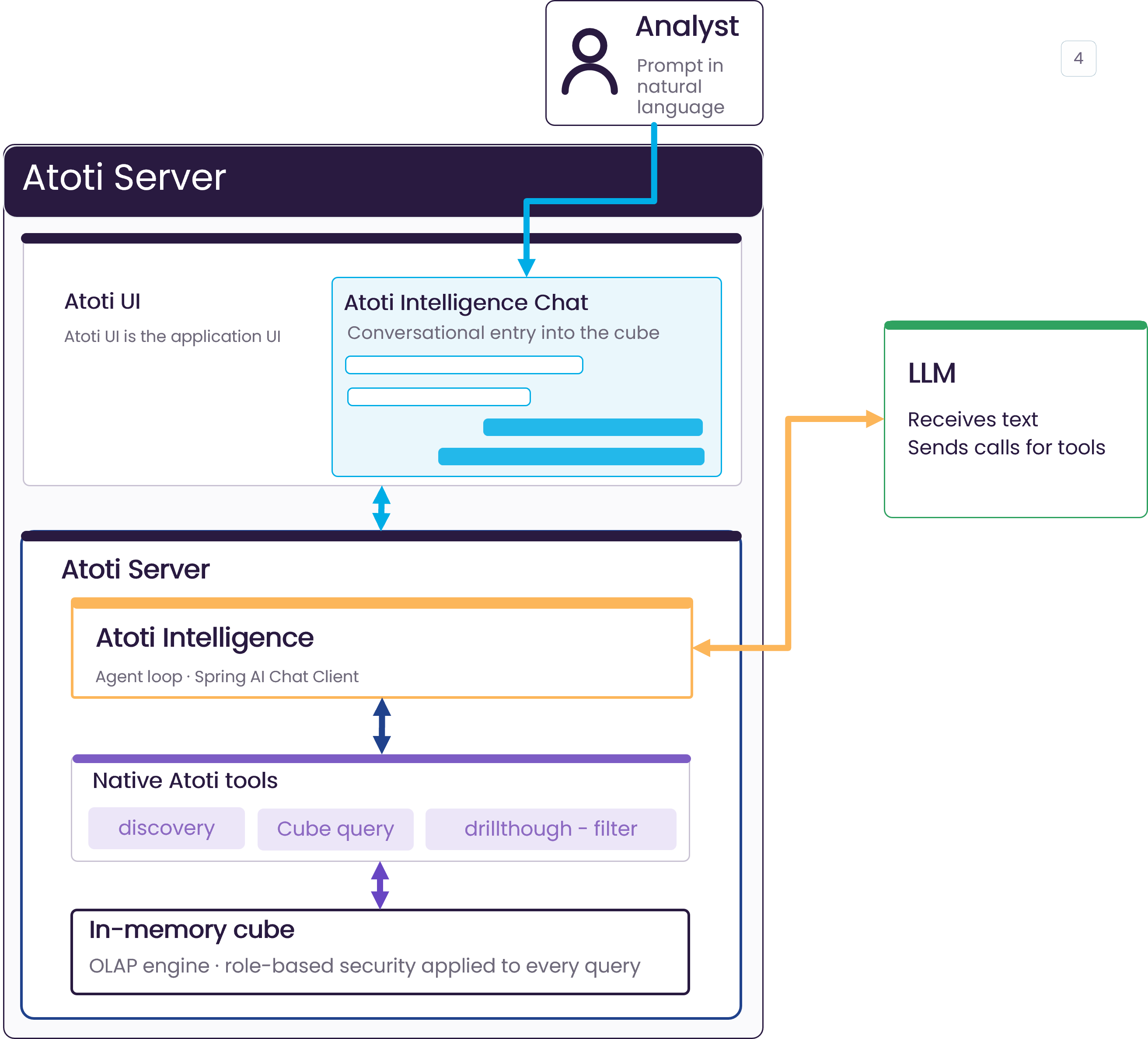 What happens when the analyst prompts Atoti Intelligence from Atoti UI
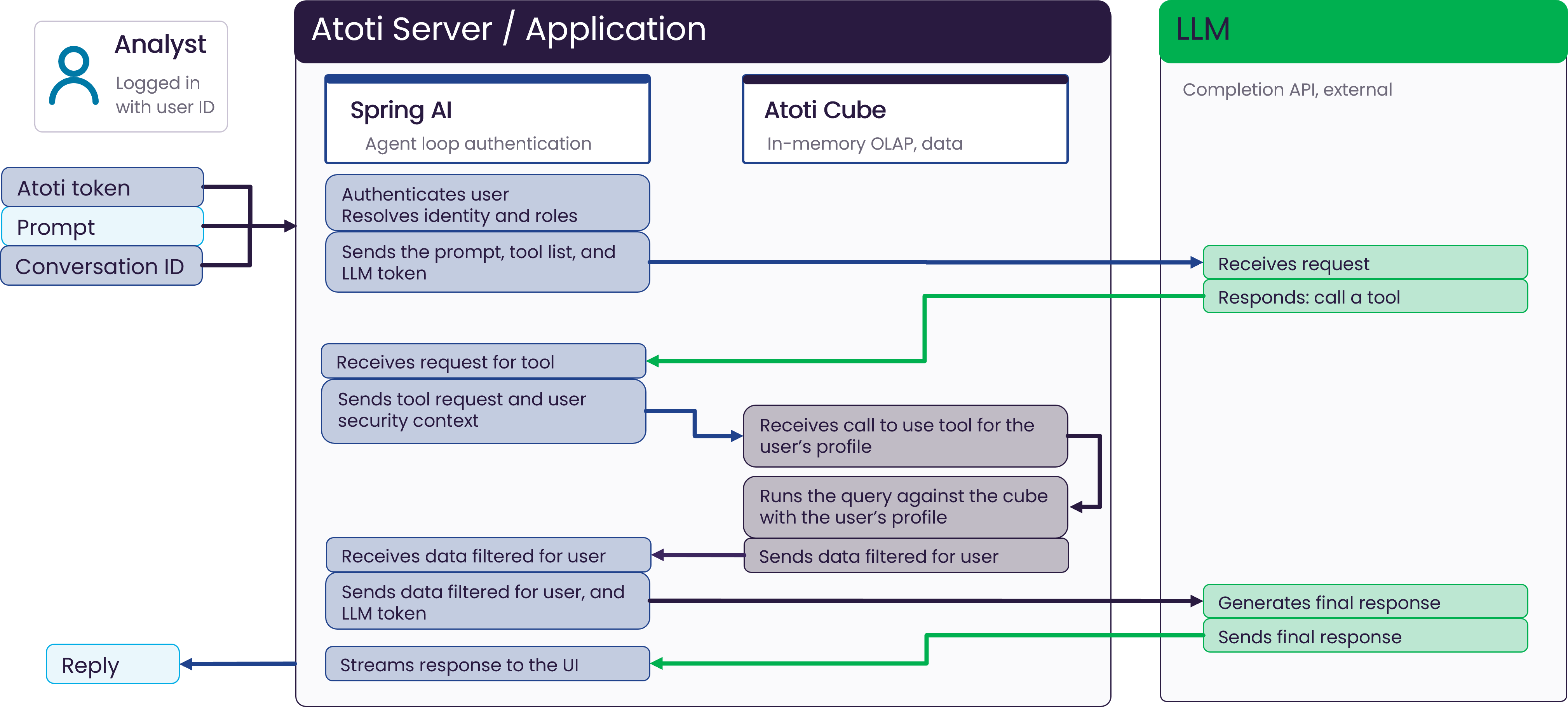
#### How a prompt becomes an answer from Atoti UI
This sequence describes the request loop when the analyst uses Atoti UI. Atoti Server runs the agent loop on the Spring AI Chat Client and authenticates the user. The Atoti cube provides the in-memory OLAP data. The LLM is reached through an external completion API.
1. The analyst, logged in with a user ID, sends a prompt and a conversation ID to Atoti Server.
2. Atoti Server authenticates the user and resolves identity and roles.
3. Atoti Server sends the prompt, the tool list, and the LLM token to the LLM.
4. The LLM receives the request and responds by asking to call a tool.
5. Atoti Server receives the call to use a tool for the user's profile.
6. Atoti Server sends the tool request and the user's security context to the cube.
7. The cube runs the query with the user's profile.
8. The cube sends data filtered for the user back to Atoti Server.
9. Atoti Server sends the filtered data and the LLM token to the LLM.
10. The LLM receives the filtered data and generates the final response.
11. The LLM sends the final response to Atoti Server.
12. Atoti Server streams the response to the UI as a reply.
What happens when the analyst prompts Atoti Intelligence from Atoti UI
#### How a prompt becomes an answer from Atoti UI
This sequence describes the request loop when the analyst uses Atoti UI. Atoti Server runs the agent loop on the Spring AI Chat Client and authenticates the user. The Atoti cube provides the in-memory OLAP data. The LLM is reached through an external completion API.
1. The analyst, logged in with a user ID, sends a prompt and a conversation ID to Atoti Server.
2. Atoti Server authenticates the user and resolves identity and roles.
3. Atoti Server sends the prompt, the tool list, and the LLM token to the LLM.
4. The LLM receives the request and responds by asking to call a tool.
5. Atoti Server receives the call to use a tool for the user's profile.
6. Atoti Server sends the tool request and the user's security context to the cube.
7. The cube runs the query with the user's profile.
8. The cube sends data filtered for the user back to Atoti Server.
9. Atoti Server sends the filtered data and the LLM token to the LLM.
10. The LLM receives the filtered data and generates the final response.
11. The LLM sends the final response to Atoti Server.
12. Atoti Server streams the response to the UI as a reply.
 #### Which LLM providers are supported?
Atoti Intelligence works with any LLM supported by Spring AI. Configuration guides are provided for:
* Amazon Bedrock
* OpenAI
### Prompts from a third-party application
When the third-party application is used for prompts, it hosts the agents.
The agents orchestrate the loop and run the Atoti tools against an Atoti cube.
The Atoti Model Context Protocol (MCP) Server bridges the third-party application and the Atoti data model.
It is a lightweight service that exposes Atoti's analytical capabilities to external LLMs.
The third-party application acts as an MCP client and connects to the Atoti MCP Server endpoint.
The Atoti MCP Server provides:
* Exposure of Atoti tools to LLM clients such as Claude
* Dynamic interaction with Atoti cubes, hierarchies, and measures
* Custom extensions for business-specific logic
* A standardized, vendor-agnostic integration protocol
Atoti Server uses native Atoti tools to run every query in the user's own security context.
The third-party application provides the UI and the conversational entry into the cube. The agent has access to an LLM, RAG, and tools such as search and write.
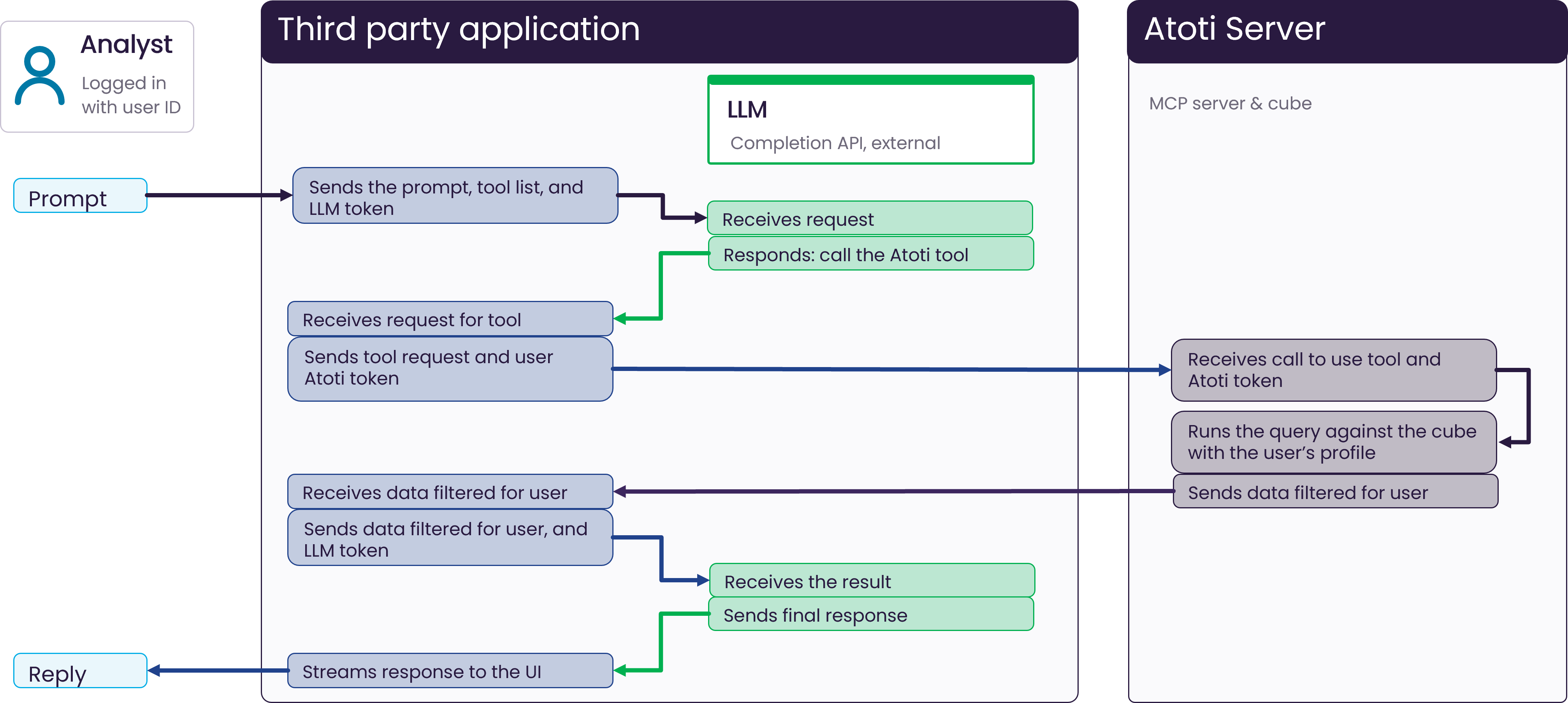
#### How a prompt becomes an answer from a third-party application
This sequence describes the request loop when the analyst uses a third-party application. The third-party application runs the agent loop. The Atoti MCP Server and cube run each query. The LLM is reached through an external completion API. The third-party application authenticates the user, holds the Atoti token, and passes it to the Atoti MCP Server with each tool request.
1. The analyst, logged in with a user ID, sends a prompt to the third-party application.
2. The third-party application sends the prompt, the tool list, and the LLM token to the LLM.
3. The LLM receives the request and responds by asking to call the Atoti tool.
4. The third-party application receives the call to use the tool, along with the Atoti token.
5. The third-party application sends the tool request and the user's Atoti token to the Atoti MCP Server.
6. Atoti Server receives the tool request and runs the query against the cube with the user's profile.
7. Atoti Server sends data filtered for the user back to the third-party application.
8. The third-party application sends the filtered data and the LLM token to the LLM.
9. The LLM receives the filtered data and generates the final response.
10. The LLM sends the final response to the third-party application.
11. The third-party application streams the response to the UI as a reply.
#### Which LLM providers are supported?
Atoti Intelligence works with any LLM supported by Spring AI. Configuration guides are provided for:
* Amazon Bedrock
* OpenAI
### Prompts from a third-party application
When the third-party application is used for prompts, it hosts the agents.
The agents orchestrate the loop and run the Atoti tools against an Atoti cube.
The Atoti Model Context Protocol (MCP) Server bridges the third-party application and the Atoti data model.
It is a lightweight service that exposes Atoti's analytical capabilities to external LLMs.
The third-party application acts as an MCP client and connects to the Atoti MCP Server endpoint.
The Atoti MCP Server provides:
* Exposure of Atoti tools to LLM clients such as Claude
* Dynamic interaction with Atoti cubes, hierarchies, and measures
* Custom extensions for business-specific logic
* A standardized, vendor-agnostic integration protocol
Atoti Server uses native Atoti tools to run every query in the user's own security context.
The third-party application provides the UI and the conversational entry into the cube. The agent has access to an LLM, RAG, and tools such as search and write.
#### How a prompt becomes an answer from a third-party application
This sequence describes the request loop when the analyst uses a third-party application. The third-party application runs the agent loop. The Atoti MCP Server and cube run each query. The LLM is reached through an external completion API. The third-party application authenticates the user, holds the Atoti token, and passes it to the Atoti MCP Server with each tool request.
1. The analyst, logged in with a user ID, sends a prompt to the third-party application.
2. The third-party application sends the prompt, the tool list, and the LLM token to the LLM.
3. The LLM receives the request and responds by asking to call the Atoti tool.
4. The third-party application receives the call to use the tool, along with the Atoti token.
5. The third-party application sends the tool request and the user's Atoti token to the Atoti MCP Server.
6. Atoti Server receives the tool request and runs the query against the cube with the user's profile.
7. Atoti Server sends data filtered for the user back to the third-party application.
8. The third-party application sends the filtered data and the LLM token to the LLM.
9. The LLM receives the filtered data and generates the final response.
10. The LLM sends the final response to the third-party application.
11. The third-party application streams the response to the UI as a reply.
 ## Next steps and related reading
* [Connect an LLM to prompt from Atoti UI](../developer-guide/enable-ai-tools/atoti-java-sdk/llm-set-up/llm-config)
* [Connect a third-party application to prompt Atoti](..//developer-guide/mcp-server/introduction)
## Next steps and related reading
* [Connect an LLM to prompt from Atoti UI](../developer-guide/enable-ai-tools/atoti-java-sdk/llm-set-up/llm-config)
* [Connect a third-party application to prompt Atoti](..//developer-guide/mcp-server/introduction)