> ## Documentation Index
> Fetch the complete documentation index at: https://docs.activeviam.com/llms.txt
> Use this file to discover all available pages before exploring further.
# How to connect with Postman
> How to test and debug the Atoti MCP Server with Postman, including Basic Auth configuration, tool discovery via SSE, JSON-RPC `tools/call` POST request format, response interpretation, and custom tool validation.
This guide explains how to use Postman to test and interact with the Atoti MCP server.
## Why connect with Postman?
Using Postman to connect to the MCP server provides several benefits:
* Test MCP server configuration and availability
* Validate tool discovery and execution
* Explore available tools and their parameters
* Debug integration issues
* Test custom tools during development
## Prerequisites
Before connecting with Postman, ensure the following requirements are met:
* Atoti MCP server is set up and running
* Postman is installed (desktop or web version)
* Atoti application credentials (username and password)
* The MCP server endpoint URL (typically `http://localhost:PORT/mcp`)
## Configure authentication
Set up authentication in Postman to access the MCP server.
Follow these steps:
1. Open Postman
2. Create a new request
3. Select the Authorization tab
4. Choose "Basic Auth" as the type and enter the Atoti username and password, or choose "Bearer Token" and paste a token generated from the [MCP credentials page](./mcp-credentials-page).
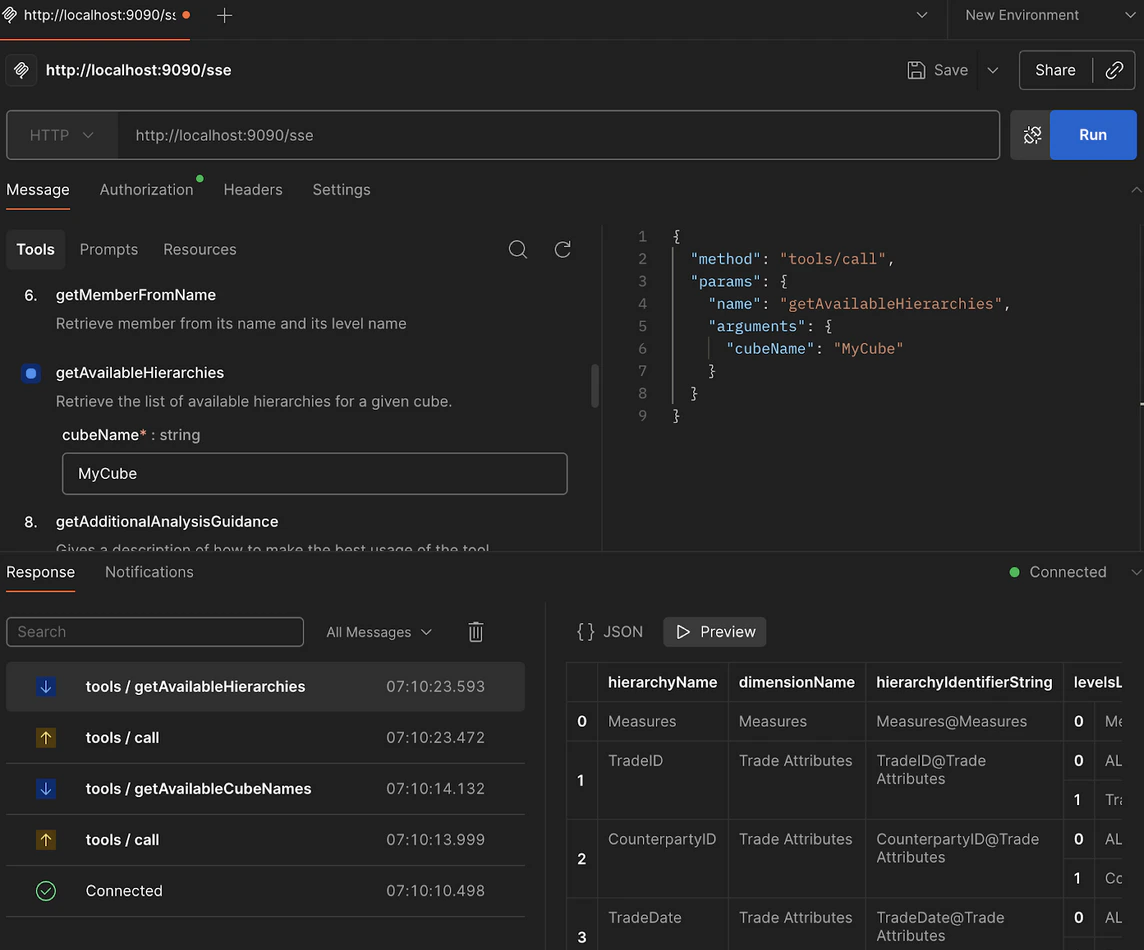
## Discover available tools
Make a request to the MCP server to discover available tools.
The following example shows a request to list tools:
 ## Make tool requests
After discovering available tools, make requests to execute specific tools.
Configure the request with the following components:
* **Method**: POST
* **URL**: The MCP server endpoint
* **Headers**:
* `Content-Type: application/json`
* `Accept: text/event-stream` (for SSE endpoints)
* **Body**: JSON payload with tool name and parameters
## Example request structure
The following example shows a typical tool execution request:
```json theme={"languages":{"custom":["/engine/python-sdk/0.9/languages/pycon.tmLanguage.json"]}}
{
"jsonrpc": "2.0",
"id": 1,
"method": "tools/call",
"params": {
"name": "tool-name",
"arguments": {
"parameter1": "value1",
"parameter2": "value2"
}
}
}
```
Replace the following placeholders:
* `tool-name`: The name of the tool to execute
* `parameter1`, `parameter2`: Tool-specific parameters
* `value1`, `value2`: Parameter values
## Interpret responses
The MCP server returns responses in JSON-RPC format.
A successful response includes:
* Response data in the `result` field
* Request ID matching the original request
* HTTP status code 200
An error response includes:
* Error details in the `error` field
* Error code and message
* HTTP error status code
## Common use cases
Use Postman to test the following scenarios:
* Verify MCP server availability
* List all available tools
* Execute tools with different parameters
* Test authentication and authorization
* Validate custom tool implementations
* Debug integration issues
## Troubleshooting
If connections fail, check the following:
* The Atoti application is running
* The MCP server endpoint is accessible
* Authentication credentials are correct
* The request format matches JSON-RPC specifications
* Firewall or network settings allow connections
## Related reading
After testing with Postman, consider:
* [Connect with Claude](./connect-with-claude) for AI-powered interaction
* [Add custom tools](../custom-tools) to extend functionality
## Make tool requests
After discovering available tools, make requests to execute specific tools.
Configure the request with the following components:
* **Method**: POST
* **URL**: The MCP server endpoint
* **Headers**:
* `Content-Type: application/json`
* `Accept: text/event-stream` (for SSE endpoints)
* **Body**: JSON payload with tool name and parameters
## Example request structure
The following example shows a typical tool execution request:
```json theme={"languages":{"custom":["/engine/python-sdk/0.9/languages/pycon.tmLanguage.json"]}}
{
"jsonrpc": "2.0",
"id": 1,
"method": "tools/call",
"params": {
"name": "tool-name",
"arguments": {
"parameter1": "value1",
"parameter2": "value2"
}
}
}
```
Replace the following placeholders:
* `tool-name`: The name of the tool to execute
* `parameter1`, `parameter2`: Tool-specific parameters
* `value1`, `value2`: Parameter values
## Interpret responses
The MCP server returns responses in JSON-RPC format.
A successful response includes:
* Response data in the `result` field
* Request ID matching the original request
* HTTP status code 200
An error response includes:
* Error details in the `error` field
* Error code and message
* HTTP error status code
## Common use cases
Use Postman to test the following scenarios:
* Verify MCP server availability
* List all available tools
* Execute tools with different parameters
* Test authentication and authorization
* Validate custom tool implementations
* Debug integration issues
## Troubleshooting
If connections fail, check the following:
* The Atoti application is running
* The MCP server endpoint is accessible
* Authentication credentials are correct
* The request format matches JSON-RPC specifications
* Firewall or network settings allow connections
## Related reading
After testing with Postman, consider:
* [Connect with Claude](./connect-with-claude) for AI-powered interaction
* [Add custom tools](../custom-tools) to extend functionality